Manage an event's conversations
The "Conversations" tab gathers an event's emails, calls and platform requests: see what awaits a reply, answer, link or move.
Aggiornato il
Around an event, conversations scatter: emails with the client and their assistant, a Kactus request moving forward on the platform, a call made yesterday. When a colleague takes over the file, they need to see at a glance who is waiting for an answer and why a given email is there.
An event's "Conversations" tab sorts all of this by channel. Each conversation says why it is linked, a platform request reads like a chat with bubbles, and "To reply" only lights up when it really is the venue's turn to answer.
What you'll learn
- Read the "Conversations" tab: channels, conversations, "To reply".
- Follow a platform request in its bubble view.
- Send an email and reply in a conversation.
- Link, unlink or move a conversation, and recover forgotten emails.
- Set your own signature on a shared mailbox.
Prerequisites
- To send: your Gmail or Outlook mailbox connected, or a mailbox a teammate shared with the team ("Settings" > "My mailbox"). Without a mailbox, you can read the conversations your teammates linked.
- To link, unlink or move: a role that can edit events. These actions are hidden on an archived event.
- For platform requests: the Chrome extension, which reads the platform pages.
1. Read the "Conversations" tab
Open the event, then the "Conversations" tab. When an exchange is waiting for the venue, the tab shows "To reply" in orange instead of the number of emails.
When the event has several channels, a "Channels" column lists them on the left (a row that scrolls on a narrow screen):
- "All exchanges": every conversation, one row per exchange.
- One row per platform request, named by platform, venue and number, with its status ("Accepted", "Quote sent"…) and its number of messages.
- "Emails" and "Calls" (with a connected phone system).
The "To reply" button isolates what is waiting for your answer. It does not count an exchange where a teammate wrote last, a message from the platform's staff, a declined, cancelled or expired request, or a lost, cancelled or archived event. When nothing is waiting, the list says so: "Nothing waits on your answer."
2. Open a conversation
Click a row: the conversation opens in place of the list (back arrow or Esc to return). Under the title, a sentence says why it is linked to this event, for example:
- "Reply to an email sent from this event"
- "Email of the request this event came from"
- "Exchanged with a contact of the event"
- "Quotes the request number"
- "Follows a conversation already linked"
- "Linked by hand by" followed by the person's first name
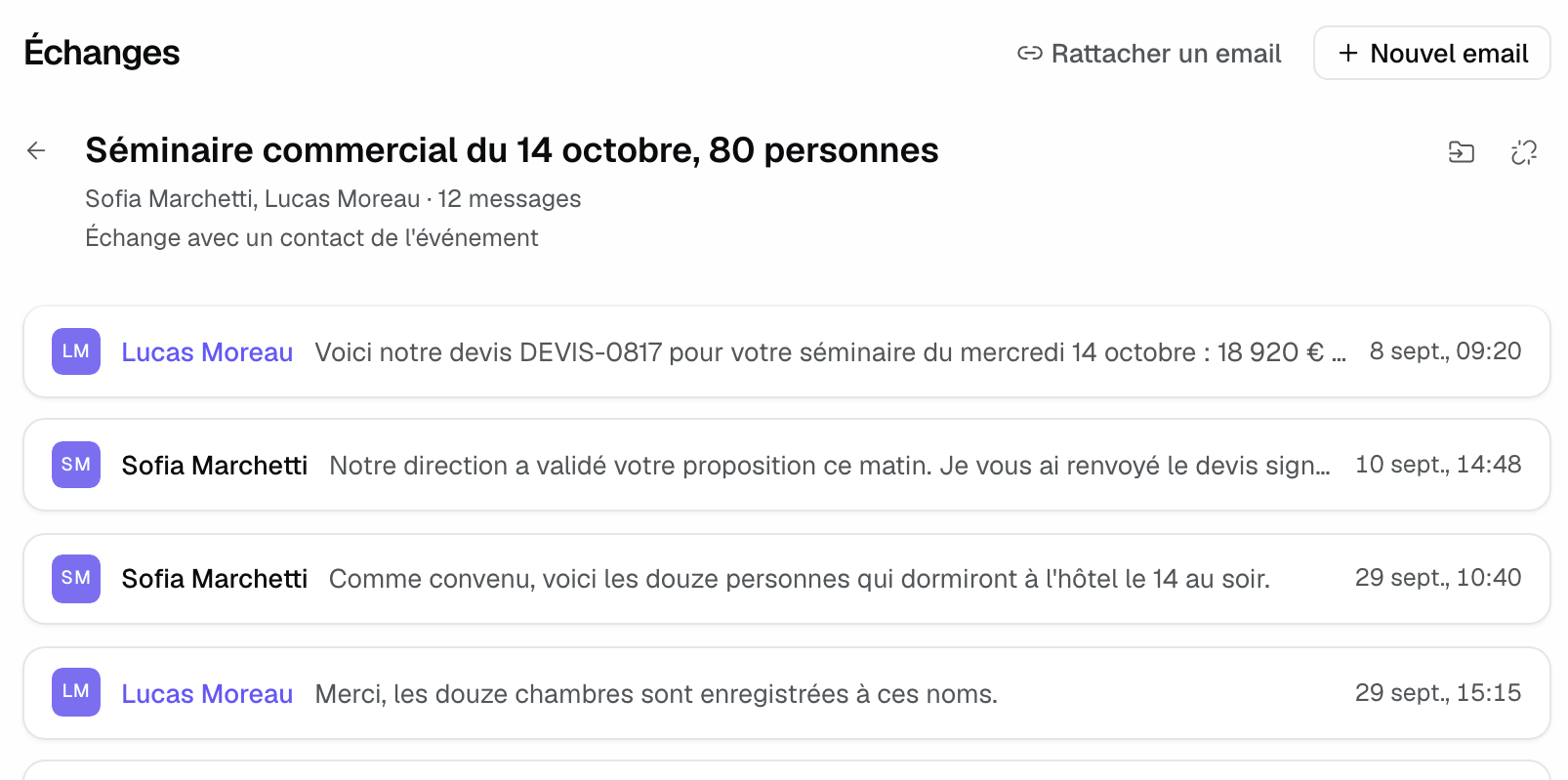
Emails are shown in HTML, as they were received. In dark theme, their colors are adjusted to stay readable; "Show original" renders a message in its original colors.
3. Follow a platform request
In "All exchanges", a platform request (Kactus, Naboo…) takes a single row. Opened, it reads like a chat: the initial request pinned at the top, the client's messages on the left and the venue's on the right, each with where it came from ("Received by … email", "Read on the … page by the extension", "Sent from the Joinways panel"), status changes as quiet lines, and a separator for each day, in the venue's time zone.
- "Reply on" followed by the platform name is the main action: the platform expects your answer on its side.
- "Already answered" records that you answered directly on the platform; the row then shows "Answered on" followed by the platform name.
- Acceptances are told apart: "Quote accepted by the client" when the acceptance concerns a quote, "Booking accepted" when the booking is confirmed afterwards.
- The platform's notification emails are folded behind "Show the … notifications" with their number.
The history reflects the pages read by the extension: open the request page to update it (see Follow a platform request).
4. Send an email and reply
- Click "New email".
- Pick the sending mailbox in "From" (yours or a shared one), a "Template" if needed, then write. "Write with AI" suggests a draft based on the file.
- Add one of the event's proposals with "Attach a proposal", or a file with "Add attachment".
- Send. If a conversation already exists with this client, the email is added to it (subject "Re: …").
In an open conversation, reply under the relevant message with "Reply", "Reply all" or "Forward". Closing the composer keeps the draft; "Delete draft" erases it. Template variables (venue, contact first name, dates) are filled from the event: see Create and use email templates.
Your signature on a shared mailbox
On a mailbox a teammate shared with the team, each member can set their own signature: "Settings" > "My mailbox", "My signature" block. When you send, your signature replaces the mailbox's; without it, the mailbox signature is used. Your signature is visible only to you.
5. Link, unlink, move
- Link an email: "Link an email" searches the workspace's emails by subject or sender and links one to the event.
- Unlink: the "Unlink from event" icon removes the whole conversation. It will not be linked again automatically.
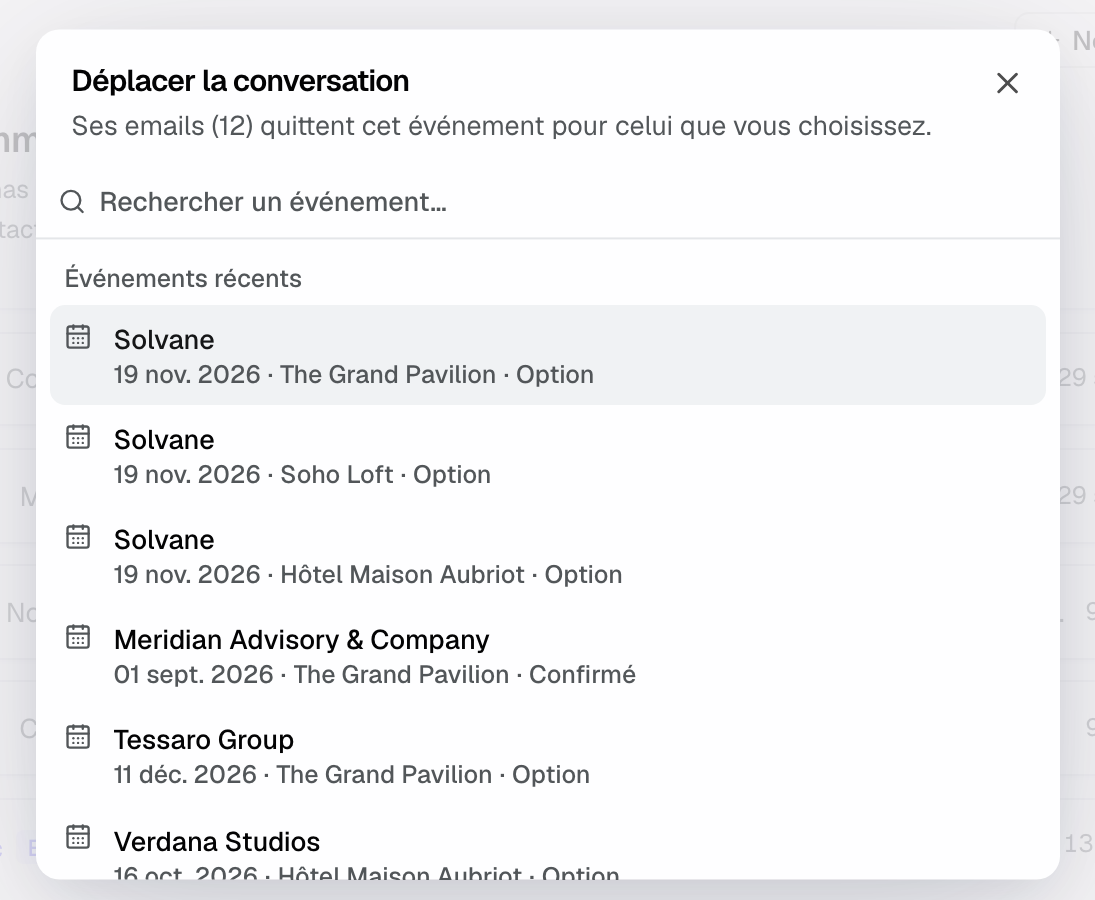
- Move: the "Move to another event" icon opens the workspace's event search; the conversation's emails leave this event for the one you choose.
When contacts of the event wrote emails that are not linked to any event, a banner says so at the top of the tab, for example "3 emails from Marie Dupont are not linked to any event.". "Show" expands the list; "Add" links an email to the event, "Ignore" hides it on this device.
Example: a seminar taken over by a colleague
The owner of an 80-person seminar goes on leave. His colleague opens the "Conversations" tab: it shows "To reply". She clicks the button of the same name, finds the office manager's question about an extra dinner, reads "Exchanged with a contact of the event" under the title, and answers from the shared mailbox with her own signature. A caterer's email that landed on the wrong file goes to the right event with "Move to another event".
Troubleshooting
Cannot send from the event
Cause: no connected mailbox and no mailbox shared with the team. Solution: click "Connect an email" in the tab, or ask a teammate to share their mailbox (see Manage your email connections).
The client's reply does not show up
Cause: the mailbox that received it is not connected, or the email was not matched to this event. Solution: check the banner of unlinked emails, or use "Link an email".
"To reply" stays on although I answered on the platform
Cause: Joinways does not always see answers given on the platform. Solution: open the request and click "Already answered", or open the platform page with the extension so it is read again.
An email's colors look odd in dark theme
Cause: the email is recolored to stay readable. Solution: click "Show original" on that message.
Frequently asked questions
What happens to emails received by a disabled source?
An email arriving for a source you disabled (for example a forwarding address removed from Joinways) is not processed: it is set aside, then deleted after 30 days.
Why is the "Unread" filter gone?
It was removed: an unread conversation keeps its dot and its bold line. The only state filter is "To reply".
Do my teammates see the conversations?
Yes, the whole team sees the conversations linked to the event. Only your personal signature stays private.
Can I move a single email from a conversation?
No: unlinking and moving apply to the whole conversation, so the thread stays complete.
See also
Provalo sulle tue prossime richieste per 30 giorni, senza carta.