The Confirmed revenue tab: monthly revenue, trend and outlook
Monthly revenue and forecast, period revenue, upcoming bookings, trend over 12 months and 3 ahead, revenue by source and year outlook.
Updated
Running a venue raises two questions every month: how much will this month's events bring in, and where will the year end up? The answer depends on the event date, not on the signature or invoice date.
The "Confirmed revenue" tab ranks each confirmed event on the day it takes place. It gives the month's revenue with its forecast, the period's revenue, upcoming bookings, the trend over 12 months and 3 ahead, revenue by source, the year's outlook and the breakdown by event type.
What you'll learn
- Read the monthly revenue card and switch month.
- Read the indicators: period revenue, upcoming bookings, average revenue, year forecast.
- Use the chart: 12-month trend, period, events, sources.
- Add a dated annotation to the trend.
- Read revenue by source, the year's outlook and the breakdown by type.
Prerequisites
- Access to reports: "Owner", "Admin", "Member" or "Read-only" role.
- Confirmed events with an amount (confirmed amount, accepted quote or amount sent by the platform).
- Setting a goal: "Owner" or "Admin" role. Adding an annotation: "Owner", "Admin" or "Member" role.
1. Read the month's revenue and the indicators
Open "Reports" > "Confirmed revenue" and choose the period. Besides the usual ranges, "Next 6 months" and "Next 12 months" show what is already booked.
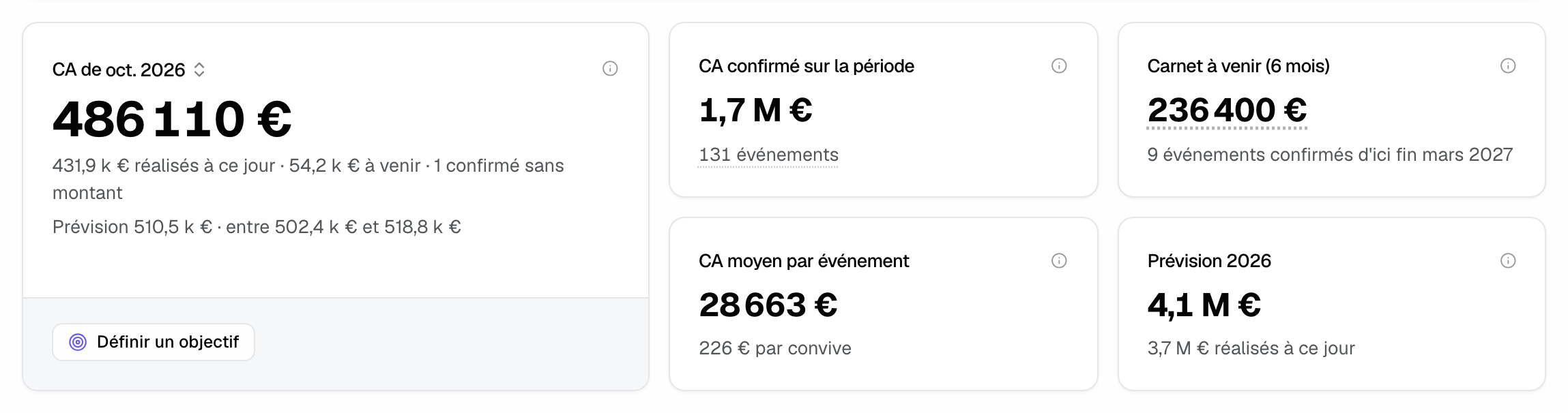
The large "Oct 2026 revenue" card shows the revenue excluding tax of confirmed events taking place in the current month, including those already past. It does not depend on the chosen period. Below the total:
- the share already realized to date, the share still to come, and the number of confirmed events without an amount, if any;
- the change badge against the same month last year (last year's amount shows on hover);
- "Like-for-like venues" when a venue has opened or closed within a year: the change without those venues, with their revenue named separately;
- without a goal, the month's "Forecast" and its 80% range.
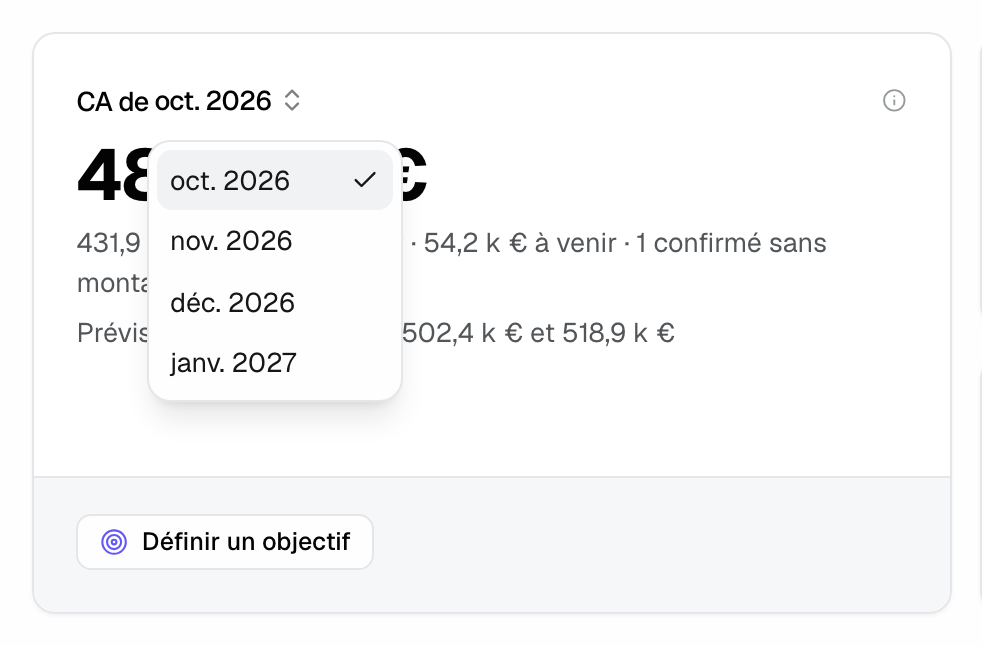
The month in the title is a picker: it shows the current month or one of the next three, with what is already confirmed and the forecast. With the "Owner" or "Admin" role, the bottom of the card offers "Set a goal"; once the goal is set, the card shows what is secured, the forecast and the chance of reaching it. See Goals, forecast and win probability.
On the right, four indicators:
- "Confirmed revenue for the period": revenue of confirmed events taking place in the period, cancellation fees included (shown separately). The number of events is clickable.
- "Upcoming bookings (6 months)": revenue of confirmed events dated from today to the end of the sixth month. The amount opens these events.
- "Average revenue per event": revenue of events with an amount, divided by their number, with revenue per guest.
- "2026 forecast": the calendar year's likely revenue, with what is realized so far, or the share of the annual goal when there is one.
If some confirmed events have no amount, a note below the cards says revenue is calculated on X of Y confirmed events.
2. Read the chart
The toggle on the right of the chart switches view:
- "12 months": "Event revenue: 12 months and 3 ahead". The 11 past months, the current month and the next 3, against the same month last year. Upcoming months stack confirmed revenue, weighted options, estimated confirmed events without an amount and inquiries not yet received, with the 80% range. This view does not depend on the chosen period.
- "Period": "Realized revenue per month" over the period, against the reference period. The current month stacks realized revenue and "Confirmed, still to come".
- "Events": the number of events per month.
- "By source": "Confirmed revenue by source", month by month, one color per source.
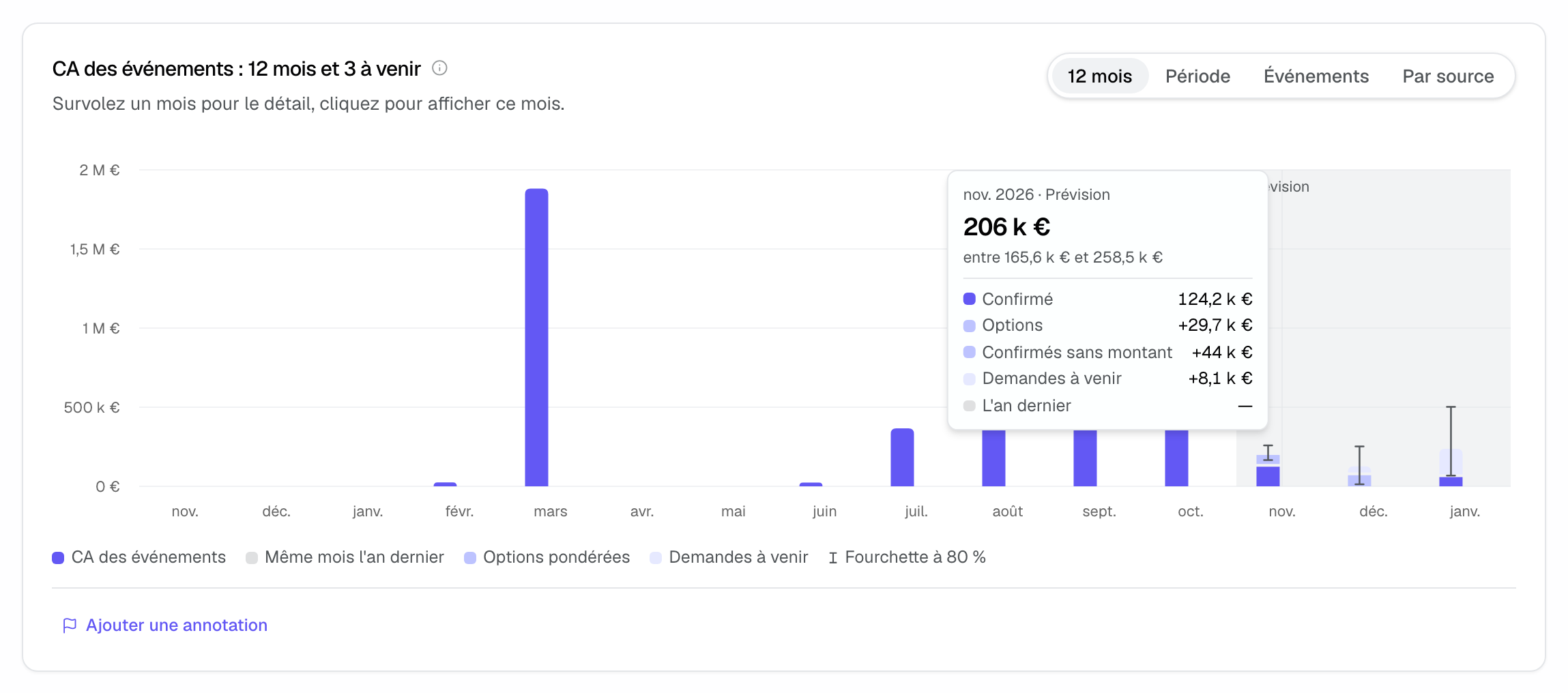
Hover a month for its detail. In the "12 months" view, clicking a month sets the period to that month. When goals exist, a "Monthly goal" line is added and the tooltip shows the "Chance of reaching it".
Add an annotation
An annotation is a dated marker on the trend, visible to the whole team: new price list, venue opening, works, commission change.
- Below the "12 months" view, click "Add an annotation".
- Enter the "Text" and the "Date".
- In "Applies to", keep "All venues" or pick a venue.
- Click "Add".
The annotation appears numbered on the chart and in the list below it. Its author, an owner or an admin can delete it with the cross; "Undo" restores it in the following seconds.
3. Read revenue by source
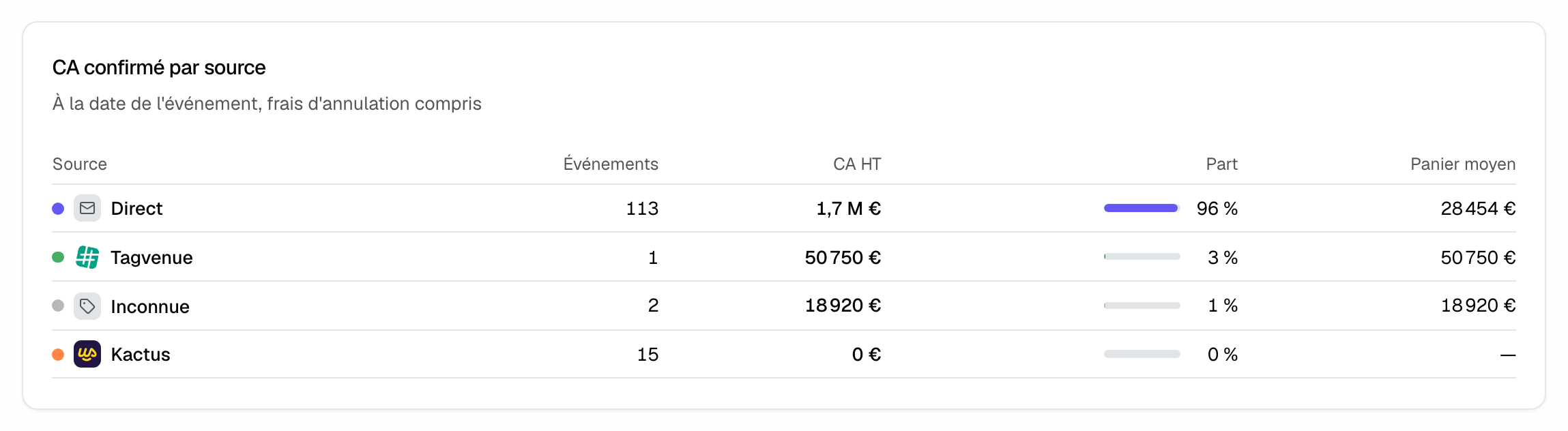
"Confirmed revenue by source" gives, for each source, the "Events", "Revenue excl. tax", "Share" of the total and "Average ticket", by event date and cancellation fees included. Click a source name to filter every report on it.
4. Read the year's outlook
"2026 outlook" shows the current calendar year's revenue by event date: "Likely revenue for the year" with its 80% range, then its breakdown:
- "Realized to date": past events, up to and including today;
- "Confirmed bookings": confirmed events still to come this year;
- "Weighted options": options dated this year, each counted by its probability of signing before its date;
- "Confirmed without amount (estimated)": counted at the amount of comparable events;
- "Upcoming inquiries": revenue expected from inquiries not yet received, based on past months' booking pace.
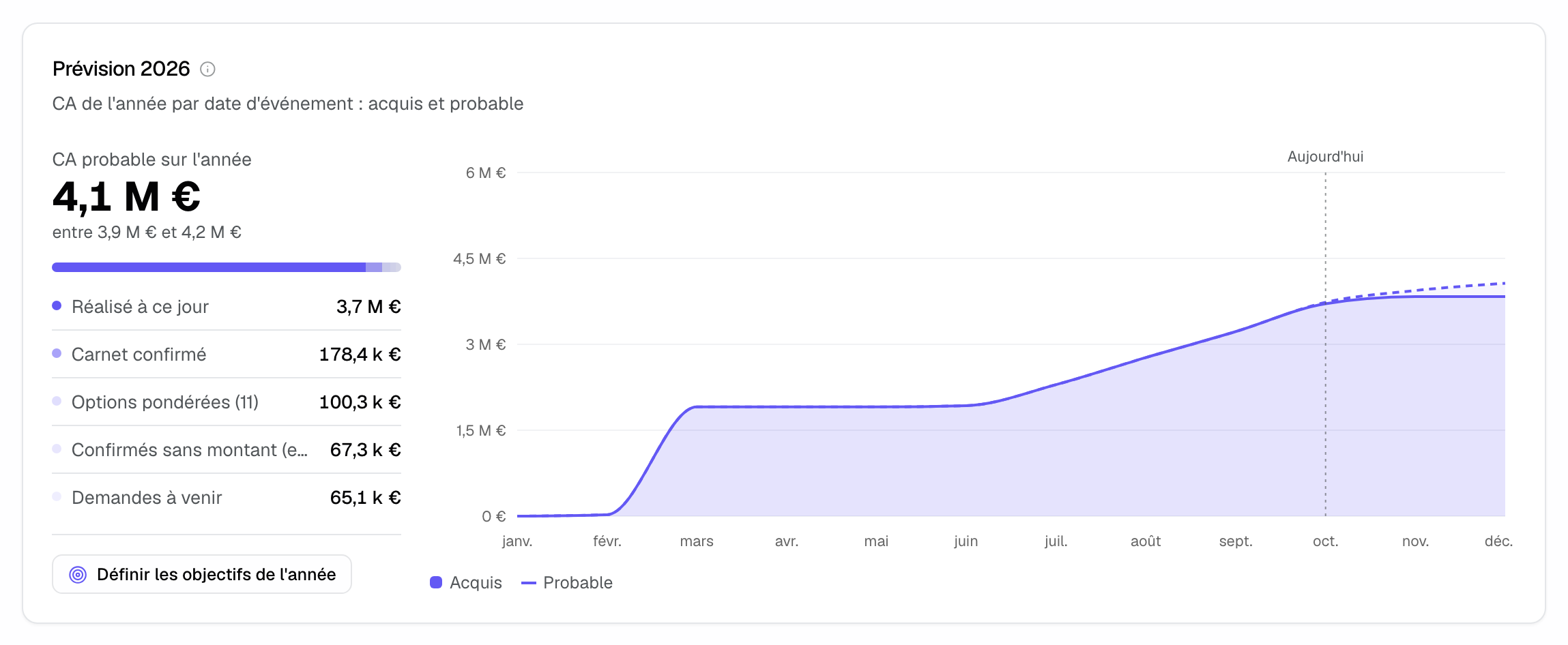
The chart accumulates "Secured" and "Likely" month by month, with a "Today" marker. "Set this year's goals" opens the goals panel. When all 12 months have a goal, the card shows the annual goal, progress and the "Cumulative goal" on the chart.
5. Compare event types
"By event type" shows what each type brings in: "Events", "Revenue excl. tax" and "Average ticket". Underlined numbers open the list of matching events. Revenue by venue is in the "Operations" tab.
Example: a hotel on 27 October
The card shows €486,110 for October, of which €431.9k already realized, and a forecast of €510.5k. The manager hovers November in the "12 months" view: €124.2k confirmed, a forecast of €206k. He switches to the "By source" view: direct inquiries carry most of the revenue, and one platform brings no amount yet. He opens the coverage note to complete the confirmed events without an amount.
Troubleshooting
Confirmed revenue does not match the accounts
Cause: the tab dates revenue on the event day, not on the invoice or payment. Solution: compare on event dates, or use invoicing for invoiced amounts.
The monthly card does not follow the period
Cause: the card always covers the current month, or one of the next three chosen in its picker, like the "12 months" view. Solution: use the "Period" view and the "Confirmed revenue for the period" indicator for the chosen range.
Options are not weighted
Cause: the win probability needs a history of at least 30 closed options, including 5 signed and 5 lost. Solution: move your options to "Confirmed" or "Lost" as they are decided.
Frequently asked questions
Do cancellation fees count in confirmed revenue?
Yes. An event cancelled with fees counts for the amount of those fees, shown separately below the total.
Why doesn't the monthly card show signed revenue?
The card follows the event date, which is what the monthly goal measures. Signed revenue, dated at signature, is in the "Sales" tab.
Does the forecast change on every reload?
No. The simulation is reproducible: with the same data, the page shows the same forecast. It only moves when an event, inquiry or quote changes.
Can I export these figures?
Yes. The tab's Excel export includes "By month", "By venue", "Venue × month", "By type" and the year's outlook.
See also
Try it on your next inquiries for 30 days, no credit card.