Goals, forecast and win probability
Set monthly goals per venue, read the forecast and its chance of reaching the goal, and understand how win probability works.
Updated
A monthly goal only helps if it tells you, mid-month, whether you will reach it. Comparing realized revenue with the goal on the 10th says nothing: most of the month's events are still to come, options may sign, inquiries will arrive.
Joinways sets realized revenue goals per month, for all venues together and for each one. It compares them with a forecast that adds what is secured, options weighted by their win probability, estimated confirmed events without an amount and inquiries not yet received, then simulates the month to give your chance of reaching the goal.
What you'll learn
- Open the "Goals" panel and enter a month's goals, for the workspace and each venue.
- Copy the previous month and apply a goal to the rest of the year.
- Read the month's goal: secured, forecast and chance of reaching it.
- Find goals on the charts and in the annual goal.
- Understand how the forecast and the win probability are computed.
Prerequisites
- Setting or editing a goal: "Owner" or "Admin" role.
- Reading goals and the forecast: any role with access to reports.
- For a complete forecast: a history of at least 30 closed options (including 5 signed and 5 lost) for the win probability, and 20 confirmed events with an amount to estimate missing amounts.
1. Open the "Goals" panel
The panel opens in three ways:
- the "Goals" button, at the top right of the "Reports" page, from any tab;
- "Set a goal" or "Edit" on the monthly card of the "Confirmed revenue" tab;
- "Set this year's goals" or "Fill in the missing months" in the year's "outlook" card, "Confirmed revenue" tab.
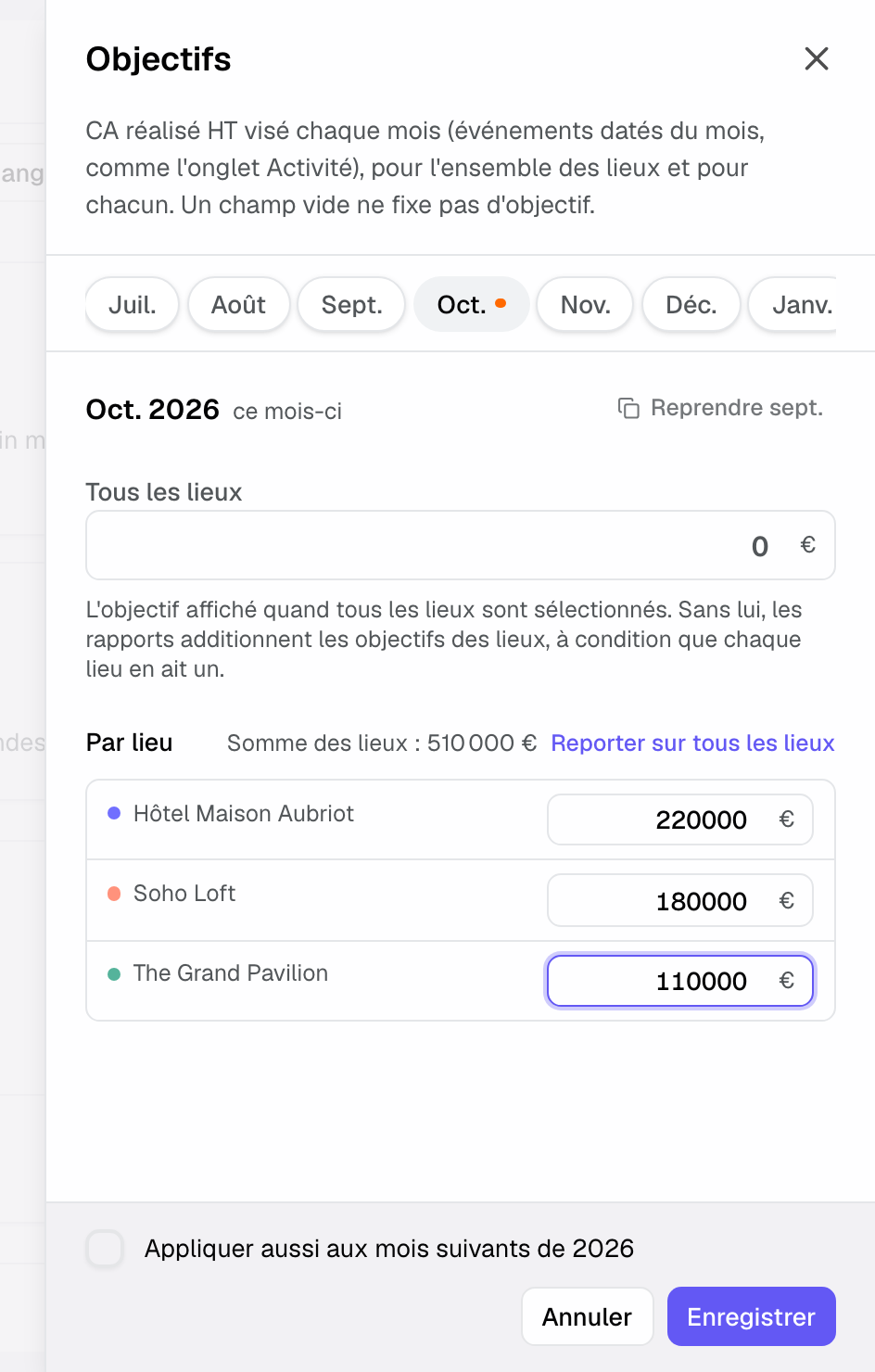
At the top of the panel, months form a row of pills, from January of the current year to 18 months after the current month. A dot marks months that already have a goal; an orange dot flags a month changed and not saved.
2. Enter a month's goals
The goal applies to realized revenue excluding tax: confirmed events dated in the month, as in the "Confirmed revenue" tab.
- Click the month in the row of pills.
- In "All venues", enter the workspace goal. This is the one shown when all venues are selected.
- Under "By venue", enter each venue's goal. "Venues total" updates live; "Use for all venues" copies it into "All venues".
- To start from the previous month, click "Copy" followed by the month.
- Tick "Also apply to the following months of 2026" to copy these amounts through December.
- Click "Save". The panel stays open so you can move on to another month.
Entries are kept month by month: switching month before saving loses nothing. An empty field sets no goal; clearing a field and saving removes the goal.
Good to know: without an "All venues" goal, reports add up the venue goals, provided every venue has one. With a venue filter, the goal shown is the sum of the selected venues. If one is missing, the card shows an incomplete goal and the number of venues without one. Under a "Source" filter, no goal is shown: it covers all revenue.
3. Read the month's goal
Once the goal is saved, the bottom of the monthly card of the "Confirmed revenue" tab shows:
- "Goal" and its amount, with "Edit" for allowed roles;
- "Secured": the share of the goal already confirmed and the amount to go. Secured never shows 100% while a euro is missing; beyond, the card shows "Goal reached";
- "Forecast": the revenue expected for the month and its share of the goal;
- a segmented bar: "Realized", "Upcoming", "Confirmed without amount (estimated)", "Weighted options" and "Upcoming inquiries", with a "Goal" marker when the forecast exceeds it.
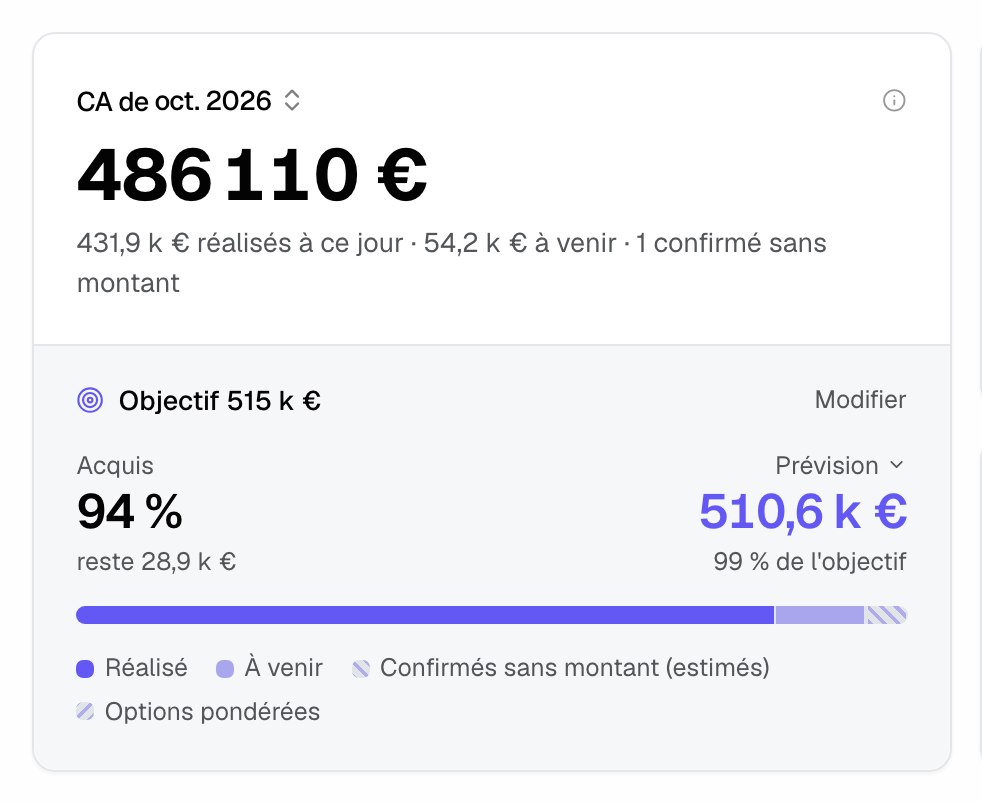
Hover a bar segment or legend item for its amount and share of the goal. Click "Forecast" to open the detail: "Chance of reaching the goal", the "Forecast", the "80% range" and the "Goal".
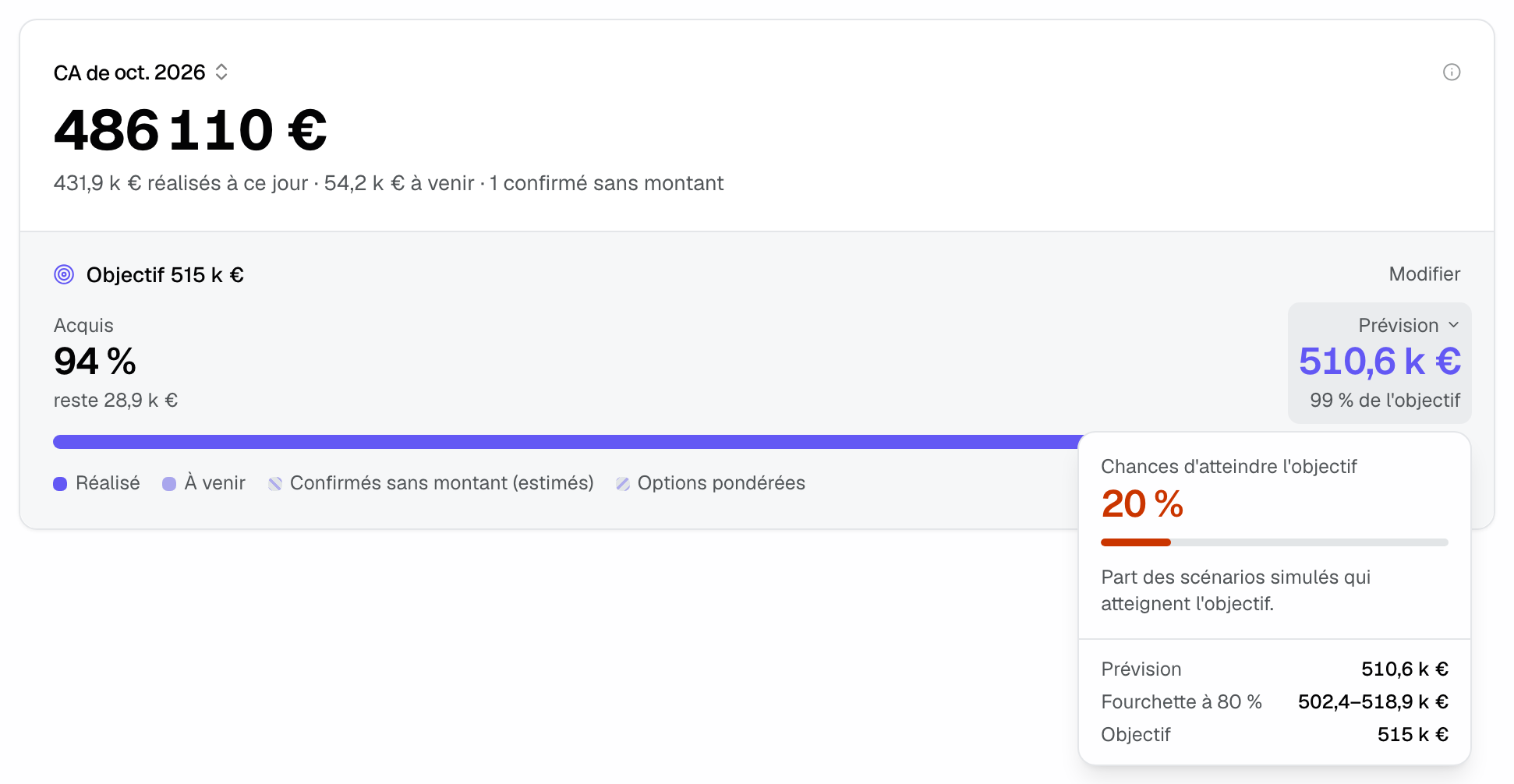
The chance is the share of simulated outcomes that reach the goal. Below 5% or above 95%, the card shows "under 5%" or "over 95%": past months' booking pace remains an assumption, and inquiries may still arrive.
The card's month picker also shows the next three months with their goal and forecast.
4. Find goals on the charts
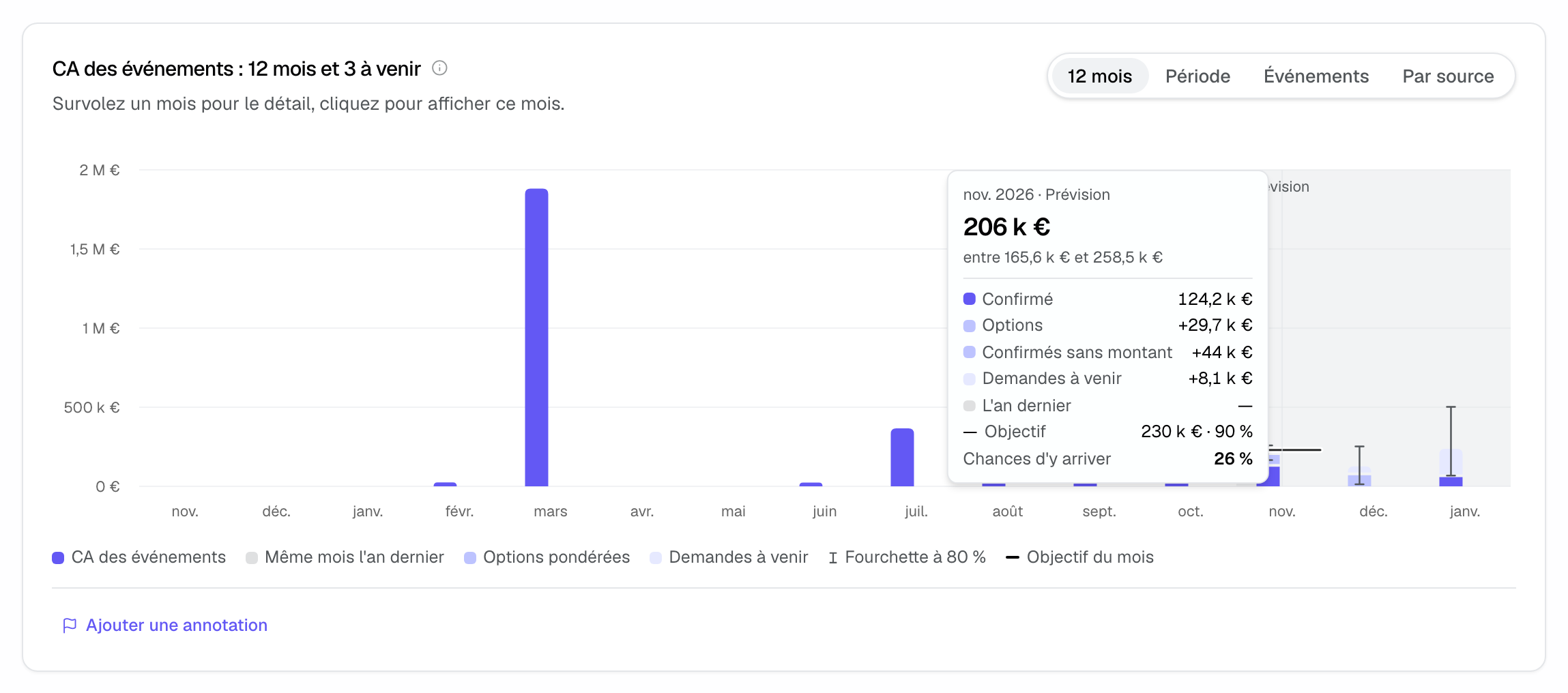
- In "Confirmed revenue", the chart's "12 months" view ("Event revenue: 12 months and 3 ahead") draws a "Monthly goal" line. Hovering an upcoming month, the tooltip gives the goal, the share reached by the forecast and the "Chance of reaching it".
- In "Confirmed revenue", the chart's "Period" view also draws each month's goal. In "Operations", the revenue "By venue" table adds a "Goal" column.
- In "Confirmed revenue", the "2026 forecast" indicator gives the share of the year's goal, and the "2026 outlook" card shows the annual goal when all 12 months have a goal: the sum of the 12 months, with secured, forecast, chance and the "Cumulative goal" on the chart. Otherwise it shows how many months lack a goal and offers "Fill in the missing months".
5. Understand how the forecast is computed
A month's forecast adds four parts:
- secured: confirmed events dated in the month, with an amount;
- weighted options: each option dated in the month counts for its value multiplied by its probability of signing before its date;
- confirmed events without an amount: counted at the average amount of comparable confirmed events, weighted by the share of past confirmed events that ended up with an amount;
- upcoming inquiries: the revenue the month will still receive from inquiries that have not arrived yet.
Win probability
Each open option gets a probability of signing before its event date. It is learned from the path of your options over the last 24 months: option age, time left before the date, quote status (none, draft, sent, viewed, redone, expired), amount, number of guests, exchanges with the client and who needs to reply, facts sent by the platform, source, event type and venue. The model follows each option until it is signed, lost or reaches its date, and accounts for options still open.
It is published from 30 closed options, including at least 5 signed and 5 lost. It learns from the whole workspace's history: filtering a venue does not change an option's probability, since the venue is already one of the signals.
Estimated amounts
An option with no active quote or expected revenue, and a confirmed event still without an amount, count for the average amount of comparable confirmed events: same number of guests, type, venue and source. At least 20 confirmed events with an amount are needed. These amounts only enter the forecast, never what is secured or the weighted pipeline of the "Sales" tab.
Upcoming inquiries
For each of the last 12 full months, Joinways looks at what share of its revenue was still to be booked at the same distance from the start of the month as today. It combines that pace with the average volume per open venue, then applies it to the month being forecast. At least two reference months and ten events are needed; months dominated by history imports are left out.
The simulation
The month is simulated 20,000 times: each option signs or not according to its probability, options of the same month move together, estimated amounts and upcoming inquiries vary around their mean. The 80% range runs from the 10th to the 90th percentile of the draws; the chance of reaching the goal is the share of draws above it. With the same data, the page always shows the same result.
Example: a hotel aiming for €515k in October
On 27 October, a three-room hotel has set €515k for October. The card shows 94% secured, €28.9k to go, and a forecast of €510.6k, 99% of the goal. The forecast detail gives a 20% chance: what is secured is solid, but few options are dated this month. The sales director follows up the two end-of-month options from "Options to watch" and checks that no confirmed event is left without an amount.
Troubleshooting
The "Goals" button does not appear
Cause: your role is neither "Owner" nor "Admin". Solution: ask them to set the goals or to change your role.
"Incomplete goal: N venues shown have no goal this month."
Cause: not every venue shown has a goal, and no "All venues" goal applies. Solution: click "Complete the goals" and enter each venue's goal, or an "All venues" goal.
The forecast does not weight options
Cause: the history has fewer than 30 closed options, or fewer than 5 signed or 5 lost. Solution: move your options to "Confirmed" or "Lost" as they are decided; weighting appears as soon as the threshold is reached.
The annual goal does not appear in "Confirmed revenue"
Cause: at least one month of the year has no goal. Solution: click "Fill in the missing months", or tick "Also apply to the following months" when entering a goal.
Frequently asked questions
Is the goal based on signed or realized revenue?
Realized: confirmed events dated in the month, on the event date. Signed revenue, on the signature date, stays in the "Sales" tab.
Can I set a goal per team member?
No. Goals are set for the workspace and for each venue. The "Team" table in the "Sales" tab gives signed revenue per member.
Does the forecast use generative AI?
No. It is a statistical model learned from your own data, plus a simulation. No text or figure is produced by a language model.
How do I remove a goal?
Open the month in the "Goals" panel, clear the field and click "Save".
See also
Try it on your next inquiries for 30 days, no credit card.