Sell bundled packages
A package bundles several catalog items into one line for the client, each item keeping its own tax rate all the way to the invoice.
Updated
A day meeting package is often sold at a price per person: the room, the breaks and the lunch for €125 excl. tax. The client wants to read a single price. Your accountant wants the room rental at 20% and the catering at 10%. With a single quote line, one of them is unhappy.
A bundled package solves this. In the catalog, it groups several items, each with its share of the price and its tax rate. On the quote, the client reads one line. Behind it, each item carries its amount at its own rate: the tax summary, the BEO and the invoice stay accurate.
What you'll learn
- Create a package in the catalog and split its price between its items.
- Add it to a quote and change its contents for that quote only.
- Know what the client, the team and accounting see.
- Find packages in the mobile app, the API, the MCP connector and automatically generated quotes.
Prerequisites
- The Pro plan or the trial.
- A role that can manage the venue catalog (workspace owner or admin) to create the package. To add it to a quote, being able to edit quotes is enough.
- The items that make up the package, already in the catalog of the same venue, each with its tax rate.
1. Create the package in the catalog
- Open "Settings" > "Venues" > the venue > "Items", then click "Add item".
- Choose the "Package" category, then a type, for example meetings and conferences or residential seminars.
- Name the package and describe it in one sentence: this is what the client reads.
- Choose "Per person" or "Global".
- In the "Contents" section, click "Add an item" and pick each item in the package.
- For each item, enter the number "Per package" and its "Share excl. tax" of the price. Click "Add".
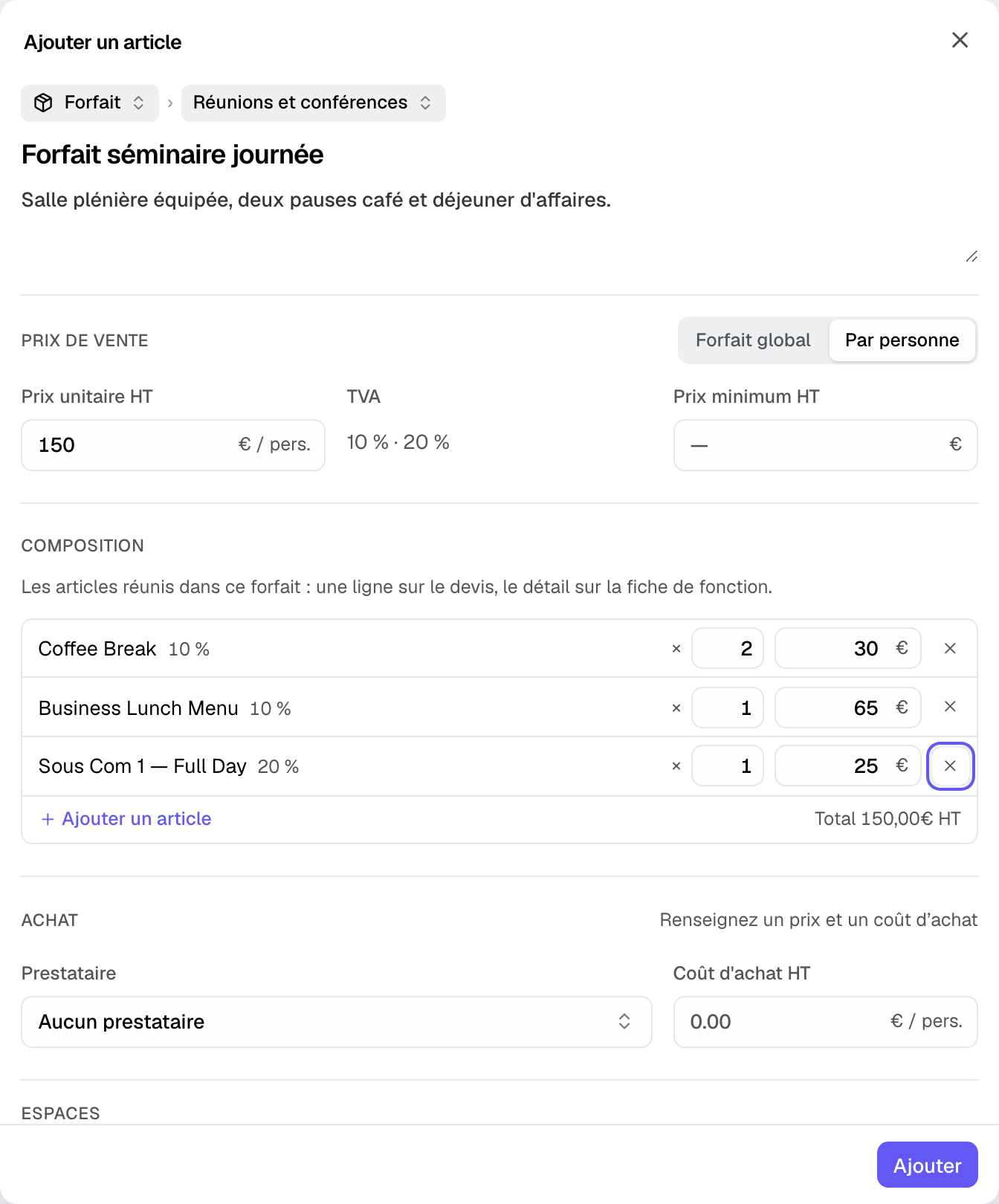
The package price is the sum of the shares. Changing a share changes the price, and typing a price rescales the shares in the same proportions. You do not pick the rate: the tax field shows the rates of its items, here "10% · 20%". For a venue that enters prices including tax, shares show as "Share incl. tax".
- A package with no item stays a simple item, at its price.
- An item that is part of a package cannot become a package itself.
- To delete an item that is part of a package, remove it from the package first.
- If you change the rate of a package item, Joinways warns you: the package price including tax will follow this rate.
2. Add the package to a quote
In the quote's catalog list, a package is tagged "Package". Add it like any item: it arrives as a single line. A per-person package takes the number of participants as its quantity. The tax column shows its rates and the line carries the "Package · 3 items" badge.
The totals summary breaks tax down by rate. "Option" and "Offer" apply to the whole package. Its discount is entered as a percentage only.
3. Change the contents for this quote
A client wants a simpler lunch, or one more break? Click the "Package · 3 items" badge: the contents open under the line.
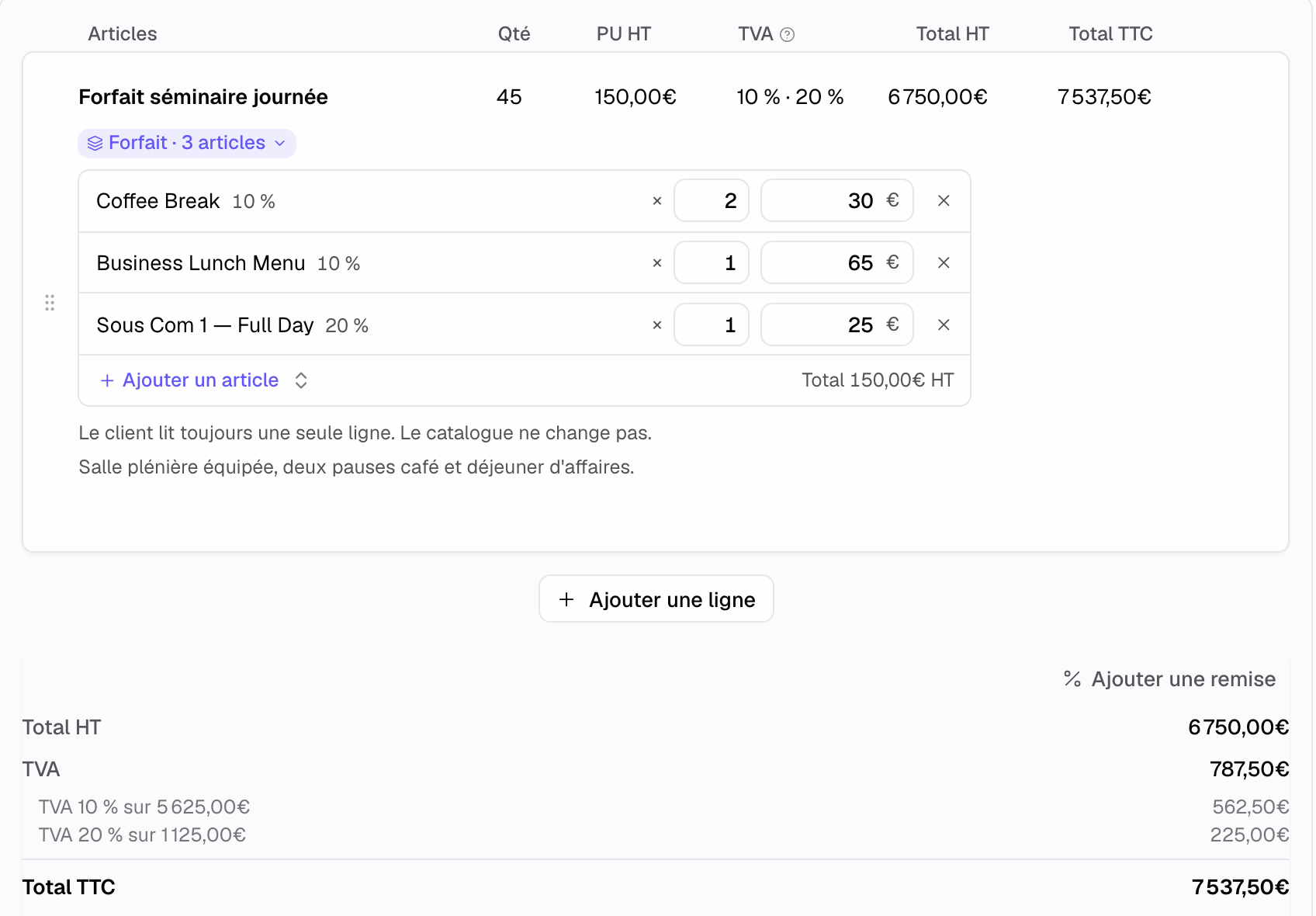
- Change an item's number per package or share, remove an item, or add one with "Add an item".
- Click the button that saves the contents. The line shows that it was modified for this quote.
The client still reads a single line, and the catalog does not change. To undo your changes, go back to the catalog package with the button under the contents. If the package includes a room, the room is booked with it on the event's schedule.
4. What the client, the team and accounting see
- The client: one line per package on their page and in the PDF, with the tax summary by rate. The item detail is not shown to them.
- The team: on the BEO, each package item lands in its section (catering, technical, setup), so production knows what to prepare.
- The invoice: the package is invoiced as it was signed. One line, or one line per rate when it mixes rates, never its items. Amounts match the quote to the cent.
- Duplicates and amendments: duplicating a quote or an event, or creating an amendment, keeps the link with the package.
5. Mobile app, API, MCP and automatic quotes
- Mobile app: a package shows as a read-only line. You can save, duplicate or delete a quote that contains one.
- API and MCP connector: a package is a line priced as a whole, its items are listed separately as read-only. The catalog shows which items are packages and their contents. A package is created and edited through its contents, and its price is derived from them (see Connect Joinways to Claude (MCP)).
- Automatically generated quotes: the AI knows your packages and offers them as one line, at their price (see Generate a quote with AI).
Example: a hotel's day meeting package
A hotel sells a day meeting package at €150 excl. tax per person: two coffee breaks at €30 each, a lunch at €65 and the room at €25. For 45 participants, the quote shows one line of €6,750 excl. tax. The summary shows €5,625 at 10% and €1,125 at 20%. The client asks for a lighter lunch: the salesperson lowers the lunch share on this quote, saves the contents, and the catalog keeps its €150 package.
Troubleshooting
The "Contents" section does not appear
Cause: the item is not in the "Package" category. Solution: change its category to "Package". The contents show up right away.
I can't add an item to the contents
Cause: the item is a package itself, has no tax rate or belongs to another venue. Solution: only add simple items from the same venue, with a rate.
A discount in euros is refused on the package line
Cause: a package only accepts a percentage discount. Solution: enter the discount in %, or lower a share in the quote's contents.
Frequently asked questions
Does the client see the package detail?
No. They read one line and the tax summary by rate. The detail is visible to the team and on the BEO.
Does changing the contents on a quote change the catalog?
No. The changed contents apply to that quote only. Other quotes and the catalog keep the original package.
How does the package appear on the invoice?
As one line, or one line per rate if it mixes rates. The invoice total is the same as the quote total.
See also
Try it on your next inquiries for 30 days, no credit card.