Generate a quote with AI
Let AI draft a first quote from the event details and your catalog, then fine-tune it in a few clicks.
Updated
Writing a quote takes time: picking the right lines, the right prices, the right level of service. Joinways AI proposes a coherent first quote in seconds, based on the event details and your catalog. You stay in control: it's a starting point to review and adjust, never an automatic send to the client.
The goal of this feature isn't to replace your sales expertise, but to take care of the most mechanical part of the work: finding the right services in the catalog, setting quantities consistent with the attendee count, and applying the prices already saved. You start from a solid base instead of a blank page.
Prerequisites
- A populated catalog on the venue (spaces, services, prices): the more complete it is, the better the generated quote.
- An event with its details (type, attendee count, dates) to guide the AI.
- A venue attached to the event, since the catalog is tied to the venue: without a venue, the AI has no services to propose.
- The Pro plan or the trial: the Free plan doesn't include proposals.
What you'll learn
- Generate a quote with AI from an event
- Choose a suitable price tier
- Review and adjust the proposed lines, quantities and prices
- Enable automatic generation when converting an inquiry
What the AI uses as input
Before proposing a single line, the AI reads the event context and compares it against your catalog. Understanding these inputs helps you know why a quote is rich or thin, and what to act on to improve it.
- The event type: steers the nature of the selected services (seminar, wedding, cocktail…).
- The attendee count (Pax): used to size quantities (covers, breaks, rentals).
- The dates and duration: influence room rental and per-day services.
- The venue catalog: services, their prices and descriptions are the source of the proposed lines.
- The event's spaces: the ones the event books, otherwise the ones asked for in the inquiry, otherwise the entire venue. The AI knows their hire fee, minimum spend and layout. It does not propose hiring a room the client neither booked nor asked for.
- Your comparable signed events: the AI reuses what you've already had signed for similar events, and lists them afterwards under « Reference events ».
- The price tier you pick: it signals the expected ambition (Eco, Standard, Premium).
Generate a quote manually
Manual generation is the most direct route: you stay inside the event and launch the AI whenever you decide. Here is what happens at each step.
- Open the event, then the Proposals tab. This is where all quotes linked to the event are listed.
- Click "New proposal", then "Generate with AI". On an event with no quote yet, the "Generate with AI" button shows directly. The "Create a proposal with AI" window opens.
- Under "Price tier", choose "Eco", "Standard" or "Premium", then click "Generate".
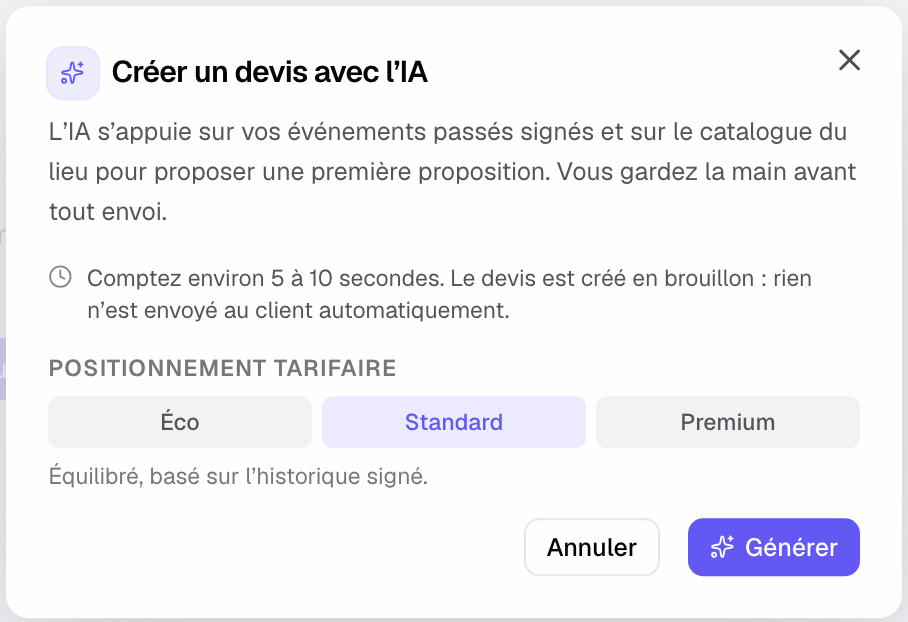
- Allow 5 to 10 seconds: progress is shown (reading the event and catalog, composing, saving), then the draft proposal opens. « Cancel » stops the generation; if saving had already started, the draft may still appear.
- Review, adjust the lines, then validate the quote before sending. Nothing reaches the client until you decide.
What you can review and change
The generated quote is never locked. Every element stays editable just like a quote created by hand, so you keep full control over the final result before sending.
- The lines: add, remove or replace a proposed service.
- The quantities: correct the number of covers, nights or breaks if needed.
- The prices: edit a unit price directly on the line for this quote.
- The VAT: check the rate applied on each line before sending.
- The options: complete with extra services the AI may not have included.
Service levels
The price tier tells the AI how ambitious the proposal should be. « Premium » includes high-end services by default; « Eco » aims for the lowest prices and leaves those services as options. Pick according to the client's stated budget.
- Eco: the lowest prices, premium services offered as options.
- Standard: a balanced proposal, based on your signed history.
- Premium: high-end, premium services included by default.
How it works
When you launch generation, the AI cross-references the event details with the venue catalog, then selects coherent services, sets quantities proportional to the attendee count, and applies the saved prices. The result appears as a draft quote in the Proposals tab.
The proposal opens with an « AI draft » banner: confidence level, any warnings, « Reference events » and a « Regenerate » button. It then behaves like any proposal: you adjust, confirm and send it. Until you send it, the client knows nothing about it.
Before saving the draft, Joinways checks it: VAT aligned with the catalog, price raised to the catalog minimum, currency enforced, a line with no matching item kept as a free line. Each correction appears in the banner warnings, as do lines all marked as offered or a total of 0.
Lines tied to a space book their rooms, as when you add them by hand. If the total stays below the minimum spend, the AI says so in the warnings instead of adding lines the client did not ask for.
Automatic generation (beta)
You can have a proposal prepared automatically when you convert an inquiry into an event, from the Inquiries as well as through the API or the MCP. It's prepared in the background if the inquiry is complete enough and the event has a venue. It is prepared only once, when the event is created, and never if the event already has a proposal.
- Open "Settings" > "Workflows", "Built-in" tab, "Quotes and signature" section.
- Turn on the "Auto-filled proposals" switch. It's on by default during the trial and on paid plans.
- On the next conversion of a qualified inquiry, a draft quote will be ready in the event.
The automatically prepared quote also stays a draft: it is never sent without your validation. You'll find it in the event's Proposals tab, ready to review.
With the Joinways agent, you can also ask "prepare a quote for this event": it takes the catalog items at their prices and offers a "Create a quote" card with the total, to confirm. When the agent converts an inquiry with "Convert and prepare the quote", "Auto-filled proposals" does not prepare a second quote for that event.
Edge cases
- Partial catalog: if only a few services are populated, the quote will be shorter; complete the catalog for richer results.
- Missing event details: without a type or attendee count, the AI lacks the cues to size quantities.
- Inquiry with insufficient score: automatic generation won't trigger; you can still run manual generation.
- Service not in catalog: the AI works from the catalog. A proposed line that matches no item is kept as a free line and flagged in the warnings. Add what is missing manually after generation.
- Monthly quota: each workspace has a number of AI generations per month. Once reached, a message shows the renewal date. Without a venue on the event or items in the venue's catalog, « Generate with AI » stays greyed out and says why.
Tip: an AI-generated proposal opens with the « AI draft » banner. Always check prices and quantities before sending.
Best practices
- Keep your catalog up to date: it's the source of the generated lines and prices.
- Always review VAT and quantities before sending to the client.
- Use the AI quote as a base, then add your sales touch.
- Set the event type and attendee count before generating, for more accurate quantities.
- Choose the service level based on the announced budget, to limit later adjustments.
Troubleshooting
Problem: the generated quote is empty or thin.
Cause: the venue catalog lacks services or prices, or the event has no type and attendee count. Solution: check that the catalog contains services and prices, and that the event has a type and attendee count set, then run generation again.
Problem: the prices don't match.
Cause: the catalog prices are outdated or this quote needs a specific rate. Solution: edit each line directly in the quote, and also update your catalog for future generations.
Problem: automatic generation doesn't trigger.
Cause: the option isn't on, or the inquiry doesn't have a sufficient score. Solution: turn on "Auto-filled proposals" in "Settings" > "Workflows", "Built-in" tab, and run manual generation for unqualified inquiries when needed.
Real-world example
Léa runs a seminar space. For a study-day inquiry for 40 people, she clicks « Generate with AI » and picks the « Standard » price tier. Within seconds the quote includes the room rental, the coffee-break package and lunch from her catalog. She adds a "video equipment" option and sends the quote right away.
Another example
Marc runs a wedding estate. An inquiry for 120 attendees arrives with a comfortable budget; he picks the « Premium » price tier. The AI proposes venue exclusivity, a seated dinner, the drinks package and accommodation. Marc adjusts the number of rooms, corrects the VAT rate on the catering line, then validates the quote before sending it to the couple.
FAQ
Is the AI quote sent automatically?
No. It stays as a draft in the event until you validate and send it.
Can I reuse an AI-generated proposal?
Joinways has no proposal templates. Within the event, « Duplicate » copies the proposal to prepare a variant. To save time from one event to the next, save your packages as catalog items.
Does the AI invent services?
It relies on the services and prices of the venue catalog. A line that matches no item is flagged in the warnings. The one planned exception: for a booked room with no rental item in the catalog, the AI may add a free line at the room's « Space hire » rate.
Can I change the level after generation?
Yes: « Regenerate » in the « AI draft » banner runs the generation again, with another tier if needed. You can also adjust the lines by hand.
What happens if my catalog is empty?
Without services or prices in the catalog, the AI has no lines to propose: the quote will be empty. Populate the venue catalog first.
Does automatic generation work for every inquiry?
No, it only triggers for inquiries with a sufficient score; for the others, use manual generation.
Can I recognize an AI-generated quote?
Yes, the « AI draft » banner appears at the top of every AI-generated proposal.
See also
Try it on your next inquiries for 30 days, no credit card.