The Joinways agent: ask, prepare, confirm
Ask about your inquiries, events and quotes, and let the agent prepare the actions: nothing changes without your confirmation.
Updated
Between two site visits, finding this week's events, checking that a room is free or following up on three quotes means opening as many pages. The Joinways agent does that work from a single input: you write what you want, it searches your workspace and prepares the actions.
The agent reads your data freely. For anything that changes or sends something, it prepares a card you confirm in one click: nothing is created, changed or sent before your "Confirm".
What you'll learn
- Open the agent from the sidebar, the ⌘J shortcut or a record.
- Ask a question and mention a record with @.
- Confirm, edit or decline prepared actions, one by one or in bulk.
- Use memory and scheduled tasks.
- Find or delete a conversation and give feedback.
- Get help from the help center and message the Joinways team.
Prerequisites
- Pro plan or trial for the agent to read and prepare actions on the workspace data. On the Free plan, it answers questions about Joinways, helps connect your inquiry mailbox and passes a message to the team.
- Your role applies. The agent acts with your rights: a "Read-only" member can ask questions, but no action that changes data will go through.
- Two-factor authentication. If it is on for your account, the session must have passed it.
- For the agent to send emails: your mailbox connected in "Settings" > "My mailbox".
1. Open the agent
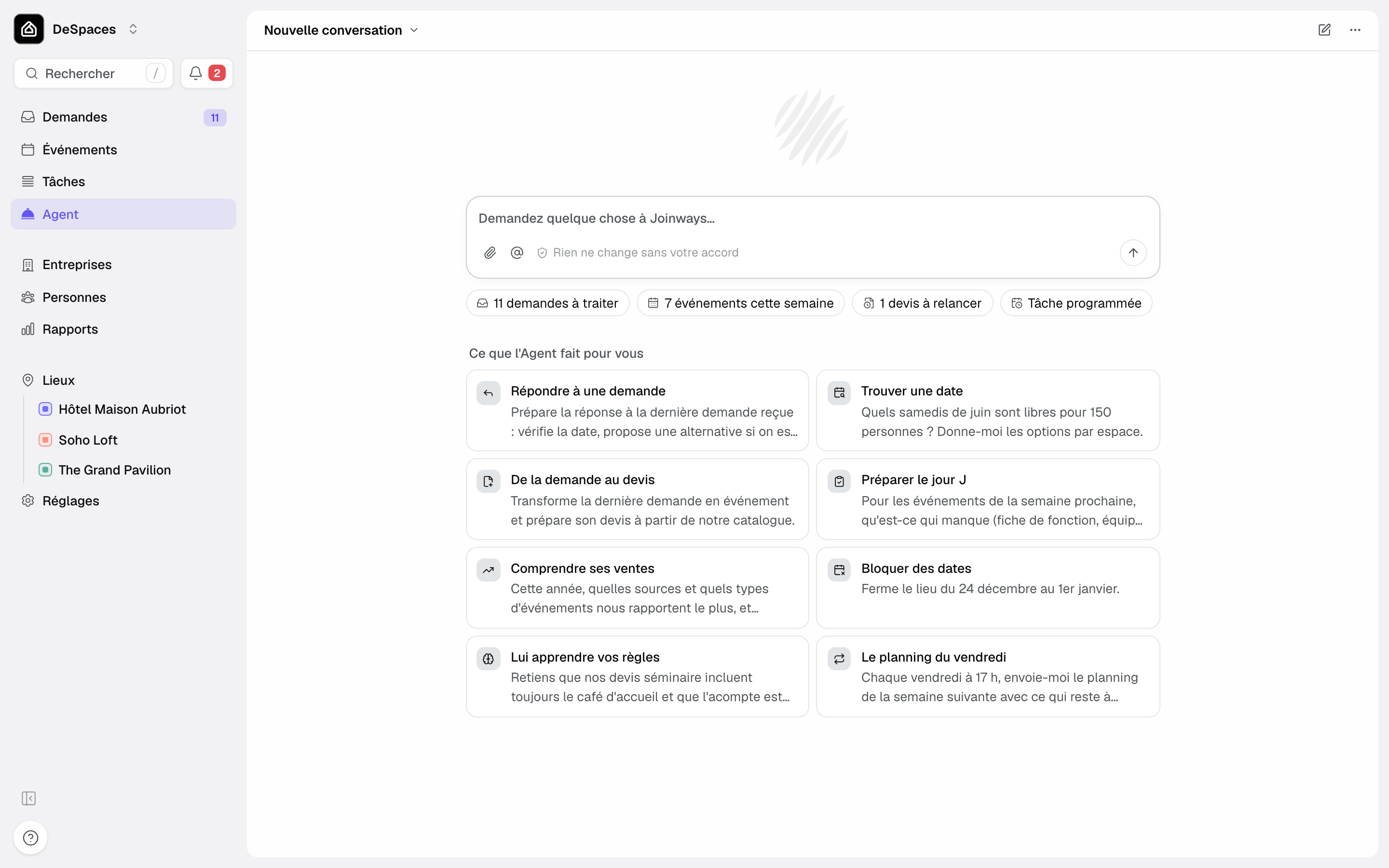
In the sidebar, click "Agent", under "Tasks". The page picks up the current conversation, or opens on a new one: the input in the middle, suggestions below it, then your recent conversations. The "New chat" icon at the top right starts afresh.
From any other page, the agent also opens in a panel:
- the "Agent" button at the bottom right of the screen (on a computer);
- the ⌘J shortcut on a Mac;
- the help menu (?) at the bottom of the sidebar, "Joinways agent" line;
- on a phone, in the browser: the first line of the menu, "Joinways agent".
The panel and the page are the same agent: ⌘J picks up the current conversation. "Expand" widens the panel, and the "Open full page" icon moves the conversation to the "Agent" page.
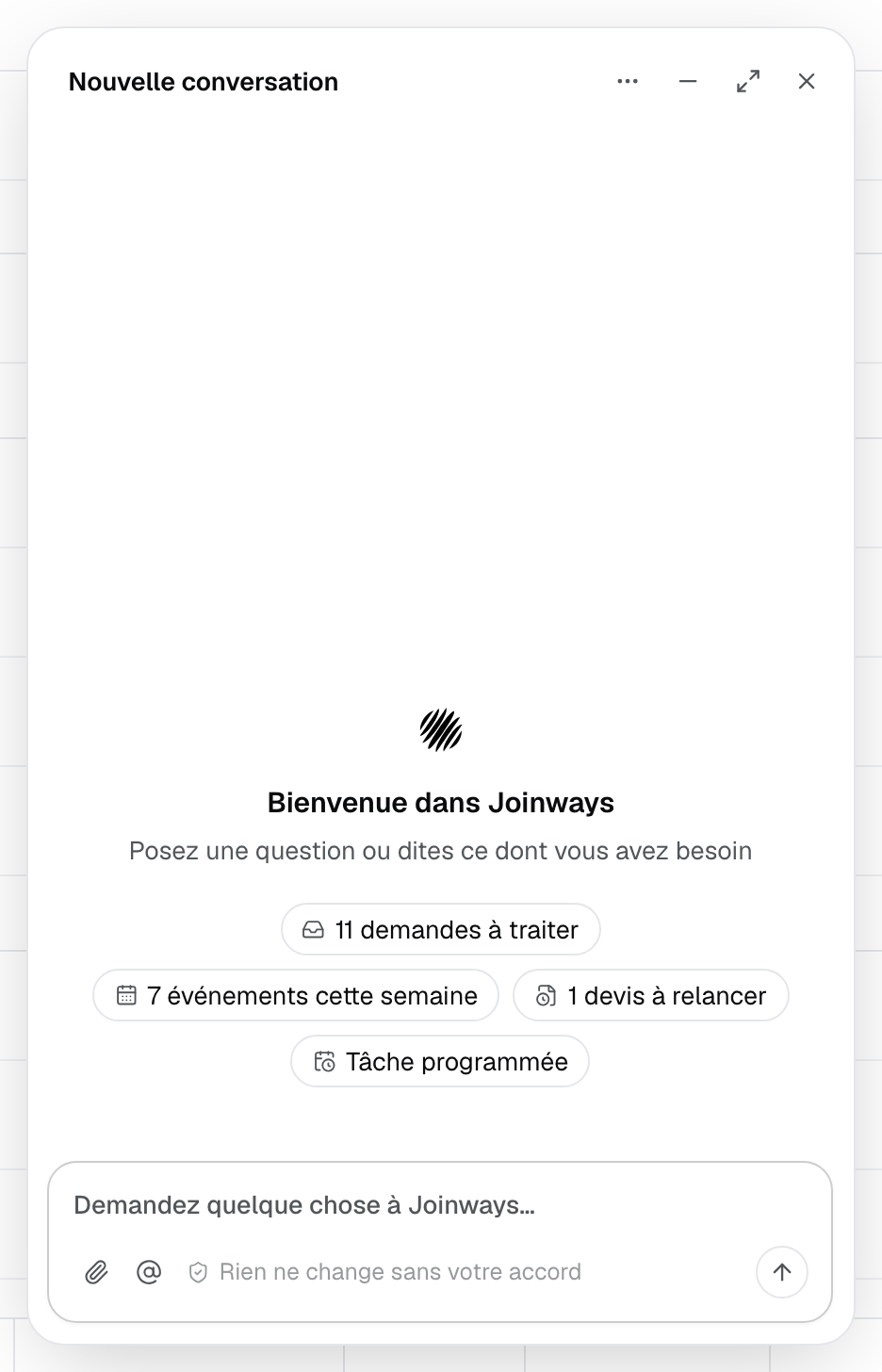
Opened on a record, the agent knows which one is on screen. On an event, "this event" is enough, and the "Quote for this event" suggestion appears.
2. Ask a question
Type your question in "Ask Joinways something…" and press Enter. The agent looks through your inquiries, events, quotes, clients, contacts, tasks, availability and statistics, then answers. Each record it cites is a link that opens the record.

The suggestions under the input change with your workspace: "11 inquiries to handle", "7 events this week", "1 quote to follow up", "Month in review", "Scheduled task", or "Connect my mailbox" while no inquiry mailbox is connected. One click sends the matching question.
Below, the "What the Agent does for you" grid offers eight examples: "Answer an inquiry", "Find a date", "From inquiry to quote", "Get the day ready", "Understand your sales", "Block dates", "Teach it your rules" and "Friday planning". One click sends the example; the actions it prepares wait for your confirmation like any other.
A few example questions:
- "Which inquiries are waiting for a reply?" (the same definition as the "To process" tab of Inquiries);
- "Is the Orangerie room free on March 14 for 80 guests?";
- "Review the month: inquiries received, quotes sent, events confirmed.";
- "Prepare a quote for this event."
The paperclip ("Attach a file (PDF, image)") adds a client brief: the agent picks up its dates, guest count and times, and points out what is missing.
3. Mention a record with @
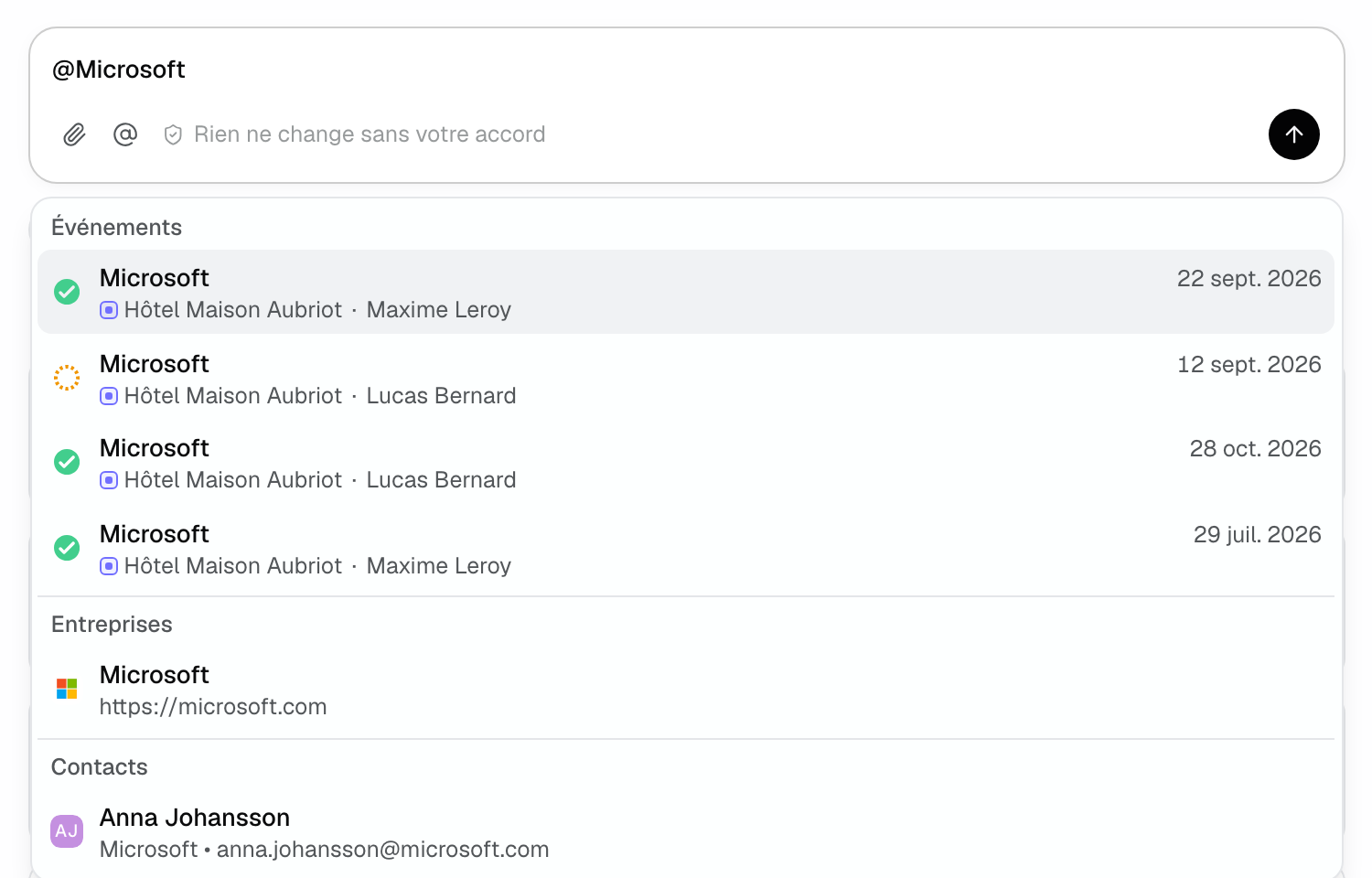
Type @ in the input, or click the "Mention a record (@)" icon. The list offers four groups: "Events" (with date, venue, status and owner, to tell two namesakes apart), "Companies", "Contacts" and "Team". Keep typing to filter, then pick a record: the agent works on that one, without searching for it by name.
4. Confirm prepared actions
When you ask to create, change or send something, the agent prepares a "To confirm" card: the action ("Create a quote", "Send an email", "Create a task", "Change the event status", "Block dates", "Edit the BEO"…), the values computed by Joinways (client, dates, lines, total, recipient, subject) and its summary.
- "Confirm" runs the action, with your role's rights at the time of the click.
- "Cancel" drops it: "Cancelled. Nothing was changed."
- "Show details" displays every field.
- "Edit" lets you correct an email's subject and message, a note or a title before confirming.
On an email, the card reminds you: "An email will go to your client. It can be cancelled from the event for a short moment, not after." The agent can attach a quote PDF, and the card shows whether it replies in the conversation already open with the client ("Reply in the existing conversation").
Important: the agent never deletes anything. Deletions are done in the app. A card prepared during a conversation expires after 30 minutes; those from a scheduled task or inquiry triage wait 24 hours.
5. Approve everything from the "To approve" queue
Everything the agent prepared for you that is still waiting ends up in one place: cards from your conversations, scheduled tasks and new inquiry triage. When an action is waiting, the "To approve" button appears at the top of the "Agent" page, with the count, and a "2 actions to approve" pill shows above the input.
- Click "To approve".
- Read the cards. "Open the conversation" opens the original conversation.
- Approve or decline each card, or click "Approve all (N)" or "Decline all", then confirm in the dialog.
"Approve all" runs each action as if you clicked its card, 20 at most at a time. Emails are never included: each one is approved on its own card, once read.
6. The agent's memory
Say "remember that I sign as Camille" or "remember that our seminar quotes always include the welcome coffee": the agent prepares a "Remember" card to confirm. These preferences then apply to everything it prepares (email signature, tone, quoting habits), in this workspace.
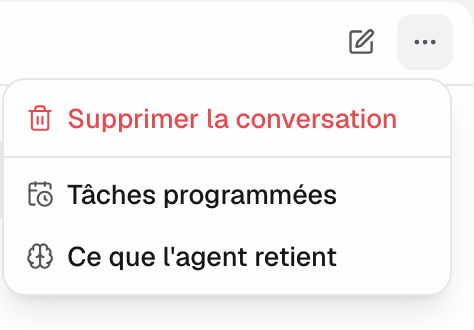
To read them again or remove one: "More options" menu (···) at the top right > "What the agent remembers". The bin asks for a second click ("Delete?"). The agent never remembers anything from an email, a note or a file, only from what you ask.
7. Scheduled tasks
For recurring work, ask with a frequency: "Every Monday at 9 am, list the quotes sent with no reply for 7 days and prepare the follow-ups". The agent prepares a "Schedule a task" card with the title, the instruction and the time. Possible frequencies: every day, every weekday, every week or every month, at your workspace's time.
At each run, the agent does the task on its own, prepares the actions and sends you a notification with its report. The actions wait 24 hours for your approval, in the report's conversation and in "To approve".
"More options" > "Scheduled tasks" lists your tasks (10 at most) with their next run and latest report. The "Turn the task on" switch pauses them, the bin deletes them. At the top of this page, the "Prepare every new request" card turns on automatic triage: see Automatic triage of new inquiries. In the sidebar, a counter on "Agent" shows how many of these automations are on for you (active scheduled tasks, plus triage if it is on).
8. Find or delete a conversation
Each conversation has its own address: you can reload it or reopen it later. The title at the top of the page (your first question) opens the history: "New chat", then "Recent conversations". The last five also show under the input of a new conversation.
To delete the conversation on screen: "More options" > "Delete conversation". In the list under the input, hover a conversation and click the bin twice ("Delete?"). The conversation leaves your history.
Your conversations, memory and scheduled tasks are personal: other workspace members do not see them.
9. Give feedback
Under each answer, thumbs up ("Good answer") or down ("Needs work") sends your feedback to the Joinways team. After a thumbs down, a "What went wrong? (optional)" field lets you add details.
10. Help and support
Ask "how do I" or "where is": the agent searches this help center, gives the useful steps with the exact menu names, then the link to the article. To connect your inquiry mailbox, it identifies your email host, gives the matching guide and checks the forwarding with a test email. The "I'm stuck" and "Fix with the agent" buttons on the connection screens open it straight on that topic.
For a bug, a subscription or account access question, an idea, or if you want to talk to someone, the agent prepares the "Message the team" card with a message written in your name. You read and edit it before sending. The agent cannot change anything in your Joinways subscription.
11. In the mobile app
In the Joinways app, "Joinways agent" is the first line of the menu. Opened from an inquiry or an event, the agent opens on that record ("About this inquiry", "About this event"). You get the suggestions, photo and file uploads and the same cards to confirm. "Message the team" prepares an email, and mailbox settings send you to the web ("Continue on the web"). A long press on an answer copies or shares it.
Example: an estate preparing its week
On Monday morning, Claire, sales manager at a seminar estate, opens "Agent" and clicks "7 events this week". She mentions @Notion Design Sprint and asks "Prepare a quote with the study day package for 60 guests". The agent checks availability, takes the catalog items at their prices and offers a "Create a quote" card with the total before tax. Claire confirms, then the agent prepares the email to the client with the quote PDF. She fixes a sentence with "Edit" and confirms the send.
Troubleshooting
The agent says actions require the Pro plan
Cause: the workspace is on the Free plan. Solution: the workspace owner upgrades in "Settings" > "Plans". Questions about Joinways and connection help remain available.
"Your role does not allow this action. Nothing was changed."
Cause: your role lacks the matching right (for example editing a quote). Solution: ask a member who has it, or ask an admin to change your role.
"This request expired or was already handled."
Cause: the card ran past its time (30 minutes in a conversation, 24 hours for a scheduled task or triage) or was already confirmed elsewhere. Solution: ask the agent again, it prepares the action with fresh data.
"Daily limit reached for this workspace."
Cause: the day's message count is reached. Solution: pick up again tomorrow, or message the team if you're stuck.
"This conversation is too long to continue."
Cause: the conversation reached its maximum size. Solution: start a "New chat"; mention the record with @ to bring back the context.
"Confirm your sign-in with your two-factor code"
Cause: two-factor authentication is on but the session has not passed it. Solution: sign in again with your code, then reload the page.
Frequently asked questions
Can the agent send an email without my approval?
No. Every email goes through a card you confirm, and "Approve all" never includes emails.
Can the agent delete data?
No. It creates, edits, sends, converts or archives after confirmation, but deletions are always done in the app.
Do my teammates see my conversations?
No. Conversations, memory and scheduled tasks belong to each member. Confirmed actions, however, change workspace data as if you did them by hand.
Where do the prices in prepared quotes come from?
From your venue catalog. The agent also checks availability before offering a date, and the card shows the total computed by Joinways before anything is created.
Why "Agent" and no longer "Assistant"?
It is the same tool, renamed: it no longer just answers, it prepares the actions.
See also
Try it on your next inquiries for 30 days, no credit card.