Manage an event’s emails
Send and receive emails straight from the event file: the whole thread stays attached to the file, visible to the whole team.
Updated
Email exchanges keep a file alive. By centralizing them in the event, you keep the full context without digging through your inbox, and the whole team sees the same thing. Sending, receiving and rereading a conversation all happen in one place, right from the event file.
Concretely, every message sent or received stays attached to the right file. The thread no longer scatters across individual inboxes: it becomes a shared memory any team member can consult and pick up.
This page sums up everything you can do with an event's email thread: compose a message, reply within the conversation, attach a quote, lean on the AI assistant, and keep a history everyone can read.
Prerequisites
Before sending or receiving emails from an event, check a few conditions.
- A connected mailbox: your Gmail or Outlook linked to Joinways, or a mailbox a teammate shared with the team.
- An open event: the folder the thread will be attached to.
- A recipient: the address of the client or contact you're writing to.
- Active sync: depending on your setup, it governs the automatic surfacing of replies and history.
Once these conditions are met, the email thread runs on its own: you write from the file, and replies come back to file themselves there.
What you'll learn
- Send an email from the event, with or without an attachment.
- Follow the attached thread and reply to it.
- Lean on the AI assistant and templates to write faster.
- Keep a shared team history, readable by everyone.
Send an email
From the file, you compose and send a message without leaving the event. The client's reply then comes back to the same place, in the same thread.
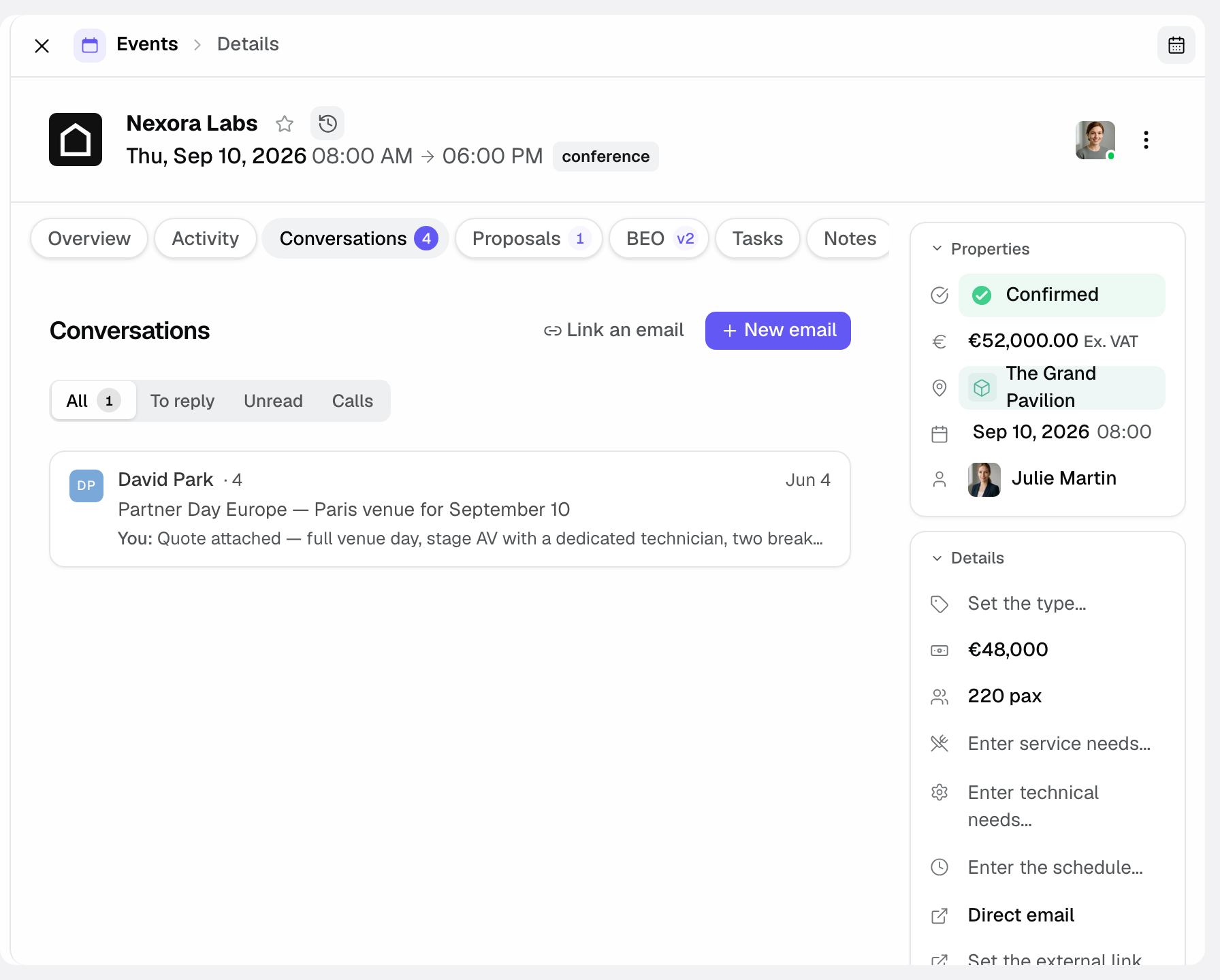
- Open the event then the Conversations tab.
- Click "New email", choose the sending mailbox, a "Template" if needed, then write your message.
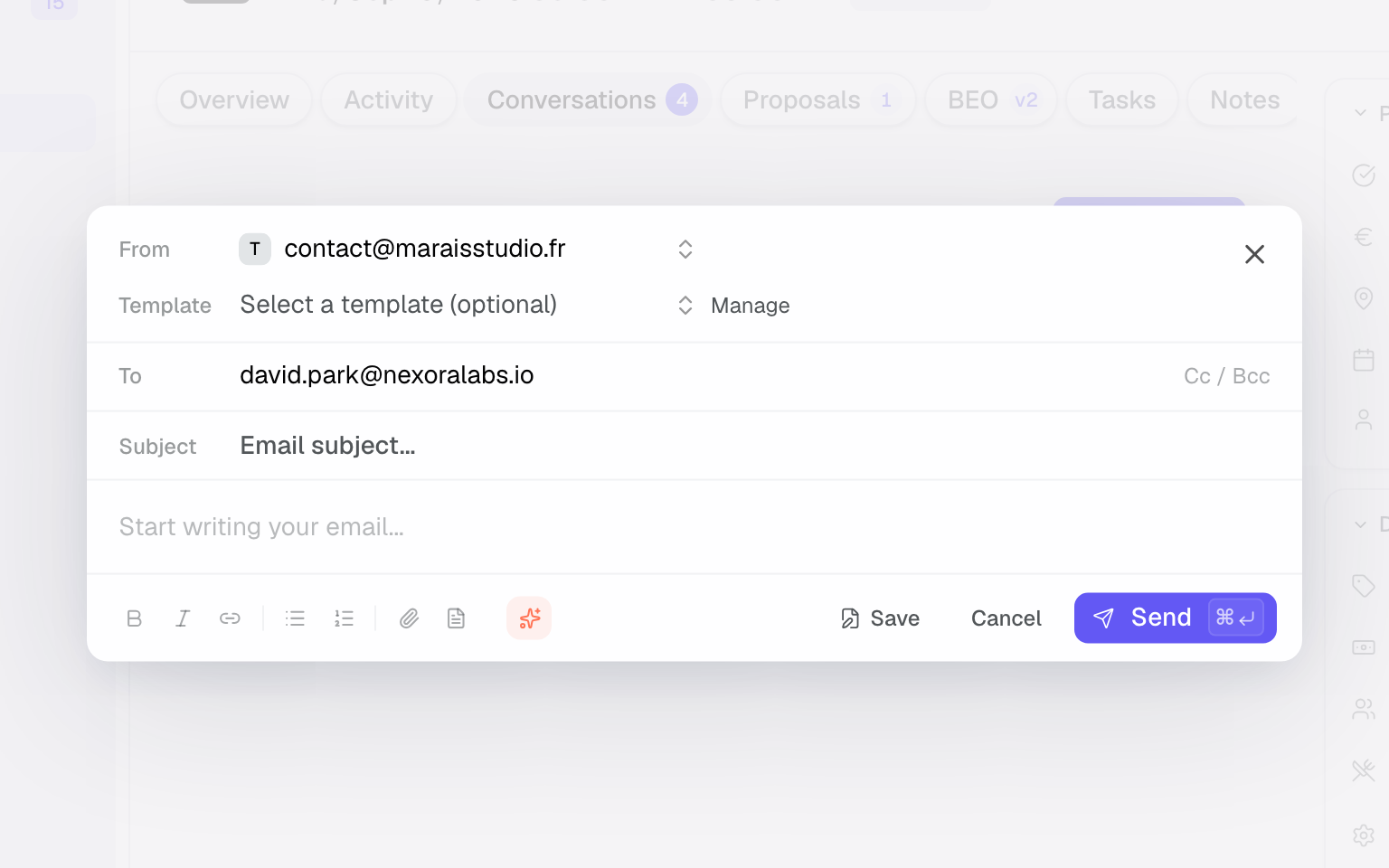
- Send: the client's reply comes back to the same place.
- Follow the thread as exchanges go: each new message adds to the conversation.
The message leaves from the mailbox chosen in "From": yours, or a mailbox shared with the team. The client receives a normal email. If a conversation already exists with this client, the email is added to it (subject "Re: …"). After "Send", you have 5 seconds to click "Undo". If sending fails, the message stays in the thread with "Retry" or "Reconnect mailbox".
One conversation, whatever the channel
The tab is not only your emails. It is the single chronological account of everything that happened with this client, so you never have to reconstruct a story from three screens.
- Emails sent and received, as ever.
- Messages exchanged on a booking platform, read from the platform itself, placed at their own date.
- The facts the platform reports: request received, quote transmitted, request closed. They read as events in the timeline, not as emails.
- Phone calls made or received through your connected telephony.
The platform's notification emails, the ones that merely announce those facts, are folded away behind a single line, "Show the notifications" followed by the platform name and their count. The timeline stays readable, and nothing is lost: one click brings them back.
At the top of the list, the "All", "To reply", "Unread" and "Calls" filters (plus one tab per platform) isolate what needs action.
You reply directly under the message concerned rather than at the bottom of the page, and the thread you are reading is kept in the address, so a link you paste to a colleague opens on the same exchange.
Reply within the thread and share it
Replying from the event rather than from your personal mailbox keeps the exchange visible to the whole team and preserves the file's context.
- Open the thread attached to the event.
- Under the message concerned, click "Reply", "Reply all" or "Forward".
- Write your reply, add an attachment if needed, then send.
- The message joins the thread: a colleague who opens the file sees the full exchange.
That sharing is the key: if you're away, a teammate picks up the conversation where it stands, without having to ask you to forward anything.
What you can do with the email thread
An event's email thread brings together several actions. Here is what each one covers.
- Send an email: compose a new message to the client or a contact from the file.
- Reply: continue an existing conversation while staying in the same thread.
- Attach a file: add a quote or a document to your message.
- Receive replies: the client's replies come back into the event, not just into your inbox.
- Link an email: "Link an email" searches for an email in the workspace (by subject or sender) and links it to the event. Conversely, "Unlink from event" removes a misfiled conversation.
- AI assistant: have a reply draft written to save time.
- Email templates: start from a standard text for recurring messages.
- Shared history: the whole team consults the same thread.
Write faster: AI and templates
So you don't start from a blank page on every message, two aids live in the thread: the AI assistant and email templates.
- AI assistant: "Write with AI" generates a draft from the file's context. You can "Accept", "Regenerate" or "Reject" it, then adjust it.
- Email templates: pick a standard text in "Template" for recurring messages (confirmation, follow-up, quote sending). The "Manage" link opens their settings in a new tab.
- Attachments: "Attach a proposal" adds the PDF of one of the event's quotes; "Add attachment" adds a file (10 MB max per file, 25 MB in total).
In every case, you have the final say: the AI and templates offer a starting point, you validate the content before sending.
How it works
The email thread links your connected inbox and the event folder. Sending goes through your mailbox, and the conversation is filed inside Joinways.
- You write from the event: the message leaves from your connected inbox.
- The client replies as to a regular email.
- The reply is attached to the event.
- The thread grows with each exchange and stays readable by the team.
Emails linked to an inquiry surface automatically in the event created from that inquiry: you start the file with the conversation already in place.
Edge cases
A few situations are worth anticipating.
- Email arriving in your inbox: depending on sync, it can surface in the event without any action from you.
- Misfiled email: if a conversation belongs to another file, open it and choose "Unlink from event". It won't be re-linked automatically.
- Inquiry converted to an event: the inquiry's emails follow into the created event.
- Reply during an absence: a teammate sees the thread and takes over without losing anything.
Best practices
- Reply from the file: you keep the context and make the exchange visible to the team.
- Link missing emails: if an exchange with the client doesn't show, use "Link an email" rather than forwarding it.
- Use the AI assistant: it writes a first draft you only have to adjust.
- Lean on templates: for recurring messages, start from a standard text rather than a blank page.
- Attach the right documents: add the quote or relevant document straight to your message.
Troubleshooting
Here are the most common situations and how to resolve them.
I can't send an email from the event. Cause: you have no connected mailbox, and no mailbox is shared with the team. Solution: click "Connect an email" in the "Conversations" tab (or go to "Settings", "Integrations", "Personal"), link Gmail or Outlook, then come back to "New email". You can also ask a teammate to share their mailbox with the team.
The client's reply doesn't show in the file. Cause: the mailbox that received it isn't connected, or Joinways didn't match it to this event. Solution: check the connection in "Settings", "Integrations", then click "Link an email" to link the message to the event.
An email shows up in the wrong event. Cause: it was linked automatically (the reason shows at the top of the conversation, for example "Linked via the contact"). Solution: open the conversation, choose "Unlink from event", then link it to the right event.
Real-world example
A colleague is away; their client replies to a follow-up. The rest of the team sees the thread in the event and takes over without losing anything. The reply, the history and the attached quote are all there, in the file: nobody needs to dig through a personal mailbox.
Another example
You receive an inquiry by email. By converting it into an event, the initial conversation surfaces automatically in the file. You reply from the event with a quote attached, starting from a template to move quickly, and the client's reply comes back to file itself in the same thread.
FAQ
Are my old emails imported?
Depending on your sync configuration, recent history can be attached automatically to the event.
Does the email leave from my address?
Yes, or from a mailbox shared with the team: the message leaves from the mailbox chosen in "From", and the client receives it from that address.
Can I attach a quote to an email?
Yes. You add the quote or a document as an attachment straight to your message from the event.
Does the AI assistant write for me?
It drafts a message you reread and adjust before sending: you keep control of the final content.
Can my teammates see the thread?
Yes. The thread is shared: the whole team consults the same exchanges from the event.
Do I need Gmail or Outlook?
Yes. To send, you need your own connected Gmail or Outlook mailbox, or a mailbox a teammate shared with the team. Without one, you still see your teammates' emails linked to the event.
Does the client's reply come back automatically?
Yes, when sync is active: the reply files itself in the event's thread.
Can I start from an email template?
Yes. For recurring messages, you start from a standard text you adapt before sending.
See also
- Reply faster with the AI email assistant
- Connect Gmail
- Create an event
Bring every event inquiry into one queue.