Automatic triage of new inquiries
The agent reads each new inquiry, checks availability and prepares the reply or the proposal. You approve from "To approve".
Updated
An inquiry arrives in the evening or during a service. The next morning, someone still has to read it, check the room, look up prices and write the reply, while the client waits and compares.
With automatic triage, the Joinways agent prepares each new inquiry as soon as it arrives: it reads it in full, checks availability and prepares the reply to the client, or the event and its quote straight away. You get a notification, review and approve. Nothing goes out without your approval.
What you'll learn
- Turn triage on and choose who receives the prepared work.
- Understand what the agent prepares depending on the inquiry.
- Approve from the notification or the "To approve" queue.
- Stop triage or take it over from a teammate.
Prerequisites
- Pro plan or trial. On the Free plan, the switch shows "Available on the Pro plan."
- To turn it on: the right to manage inquiries (Owner, Admin and Member roles). To take over or stop a teammate's triage: the right to manage settings (Owner, Admin).
- A connected inquiry source (mailbox, form, platform): see Connect your business email.
- For a full proposal: spaces and a priced catalog on the venue. To send replies: your mailbox connected in "Settings" > "My mailbox".
1. Turn triage on
- Open "Agent" in the sidebar.
- Click "More options" (···) at the top right, then "Scheduled tasks".
- Turn on the switch of the "Prepare every new request" card.
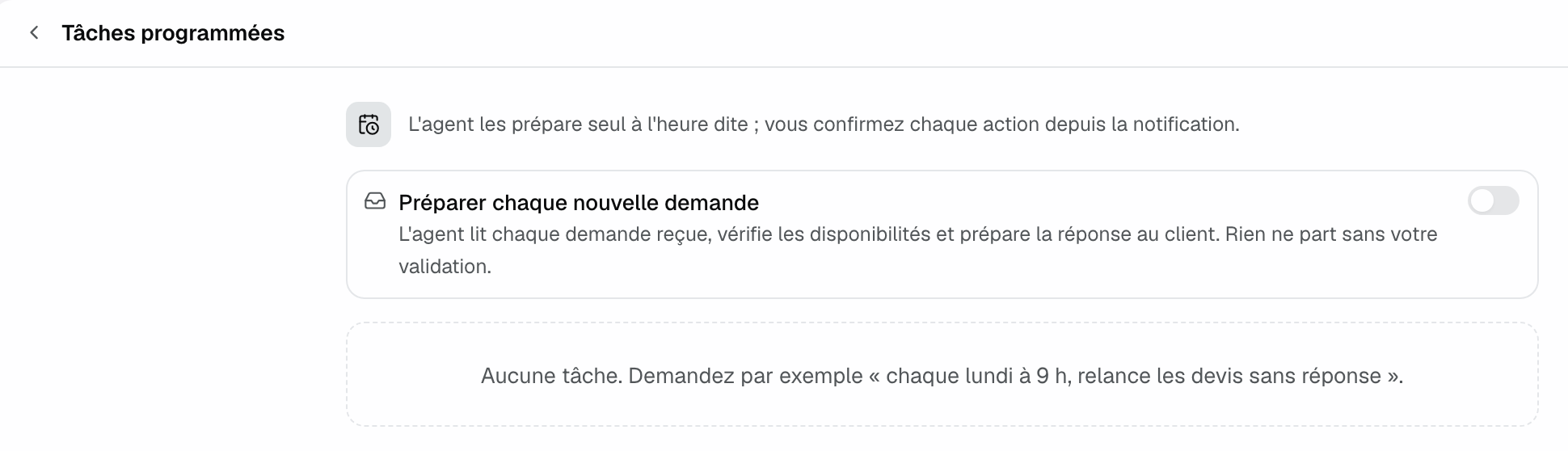
The same card is available from the agent's panel (⌘J), ··· menu > "Scheduled tasks".
The member who turns triage on becomes the recipient: they receive the notifications and the actions to approve. There is one recipient per workspace. If a teammate already turned it on, the card says "On for another team member." and offers "Receive them instead".
Triage only prepares inquiries received after it was turned on. Older inquiries are left as they are.
2. What the agent prepares for each inquiry
About every 10 minutes, the agent picks up the workspace's new inquiries that are still to process and not converted. For each one, it reads the inquiry and the client's latest message in full, then checks availability on the requested dates: for the requested spaces, otherwise for those that fit the guest count. Then, three cases:
The inquiry is complete and a space is free
For a direct inquiry with a date and a guest count, the agent prepares the proposal in a single "Convert and prepare the quote" card: the space, start and end, the catalog lines suited to the format and guest count, at their prices, and the total. Nothing exists until you confirm.
On confirmation, the inquiry becomes an event with its quote. The "Auto-filled proposals" option does not prepare a second quote for that event. The agent then prepares the email to the client with the quote PDF attached, on a new "Send an email" card.
Some information is missing, or the space is taken
The agent prepares a "Reply to the request" card, in the client's language. If essential information is missing, the reply asks only for that, and the inquiry moves to "Replied" once the email is sent. If the space is not free, the reply says so and offers another free date or space.
The inquiry comes from a platform
When the platform's terms forbid writing to the client directly (Kactus or Funbooker, for example), the agent sends nothing by email. It writes the text ready to paste on the platform in its report and, if the inquiry is complete and the space free, prepares the "Turn the inquiry into an event" card.
In every case, the agent ends with a report of three lines at most: what the client wants, availability, what awaits your confirmation. Replies are signed by the venue (the signature saved in the agent's memory, otherwise the venue name), never by Joinways. The inquiry itself stays to process until you approve something.
3. The notification
As soon as the inquiry is prepared, the recipient gets a notification, for example:
- "New request · Anaïs: 2 actions prepared, waiting for your approval."
- "New request · Anaïs: the report is ready." when there is nothing to approve;
- "New request · Anaïs: the agent could not finish preparing it." on failure: handle the inquiry yourself.
One click opens the report in the "Agent" page, with its cards. You can carry on the conversation there: "offer the Verrière room instead", "add the dinner".
4. Approve the prepared work
Cards prepared by triage wait 24 hours. You find them in the report's conversation and in the "To approve" queue of the "Agent" page, along with those from your other conversations.
- Read each card. "Edit" lets you correct a reply's subject and message before sending it.
- "Confirm" runs the action with your rights at that time; "Cancel" drops it.
- "Approve all (N)" approves conversions and other actions at once. Emails are never included: each one is approved on its own card.
5. Stop triage or change the recipient
To stop, turn off the switch of the "Prepare every new request" card. The recipient can always stop their own triage. To stop a teammate's, or take it over with "Receive them instead", you need the right to manage settings.
Triage also turns itself off if the recipient leaves the workspace or loses access, or if the workspace no longer has the Pro plan.
Limits
- Only inquiries received less than 24 hours ago, after activation, are prepared.
- Inquiries already converted, archived or locked are skipped.
- 40 inquiries per day per workspace at most: beyond that, the next ones wait for you.
- An inquiry is never prepared twice.
Example: a hotel with seminar rooms
At 10:40 pm, an inquiry comes in through the website form: an 18-person board meeting on March 12, full day. By 10:50 pm, the agent has checked that the Verrière room is free and prepared "Convert and prepare the quote" with the room hire, two breaks and lunch from the catalog. The next day at 8 am, Julien opens the notification, confirms, reads the prepared email with the PDF, changes a sentence with "Edit" and sends it. The client has the proposal before 8:15.
Troubleshooting
No notification for a new inquiry
Cause: the inquiry arrived before activation or more than 24 hours ago, it was already converted, or the daily limit is reached. Triage also only sees inquiries of the workspace where it is on. Solution: handle it by hand, or ask the agent "prepare this inquiry" while mentioning it with @.
"Available on the Pro plan."
Cause: the workspace is on the Free plan. Solution: the owner upgrades in "Settings" > "Plans".
"You need permission to manage requests…"
Cause: your role lacks the right to manage inquiries, or triage is on for a teammate and you lack the right to manage settings. Solution: ask an admin.
The switch turned itself off
Cause: the recipient no longer has access to the workspace, or the workspace left the Pro plan. Solution: turn it back on from the new recipient's account, once the plan is restored.
"This request expired or was already handled."
Cause: the card is more than 24 hours old, or the inquiry was handled in the meantime. Solution: open the inquiry, or mention it to the agent so it prepares the action with fresh data.
Frequently asked questions
Does triage send emails on its own?
No. It prepares cards, and each email waits for your confirmation on its own card.
Does triage change the status of my inquiries?
No. The inquiry stays to process until you confirm an action: conversion into an event, or a reply that moves it to "Replied".
Can several members receive triage?
No, one recipient per workspace. An admin can take it over with "Receive them instead".
What's the difference with AI inquiry reading?
"Incoming inquiry reading" spots the date, guest count, budget and type on every inquiry, with no setup. Triage goes further: it checks availability and prepares the reply or the proposal to approve.
See also
Try it on your next inquiries for 30 days, no credit card.