Work with vendors
Add vendors to the BEO, send each one a single link, and track confirmations, margin and invoices through to accounting.
Updated
Caterer, sound and light, photographer, florist: an event often involves outside vendors. You need to send them the right schedule, know whether they confirmed, tell them when something changes, then match their invoices. Many venues keep a spreadsheet per vendor for this.
In Joinways, vendors are a section of the BEO. Each vendor has one link that lists all their jobs with you: they read their part, confirm, correct their details, suggest their menu and upload their invoice. You follow their answers, the purchase price and the margin from the event.
What you'll learn
- Add a vendor to the BEO and assign schedule lines to them.
- Enter their purchase price and follow the event's margin.
- Send them their link and track their confirmation.
- Receive their invoices and send them to QuickBooks, Pennylane or Qonto.
Prerequisites
- Any role other than "Read-only" to add, edit or remove a vendor.
- A connected mailbox to use "Notify". Without one, copy their link. See Manage your email connections.
- To send invoices to accounting: a connection to QuickBooks, Pennylane or Qonto. See Send your invoices to Pennylane.
1. Add a vendor to the BEO
Open the event, "BEO" tab, "Vendors" section.
- "Add a vendor" searches your vendors: those who already worked with you appear under "Already came". Type a new name to create "New vendor “…”".
- "Read in the quote" lists vendors spotted in the proposal or an imported document. Click "Add" to keep one, or "Ignore".
- A catalog item can be tied to a vendor: when that proposal line enters the BEO, the vendor is added with the line, at the item's cost price.
The vendor's card opens in the section. It saves itself.
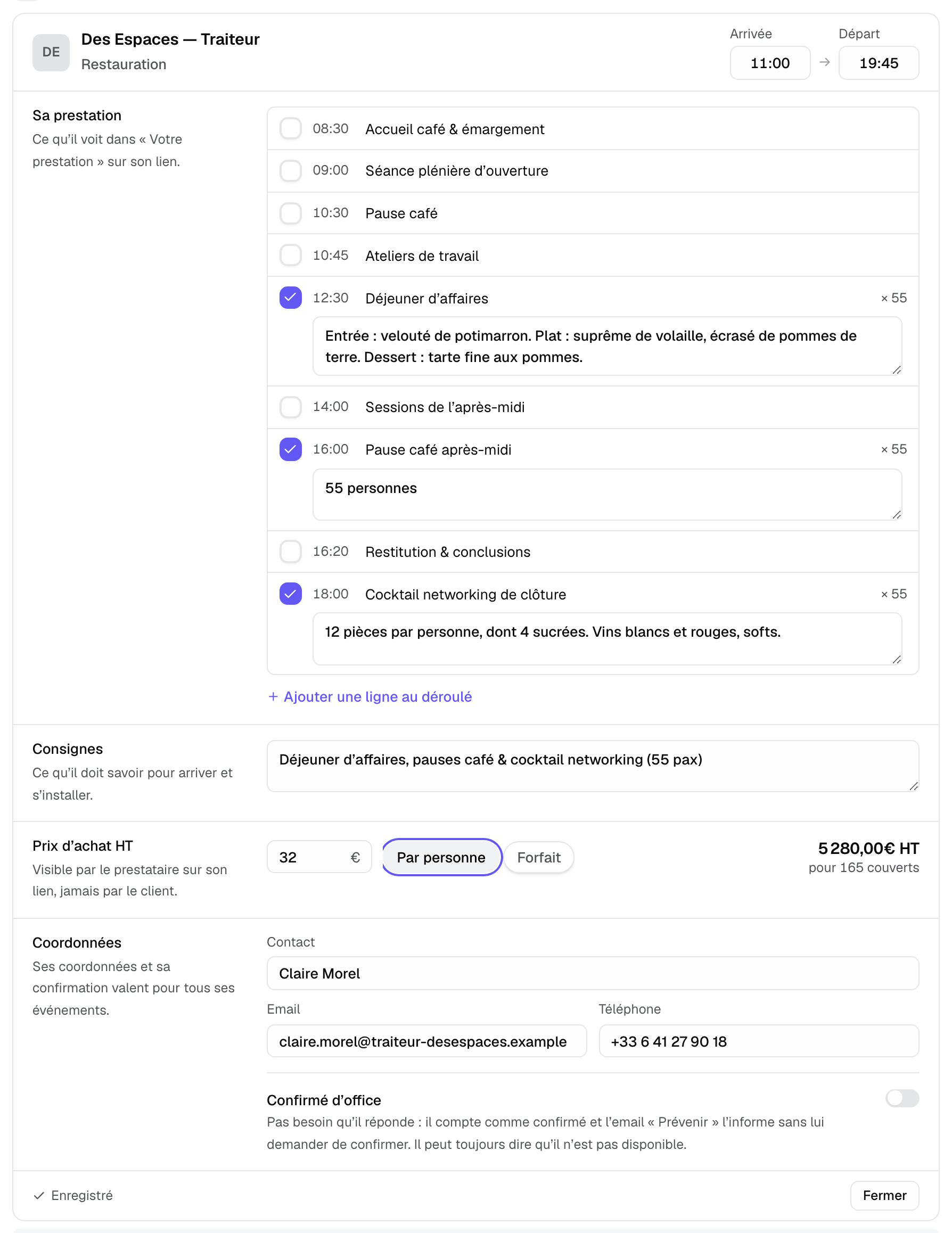
- Role and Arrival → Departure: their trade and hours on site.
- What they deliver: tick the schedule lines they handle (lunch, breaks, cocktail) and write the detail under each, such as the menu. "Add a line to the program" creates a line that does not exist yet. An assigned line also shows the vendor in the schedule ("Who delivers this line?").
- Instructions: what they need to know to arrive and set up (delivery, access, equipment provided).
- Purchase price excl. tax: per person or flat. Per person, Joinways computes the total from the covers of their lines, otherwise from the headcount.
- Contact details: contact, email and phone. They apply to all their events.
- Confirmed by default: no need for them to answer; they count as confirmed, and the "Notify" email informs them without asking them to confirm.
2. Follow the vendor from the event
Closed, the card becomes a row: role, hours, price, status, then "Notify" and "Their link". Below the list, "Vendor purchases" adds up purchase prices and "Margin" compares them with the event's confirmed revenue excl. tax.
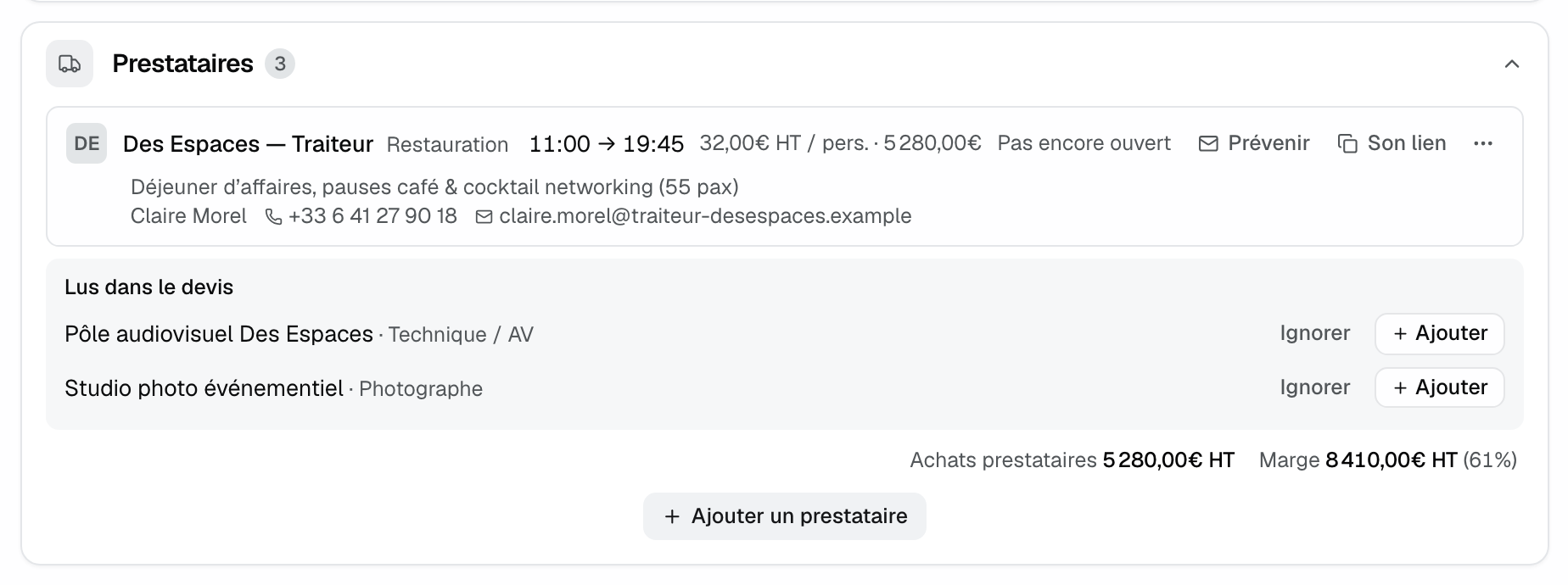
The status follows their answers: "Not opened yet", "Opened, not confirmed", "Confirmed v2", "Changed since they read it" when their part changed after they confirmed, "Not available", "Confirmed by default" or "Event cancelled".
- "Notify" opens a ready email from the venue's mailbox, with their link. After a change, the button becomes "Notify of the change"; if the event is cancelled, "Notify of the cancellation".
- "Their link" copies their personal link.
- The "⋯" menu offers "Edit", "New link" (the old one stops working), "Invoicing for the month" and "Remove from this BEO". If they already opened their sheet, Joinways offers "Remove and tell them" or "Remove without telling".
In the events list, a column shows the state of each event's vendors, and the "Vendor" and "Vendor answer" filters ("To confirm", "Not available") find what still needs sorting out.
3. What the vendor sees
Their link opens the "Your events with …" page, with no account. At the top, their "Next service". Three tabs: "Upcoming", "Past" and "To invoice".
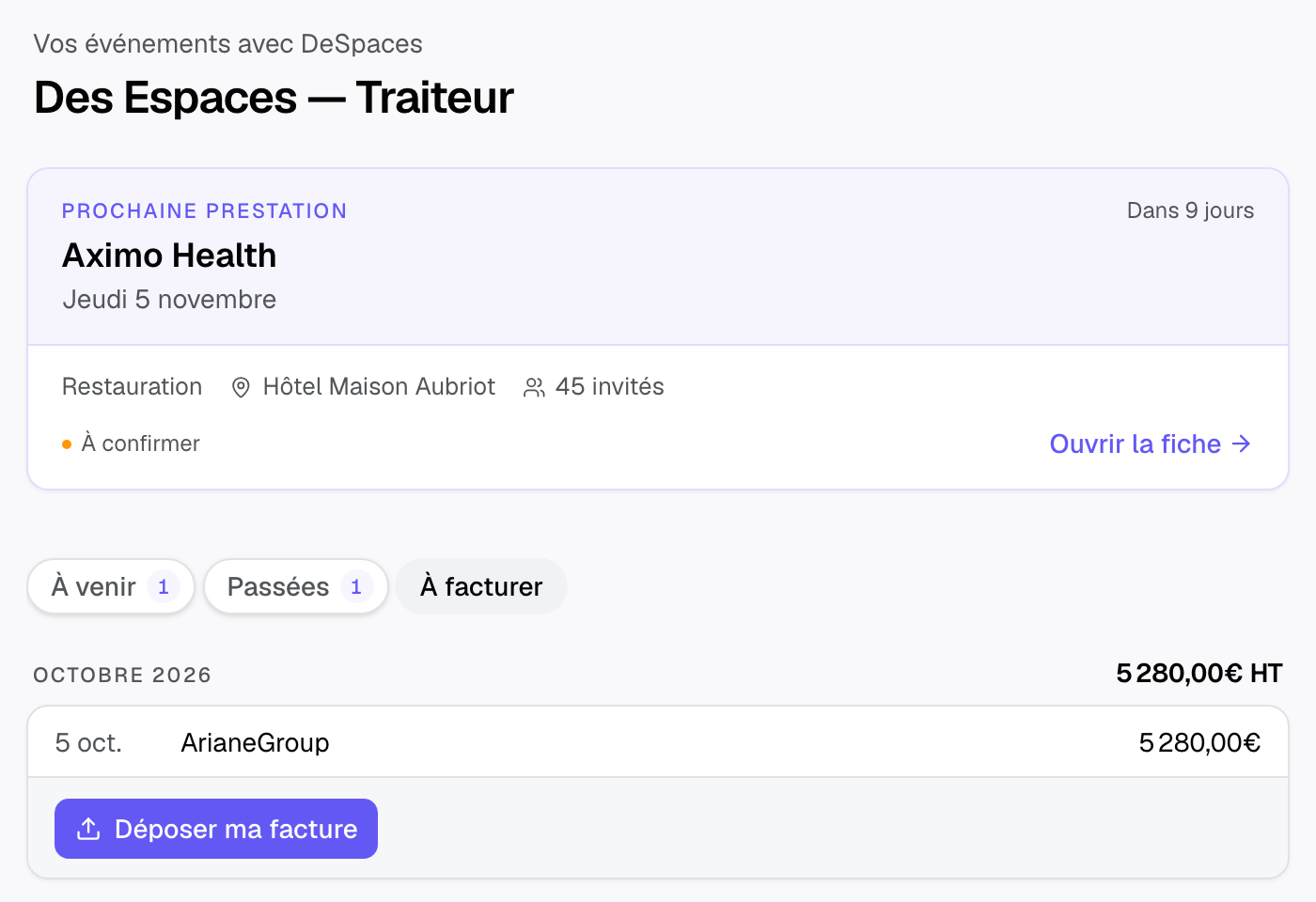
"Open the sheet" shows the event's BEO, with "Your part" on top: their schedule lines, the menu, the "Agreed price". They also see the venue instructions in their staff and vendors version (door codes, service entrance), never the internal remark.
- They answer "Got it, I confirm" or "Not available"; they can change their mind later. You are notified.
- "My hours and details" lets them correct their arrival, departure and contact details. You see the change right away.
- "Suggest a change" on a line lets them propose their menu. The proposal shows in the section: "… suggests a change", with "Accept" or "Keep current". They can never change the price.
- If the event is cancelled, it stays on their link until its date, marked cancelled, with no answer possible.
4. Vendor invoices
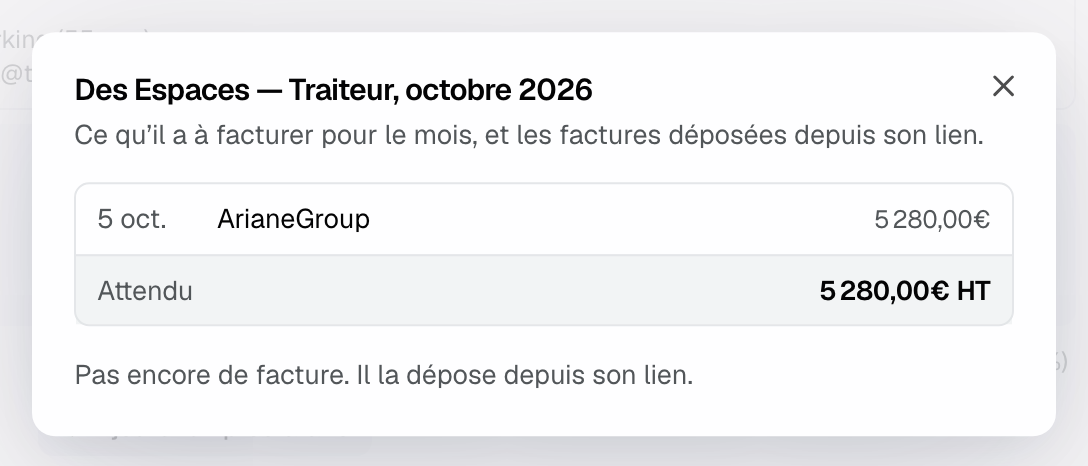
In the "To invoice" tab of their link, the vendor sees, month by month, their past jobs and the expected amount. A job with no price shows "Price to agree". They click "Upload my invoice" and send a PDF or a photo (4 MB max), with its number and amount excl. tax if they wish. The venue is told as soon as it is uploaded.
On the venue side, the vendor's row shows "Invoice received" then "Invoice paid". The "⋯" menu > "Invoicing for the month" opens the statement: the month's jobs, the expected amount, uploaded invoices, any gap, open and "Mark as paid".
Depending on the workspace's connections, each uploaded invoice offers "Send to QuickBooks", "Send to Pennylane" or "Send to Qonto". QuickBooks creates the vendor and the bill with the PDF (US companies only); Pennylane imports the supplier invoice with the VAT you pick; Qonto receives the PDF in its supplier invoices. For Pennylane and Qonto, a first send asks to "Allow in …": these rights are not part of the initial connection.
5. The workspace's vendor list
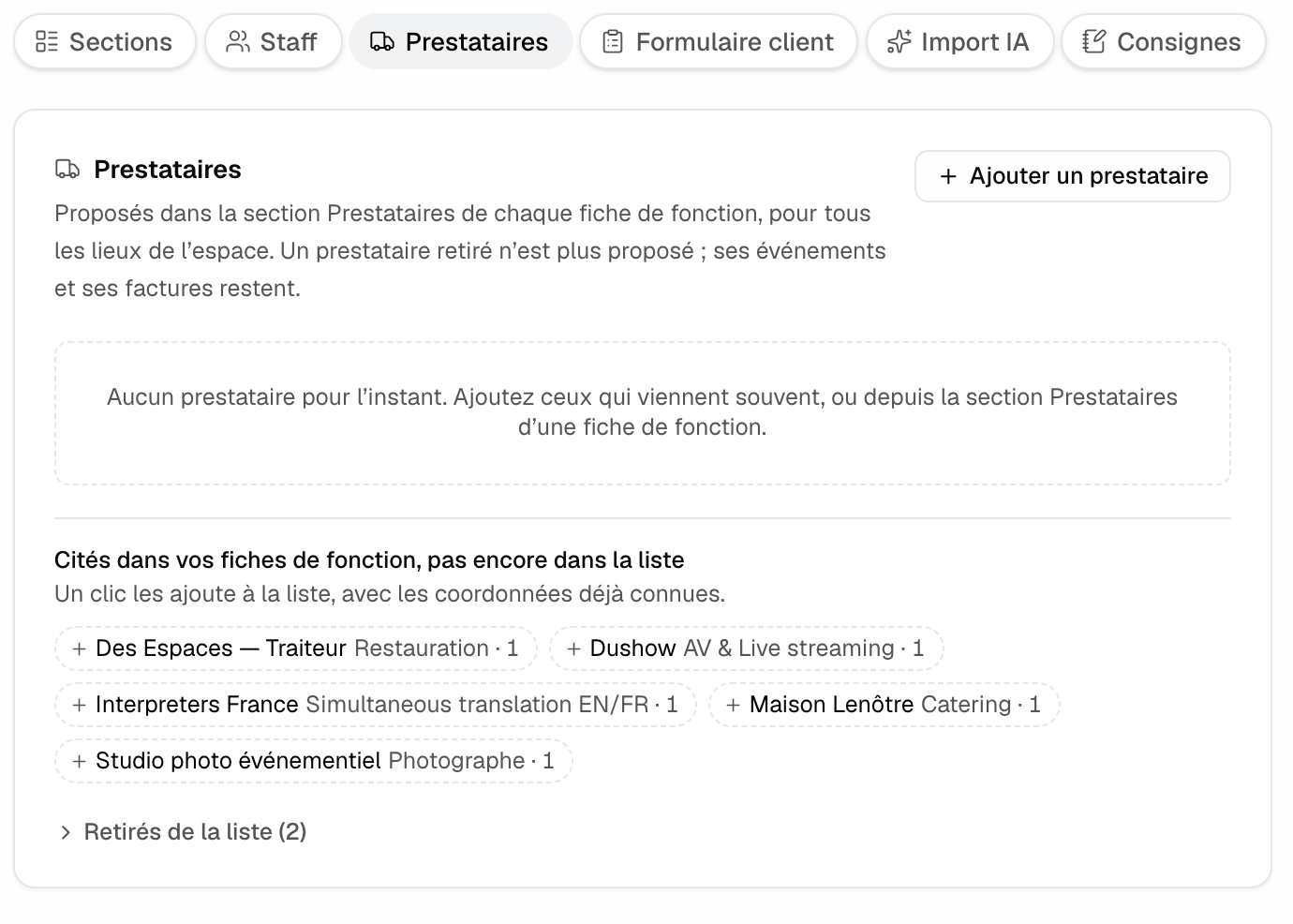
"Settings" > "Venues" > your venue > "BEO", "Vendors" tab, gathers the vendors offered in every BEO, for all venues of the workspace. Add the ones who come often, set "Confirmed by default" vendor by vendor, and add in one click those "Mentioned in your BEOs, not yet in the list". A removed vendor is no longer offered; their events and invoices stay.
Two venue settings complete this: the "Vendor contact details" row of the "Sections" tab decides whether the client sees their phone and email (off by default), and the "Instructions" tab holds the "Staff and vendors" version of the venue instructions. See Set up a venue's BEO.
Example: an estate's partner caterer
The estate works with the same caterer on almost every seminar. In the catalog, the "Three-course lunch" item is tied to that caterer, with a cost price of €32 per person. When the coordinator carries the proposal into the BEO, the caterer joins the section with their lines and price: the event's margin appears.
She clicks "Notify". The caterer opens their link, suggests the detailed menu, which the coordinator accepts, then confirms. At the end of the month, they upload one invoice for their four jobs, which goes to Pennylane in one click.
Troubleshooting
"Notify" shows an error
Cause: the vendor has no email, or no mailbox is connected. Solution: add their email in their contact details, connect a mailbox in "Settings" > "Integrations", or copy "Their link".
The vendor says their link no longer works
Cause: a "New link" was created, or they were removed from the BEO. Solution: copy "Their link" and send it again.
The purchases total is empty
Cause: the price is per person, but the event has no headcount and no lines with a quantity assigned to the vendor. Solution: enter the headcount, or tick their schedule lines.
"Send to QuickBooks" is not offered or fails
Cause: sending to QuickBooks only works for US companies for now, or the connection needs to be redone. Solution: check the connection in the integrations settings.
Frequently asked questions
Does the client see the purchase price?
No. The purchase price is visible to the vendor on their link, never to the client. The client sees vendors without hours or notes, and without contact details unless the venue shows them.
Does the vendor get one link per event?
No, one link that lists all their events with you. Each event opens from that page.
What happens if I change their part after they confirmed?
Their status changes to "Changed since they read it". Click "Notify of the change" so they read it again and confirm.
Can I rename a vendor?
Not from the workspace list: schedule lines find them by name. Edit their role and contact details from their card.
See also
Try it on your next inquiries for 30 days, no credit card.