The BEO guest form
Let each guest choose their dish through a single link with no account, follow the tallies per choice and carry them into the BEO.
Updated
For a seated dinner or a seminar with a meal, the kitchen needs each guest's choice of dish and their allergies. The organizer often gathers them in a spreadsheet, and someone then copies them by hand into the BEO.
The guest form replaces that spreadsheet. The venue writes its questions once; for each event, the organizer receives one link to pass on to every guest. Each guest answers on their own, without an account, and the BEO counts the choices. That is the difference from the client form: the client gives one answer per event, guests give one answer per person.
What you'll learn
- Create a venue's guest form and write its questions.
- Set whether answers can be changed and when the link closes, and know the cap on answers.
- Send the link to the organizer from the BEO.
- Read the tallies, carry them into the BEO and export the guest list.
Prerequisites
- Any role other than "Read-only" to send the link, carry the tallies over and hide an answer.
- An event attached to a venue that has a guest form: a venue has none until you create it.
- A connected mailbox to email the link from Joinways. Without one, copy the link.
1. Create the venue's guest form
- Go to "Settings" > "Venues" > your venue > "BEO", "Forms" tab, then choose "Guests".
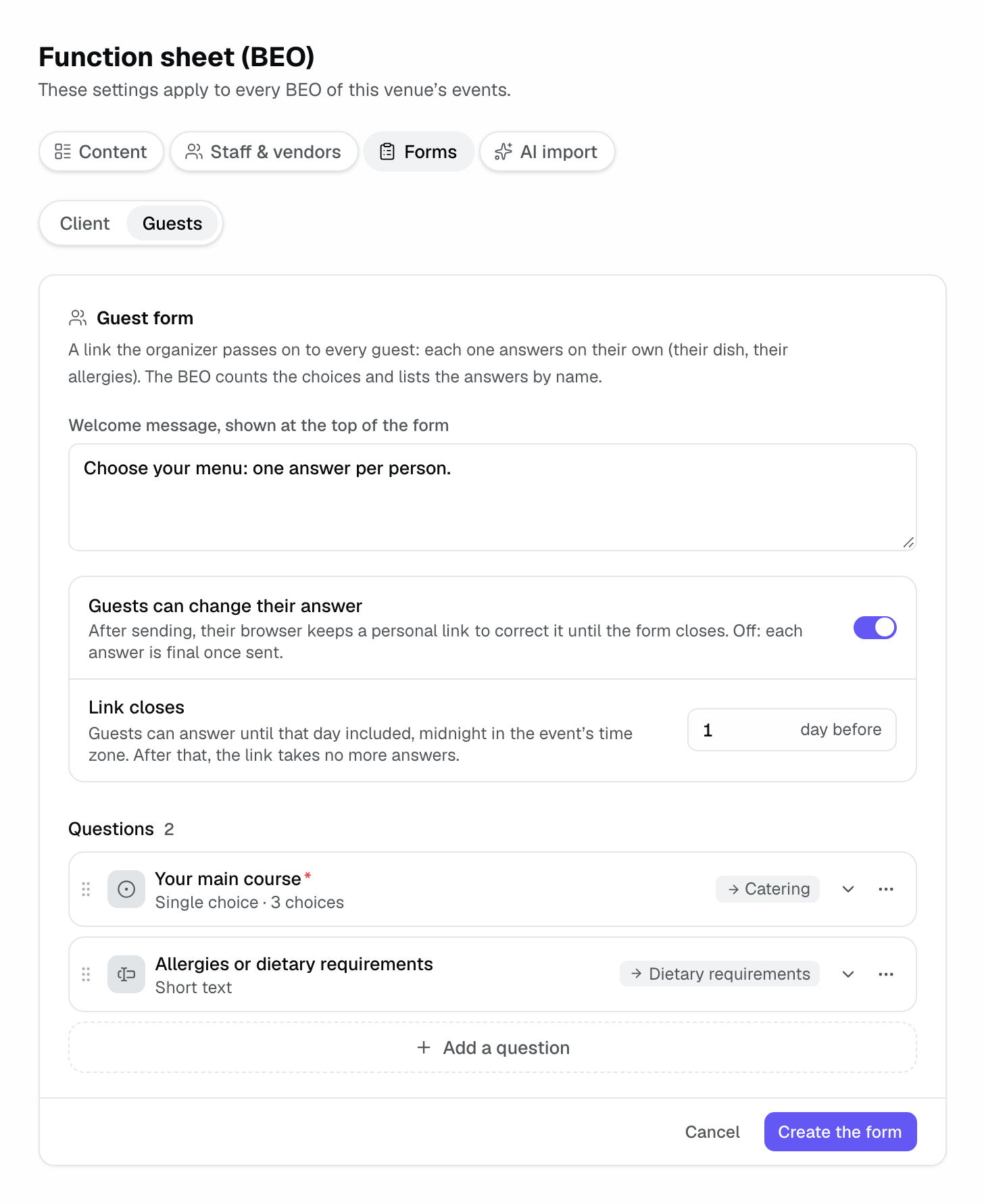
- Click "Create the form". Joinways suggests two starter questions: "Your main course" (Meat, Fish, Vegetarian), carried into "Catering", and "Allergies or dietary requirements", carried into "Dietary requirements".
- If another venue in the workspace already has a guest form, "Copy from another venue" takes its questions instead.
- Edit the "Welcome message, shown at the top of the form", then click "Create the form" at the bottom of the page to save it.
2. Write the questions
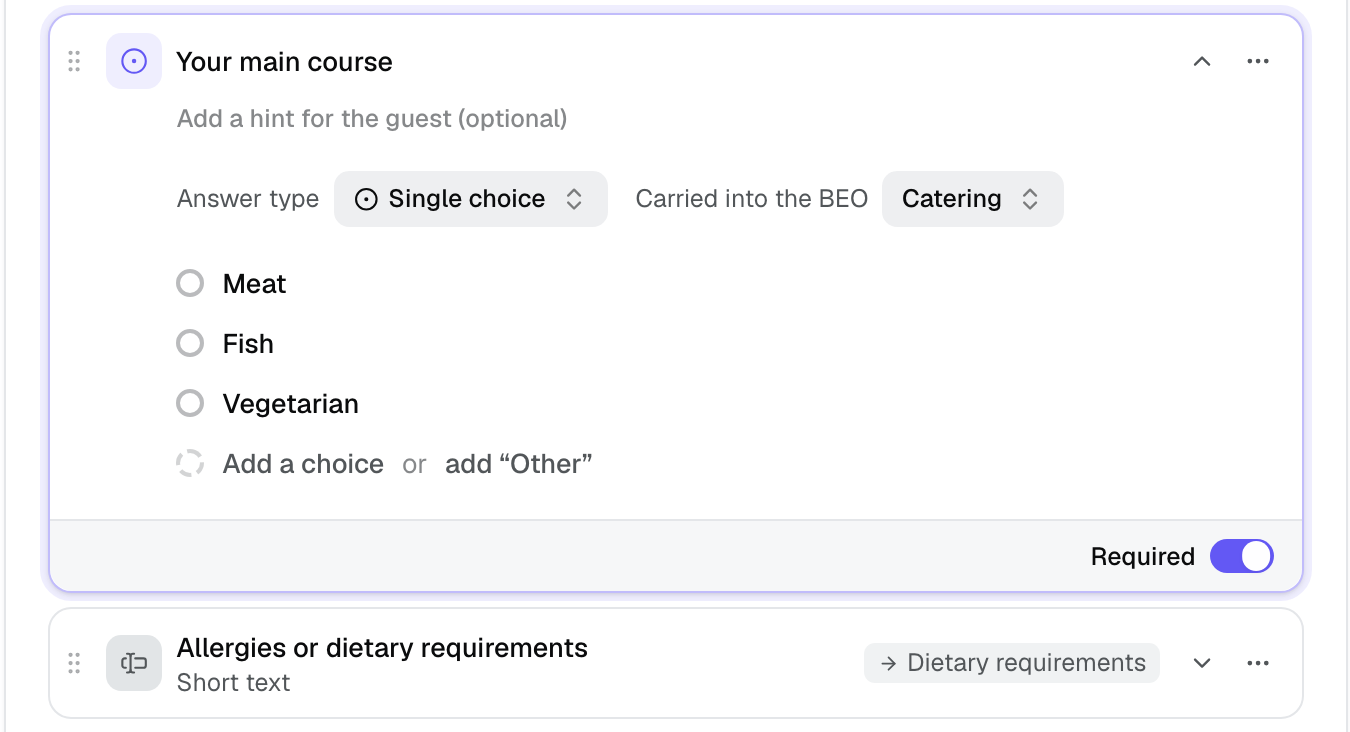
A guest form holds 1 to 15 questions. The editor is the same as the client form's: click a question to open it, or click "Add a question".
- Answer type: "Single choice", "Multiple choice", "Short text" or "Long text". Times, contacts and the schedule stay in the client form.
- Carried into the BEO: "Catering", "Dietary requirements", "Setup", "Technical", "Activities", "Remark", or "No section (read-only answer)".
- Toggles: "Required"; on a choice question, "Other" opens a free answer. There is no "Day by day": a guest gives a single answer.
Click "Save the questions". Guests always answer the venue's current questions; an answer already received keeps the questions as the guest read them.
3. Set the link rules
Two rules, at the top of the tab, apply to every event of the venue:
- Guests can change their answer: after sending, their browser keeps a personal link to correct it until the form closes. Off, each answer is final once sent.
- Link closes: 1 to 90 days before the event. Guests can answer through that day, midnight in the event's time zone. After that, the link takes no more answers.
A link takes a limited number of answers: twice the event's headcount, with a minimum of 50 and a maximum of 500.
4. Send the link to the organizer
Open the event, "BEO" tab. In the right-hand column, choose the "Form" view, then "Guests". The "Client" | "Guests" switch only shows when the venue has a guest form, or when guests have already answered.
- "Send to the organizer" opens a ready-made email, addressed to the event's contact, asking them to pass the link on to their guests. Review it and send it from your mailbox.
- "Copy link" gives you the link to paste into your own message; "Preview" opens the page as guests will see it.
The status follows the link: "Not sent yet", "Link created, waiting" (link copied or opened in preview), "Sent on …, waiting", then "Last answer on …". An event has a single guest link.
5. What the guest sees
The page shows "For the guests", the event title, the welcome message, then the date, the venue and the deadline ("Answer before").
- "Your name" is required: the venue records the choice under this name. The email address is optional.
- The guest answers the questions, then clicks "Send my answer". A required question left empty is marked in red.
- After sending, "Answer for someone else" opens an empty form again, for a partner for example. If the venue allows it, "Change my answer" reopens their own from the same browser.
Once the form is closed, the page tells guests to write to the venue. It shows the venue's "Public email" when one is set; otherwise, the name and address of the person who sent the link.
6. Read the tallies and carry them over
Answers add up in the "Guests" view. "Answers" compares their number with the event's headcount, and "No answer" gives the gap. A choice question shows its count per choice; a free-text question lists the answers by name. Nothing enters the BEO on its own.
- Click "Carry over" on a question, or "Carry all over" (the panel shows "N tallies to carry over"). The tally joins its section: one line per choice ("Fish × 18") in "Catering", one line per guest (their name, then their answer) in "Dietary requirements".
- If guests answer after the carry-over, the question shows "New answers since the carry-over". "Update" carries the current tally over.
- "Export the list (CSV)" downloads one line per guest: name, email, date, then their answer to each question.
Below the tallies, guests are listed by name. "Hide this answer" takes a test answer or a duplicate out of the tally, the list and the export, without deleting it; "Show again" puts it back.
Tip: Joinways notifies you in the app for the first answer only. Further answers add up without a notification.
Example: a gala dinner for 80 guests
A château keeps the two starter questions, adds "Your dessert" as a single choice carried into "Catering", and sets the link to close 5 days before. Three weeks before the dinner, the coordinator clicks "Send to the organizer". The client passes the link on to their 80 guests; the link takes up to 160 answers.
Six days before, the panel shows 74 answers and 6 with no answer. The coordinator hides a test answer, clicks "Carry all over" and exports the list as a CSV for the seating plan.
Troubleshooting
The "Guests" option does not show in the "Form" view
Cause: the event's venue has no guest form. Solution: create it in "Settings" > "Venues" > your venue > "BEO" > "Forms" > "Guests".
A guest reads that the form has received all the answers it can take
Cause: the link has reached its cap on answers. Solution: hide test answers and duplicates, which no longer count toward the cap, or correct the event's headcount if it is too low.
Frequently asked questions
Do the answers change the BEO automatically?
No. The tallies show next to the BEO, and you carry them over in one click. Only the tallies you carry over enter the BEO.
See also
Try it on your next inquiries for 30 days, no credit card.