Create your first automation workflow
Start from a template or from scratch, write the email with dynamic fields, test, then turn it on: your first automatic follow-up in place.
Updated
Following up on an unanswered quote, thanking a client two days after their seminar, asking for the last details a week before a wedding: these emails go out too late, or not at all, when they depend on everyone's memory.
A workflow sends them for you. You describe once "when this happens, wait so many days, check that, then do this", and Joinways applies it to every matching event.
What you'll learn
- Create a workflow from a template or from scratch.
- Put together trigger, delay, condition and action.
- Personalize the email with dynamic fields, or have the AI write it.
- Test, turn on and follow the history.
Prerequisites
- Pro plan or trial. On the Free plan, the "Workflows" tab shows "Unlock automations with Pro".
- Owner or Admin role to create, edit or turn on a workflow. Other members see workflows and their history read-only.
- A connected mailbox for the "Send an email" action: the email leaves from the event owner's Gmail or Outlook account, which each member connects in "Settings" > "My mailbox".
1. Open the "Workflows" tab
Open "Settings" > "Workflows" ("Sales follow-up" group), "Workflows" tab. Your workflows show with their switch, number of runs and last run. The "Ready-to-use templates" are below.
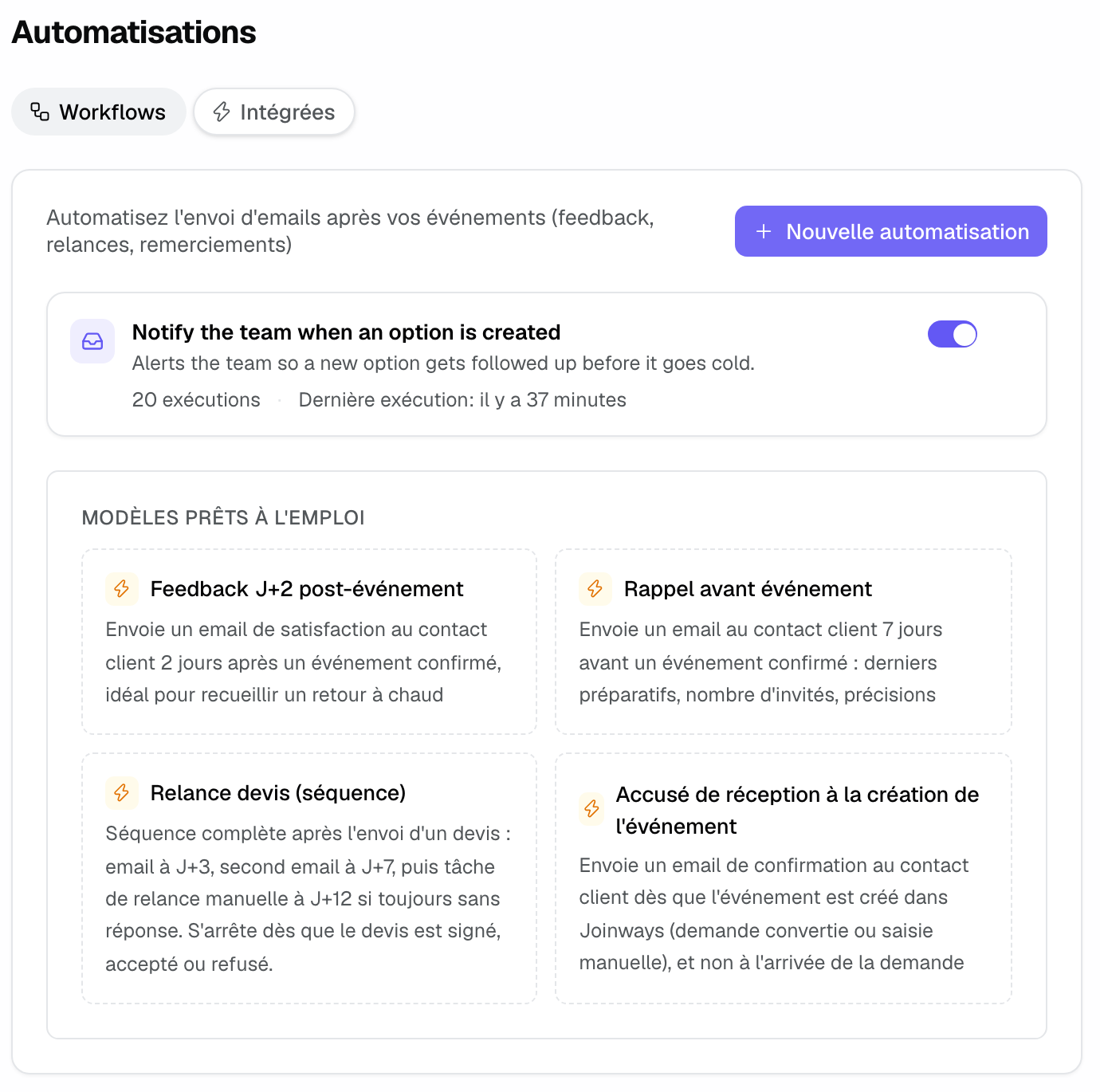
The tab next to it, "Built-in", lists what Joinways already does on its own: see The Workflows page.
2. Start from a template
It is the fastest way for a first workflow. Four templates are offered: "Post-event feedback D+2", "Pre-event reminder", "Acknowledgment when the event is created" and "Proposal follow-up (sequence)".
- Click a template. The workflow is created paused and opens in the editor. "Proposal follow-up (sequence)" creates three workflows at once and stays on the list.
- Review the suggested trigger, delay and condition.
- Rewrite the email subject and message in your own words.
Each template is detailed in Workflow examples to copy.
3. Or start from scratch
- Click "New workflow" ("Create from scratch" when the list is empty). The workflow opens with the "Event ended" trigger.
- Give it a name you will recognize in the list, for example "Client feedback 2 days after".
- Click the trigger to open "Configure step" and pick another one if needed, with its "Matching statuses".
- Click "+" between two steps ("Add a step") to insert a delay, a condition or an action.
4. The four building blocks
- Trigger: what starts the workflow. Six choices: "Event ended", "Upcoming event", "Status unchanged for", "Event created", "Event confirmed", "Proposal sent, no reply".
- Delay: how long to wait, in days and hours, with a "Preferred run time" in the venue's time zone.
- Condition: what must be true to act, for example "Contact email" "is filled in", the event type, venue, number of guests, owner, or the state of the BEO client form.
- Action: "Send an email", "Create a task", "Send a notification" or "Call a webhook".
Every option is detailed in Triggers, conditions and actions: the reference.
5. Write the email
In the "Send an email" action, fill in the subject and the message. "Insert dynamic field" adds information specific to each event, replaced at send time:
- {client_name}, {client_first_name}, {company_name}: the client;
- {event_title}, {venue_name}, {owner_name}: the event, venue and owner;
- {event_date}: the date, or the range for a multi-day event ("April 1 – 3, 2026");
- {beo_form_link}: the link to the BEO client form;
- {quote_link}, {quote_number}: only with the "Proposal sent, no reply" trigger.
For a message written event by event, turn on "AI drafting" and describe what you want in "Instructions for the AI". The subject and message you typed then serve as a fallback if the AI drafting fails.
6. Test, then turn on
- In the email action, open "Send a test email", enter your address and click "Send test". The test leaves from your mailbox, with sample data and a subject prefixed with [Test] (5 tests per hour at most). With AI drafting, the test sends the fallback subject and message.
- Click "Save" (⌘S).
- Turn on the switch under the title: the workflow then checks events every hour.
Only events that enter the trigger's window after activation are handled. Nothing goes out retroactively on past events.
7. Follow the history
Under the steps, the "History" lists each run, grouped by day: the event, the action and a "Sent", "Failed", "Skipped" or "Pending" status, with the reason. A "Failed" run is retried at the next hourly pass. A "Skipped" run is final for that event, for example when the contact has no email or a condition is not met.
Example: a hotel-restaurant's thank-you
Marc runs a hotel-restaurant. He starts from the "Post-event feedback D+2" template, adds a "Preferred run time" at 10 am and replaces the message with a personal note and the link to his Google listing. He sends himself a test, saves and turns it on. Every confirmed client gets the message two days after their event, from the event owner's mailbox.
Troubleshooting
The email does not go out
Cause: the workflow is paused, the event owner has no connected mailbox, or a condition blocks it. Solution: check the switch, ask the owner to connect their mailbox in "Settings" > "My mailbox", then read the reason in the "History".
I cannot create or edit a workflow
Cause: your role lacks the right to manage automations, or the workspace is on the Free plan. Solution: ask an owner or admin, or upgrade to Pro.
The workflow refuses to turn on
Cause: a step is incomplete (no action, email without subject or message, missing delay for "Upcoming event", condition without a value). Solution: read the message shown, complete the step and try again.
Dynamic fields come out empty
Cause: the information is missing on the event, or {quote_link} is used outside the quote trigger. Solution: complete the contact and the event, and keep quote fields for "Proposal sent, no reply".
Frequently asked questions
Can I chain several emails?
Yes, with one workflow per send, each with its own delay. That is what "Proposal follow-up (sequence)" does with its three workflows (D+3, D+7, D+12).
Can a workflow act twice on the same event?
No. A workflow acts only once per event, or per quote for "Proposal sent, no reply".
What happens if I pause a workflow?
It stops acting; its setup and history are kept. When turned back on, events that became eligible during the pause are not caught up.
Workflow or agent scheduled task?
A workflow sends on its own, following a fixed rule. A scheduled task of the Joinways agent searches, prepares the follow-ups and waits for your approval before anything is sent. See The Joinways agent.
See also
Try it on your next inquiries for 30 days, no credit card.