Security and access
Protect your account and data: passwords, access management, disconnecting integrations and best practices.
Updated
Your client data is sensitive: contacts, quotes, amounts. A leak or poorly controlled access can be costly, but a few simple settings are enough to secure your account and keep control over who accesses what. This page gathers everything you need to know: passwords, access management, disconnecting integrations and good daily habits.
Security isn't a setting you turn on once and forget: it's a hygiene. Choosing a good password, giving everyone the right level of access and promptly revoking what's no longer used form a trio that durably protects your data and your clients'.
Prerequisites
To apply these settings, you need access to your Settings. Managing members, integrations and keys is reserved for owners and admins of the workspace.
- Identify the integrations and keys active on your account ahead of time: you can only secure well what you know about.
- Keep a password manager handy: it's the simplest way to have a strong, unique password without memorizing it.
- Know who on your team should have sensitive rights: that drives how roles are assigned.
What you'll learn
- Secure your account with a password and two-factor authentication.
- Manage your team's access through roles.
- Revoke connections and credentials when needed.
- Adopt good habits of regular review.
- Understand which elements grant access to your data.
- React quickly when a credential is exposed.
Secure your account
The first line of defense is your personal account. A robust password and active protections prevent a third party from logging in as you and reaching all of your data.
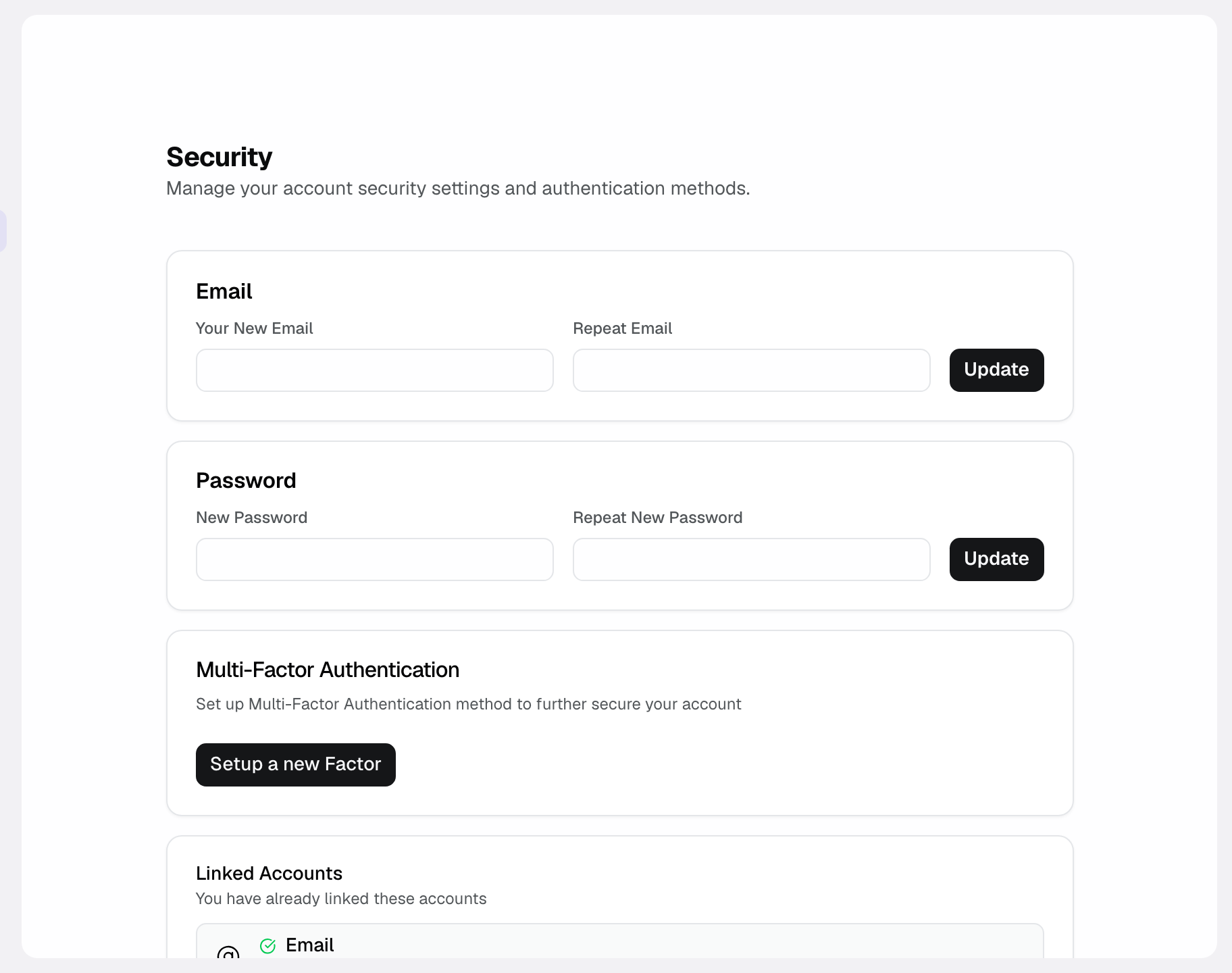
Joinways signs you in without a password by default: a 6-digit code sent by email, or your Google or Microsoft account. A password is still possible. The "Security & Access" page holds your "Email", "Password", "Multi-Factor Authentication", "Linked Accounts" (Google, Microsoft) and the deletion of your account.
- If you use a password, make it strong and unique, specific to Joinways and no other service.
- Turn on two-factor authentication in "Settings" > "Security & Access", "Multi-Factor Authentication" card, "Setup a new Factor" button: scan the QR code with your authenticator app. A one-time code is then required at sign-in.
- Never share your credentials, even with a colleague: to grant access, you invite a member, you don't lend your account.
If a device is lost or a doubt arises, change your password if you use one, and turn on two-factor authentication.
Protect shared data
Your data doesn't live only in your account: it flows through the integrations and keys you connect. Securing the account without securing those channels would leave a door open.
- List your active API keys in Settings then Developers, and your connected tools in Settings then Integrations.
- Keep these elements confidential and never share them in plain text.
- Cut off any access whose use you don't recognize.
Manage access
Beyond your account, it's the team's access that determines your data's exposure. Every member sees the workspace's inquiries and events; roles decide who can touch sensitive settings.
- Assign roles suited to each member, neither too broad nor too restricted.
- Immediately remove access for people who leave, with no active account left behind them.
- Keep the "Owner" and "Admin" roles for the people who run the workspace: only they reach "Teammates", "Integrations" and "Developers".
Note: API keys and connectors (Stripe, MCP) grant access to your data. Treat them as secrets: never paste them in an email, a chat or a shared document, and revoke them at the slightest doubt.
Revoke access
When an integration is no longer used or a credential may have been exposed, the right reaction is to cut off access. Revocation is immediate: the element concerned can no longer connect to your data.
- Go to "Settings" > "Developers": "API keys" tab for a key, "MCP" tab, "Connected apps" section, for an AI assistant. For a connected tool, open "Settings" > "Integrations".
- Disconnect an integration or revoke a key if in doubt.
- Regenerate new credentials if needed, then update them wherever they're used.
Reference of things to protect
Here are the main security levers and what each one protects.
- Password: the entry key to your account; it must be strong, unique and never shared.
- Two-factor authentication (2FA): a one-time code from an authenticator app, required at sign-in. Turn it on in "Settings" > "Security & Access".
- Roles: "Owner", "Admin", "Teammate" or "Viewer"; owners and admins manage sensitive settings. On a venue, the venue role "Viewer" limits a member to read-only access.
- API keys: credentials that grant programmatic access to your data; to be treated as secrets.
- Connectors (Stripe, MCP): third-party integrations linked to your account; they too open access to your data.
- Emails: the mailboxes linked to Joinways; to review and disconnect when no longer in use.
- Member access: each person invited into the workspace; to remove as soon as they no longer need to work there.
How it works
Your account is protected by your password and, when you enable it, two-factor authentication; together they control who can sign in on your behalf. Roles, in turn, determine what each connected person can do.
API keys and connectors work in parallel: they let external tools access your data without going through the sign-in screen. That's why they must be kept secret and revoked as soon as they're no longer needed.
Revoking access is immediate and final: you cut off the old one, then create new credentials if the use is still legitimate.
Edge cases
- A credential may have been exposed (pasted by mistake, sent to the wrong person): revoke it without waiting, even if you're not sure of the leak.
- An integration is no longer used: disconnect it rather than leaving it active "just in case". A dormant access is still an access.
- A member changes function: adjust their role instead of piling up rights that have become useless.
- You regenerate a key: remember to update it everywhere the old one was used, otherwise the integration will stop working.
Tip: schedule a regular review of your active access. Five minutes a month to check members, keys and integrations is enough to keep a forgotten access from becoming a breach.
Best practices
- Review active access regularly: members, keys, integrations.
- Disable what you no longer use, without keeping it "just in case".
- Use a unique password per service and a manager to store them.
- Give each member the minimal role they need.
- Never transmit an API key or credential over an unsecured channel.
- Prefer regenerating a credential rather than reusing it after a doubt.
- Keep the list of connected integrations up to date and remove obsolete ones.
Troubleshooting
Problem: you think a credential leaked. Cause: a key or password may have been shared or exposed. Solution: revoke the key immediately in Settings then Developers, create a new one and update it everywhere it was used. For a password, change it and turn on 2FA.
Problem: an integration should no longer have access to your data. Cause: it stayed connected even though it's no longer used. Solution: disconnect it from Settings then Integrations; access is cut off immediately.
Problem: a member has access to information that doesn't concern them. Cause: every member sees the workspace's inquiries and events; roles restrict settings, not records. Solution: keep "Owner" and "Admin" for those who run the workspace, give the venue role "Viewer" on venues where they only need to read, or remove their access.
Real-world example
A manager realizes an API key was accidentally pasted into a team message. In a few seconds, they open Settings then Developers, revoke the exposed key, create a new one and update it in the tool concerned. The old key no longer grants access to anything: the incident is closed without consequence.
Another example
Before a seasonal contract ends, the administrator reviews the access. They remove the departing employee's account, disconnect a payment integration that was tested then dropped, and check that no unused key is lying around. In ten minutes, the workspace's exposure surface is cleaned up.
FAQ
A credential leaked, what do I do?
Revoke it immediately and generate a new one, then update it wherever it was used.
How do I revoke an integration?
Go to Settings then Integrations and disconnect the integration concerned.
Can I share my password with a colleague?
No. To grant access, invite the person as a member with a suitable role; never share your credentials.
Are API keys and connectors dangerous?
They grant access to your data: treat them as secrets and revoke them at the slightest doubt.
How often should I review my access?
Once a month: a quick review of members, keys and integrations is enough to avoid forgotten access.
What about the access of someone leaving the team?
Remove it immediately so no active account remains after their departure.
How do I strengthen sign-in to my account?
Turn on two-factor authentication; if you use a password, make it strong and unique.
See also
Bring every event inquiry into one queue.