Share public access to an event
The proposal's public link, the BEO and the client form: what your client sees and does, with no account.
Aggiornato il
Your clients have no Joinways account, and they do not need one. Every document you share opens from a link: a page in your name, always up to date, where they read, sign, answer or approve, on a computer or a phone.
This article covers the event's public link, the proposal one: what the client sees and does there, how to get it and how to keep it under control. It also presents the other links a client may receive for the same event: their BEO and their form.
What you'll learn
- Get and send a proposal's public link.
- Know what the client sees on the page and what they can do.
- Tell apart the links of one event: proposal, BEO, client form.
- React if a link was shared too widely.
Prerequisites
- An event with at least one proposal, linked to a client contact.
- A role that can open the event's proposals.
- A channel to send the link: email from Joinways, or any other message.
1. Get the proposal link
There is nothing to generate: as soon as you open a proposal, Joinways turns on the event's public link. The event has one link, valid as long as the event exists; copied from a proposal, it opens that proposal directly.
- Open the event, "Proposals" tab, then the proposal to be signed.
- In the signature block, click "Copy the signature link". "Open the signature page" shows the page as the client will see it.
- Or click "Send" in the proposal: Joinways prepares an email that already contains the link.
2. What the client sees
The page opens with no login, under your venue's name and logo, with a language picker. At the top, the venue's photos, then a cover card: "Quote" and its reference, the event title, date, hours, venue with a "Directions" link, headcount, the client and "Your contact" at your venue.
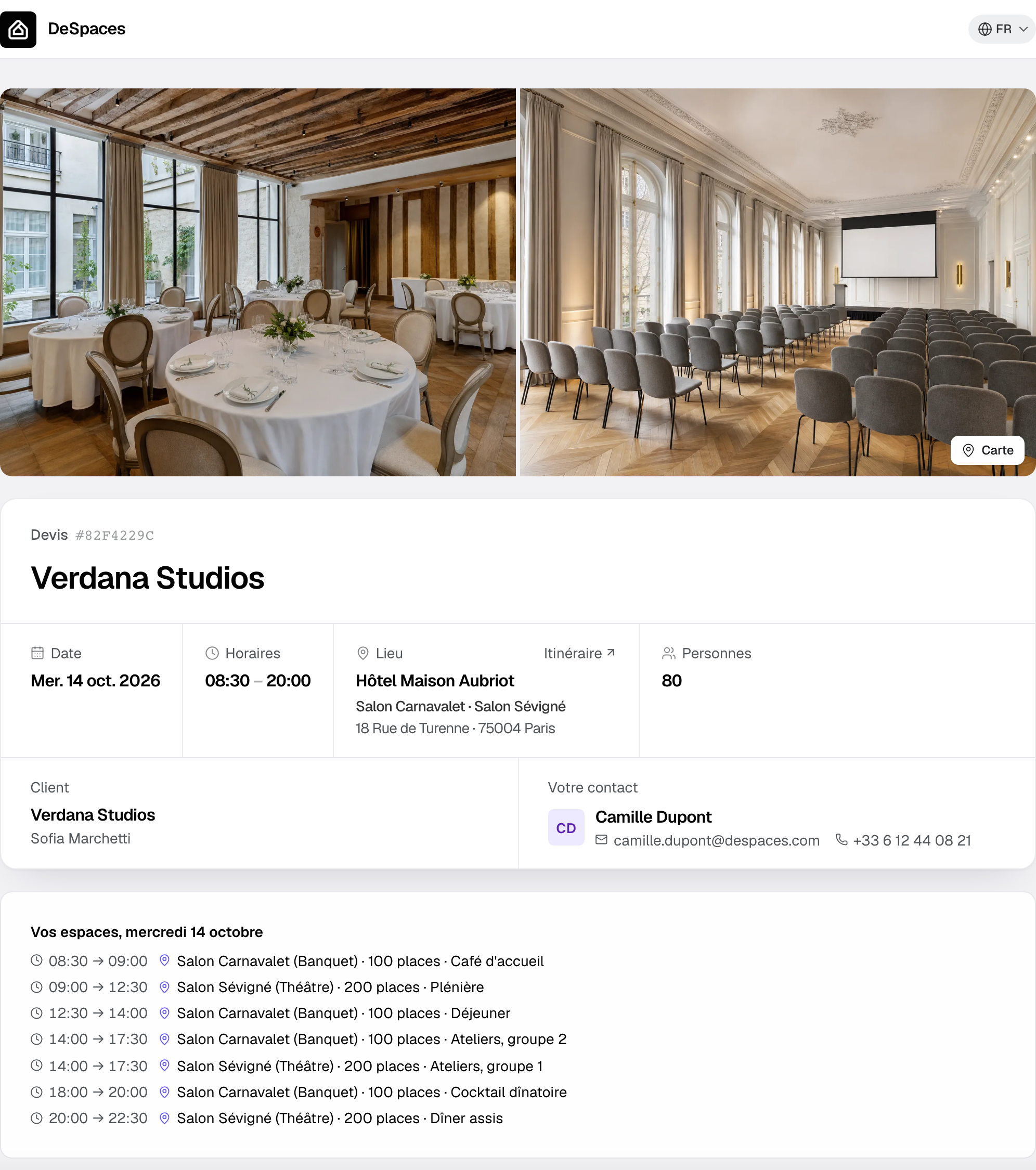
- "Your spaces" lists the booked time slots, with each room's layout and capacity.
- "Available proposals" shows the event's proposals, except cancelled ones and those superseded by an amendment. The client switches between them.
- The proposal lists the services, quantities, prices, VAT and total. On a phone, each line becomes a card.
- The client cannot change anything, except tick the lines you marked as options: the total updates.
3. What the client can do
- Sign: they click "Sign proposal", fill in "Your information", then receive a 6-digit code by email. Joinways sends it from your connected mailbox if the signer already wrote to you about this event, otherwise from a Joinways address in your name. Once signed, they can "Download the signed quote" and receive the signed copy as an attachment. See Get a quote signed online.
- Pay: when one of the event's invoices can be paid online, the main button becomes "Pay the deposit" or "Pay", with the amount. Bank details have "Copy" buttons.
- Come back: the link stays valid; the client finds the up-to-date proposal and the state of their signature.
4. The other links of the same event
To prepare the event, the client may receive two more links, each with its own page:
- The BEO: the "Client" link in "Share", on the "BEO" tab. It shows what the venue settings reserve for the client, never the internal remark. It is a personal link: you see whether they opened, read or approved it. See Prepare a BEO.
- The client form: the venue's practical questions (arrivals, schedule, diets), to fill in before a deadline. See The BEO client form.
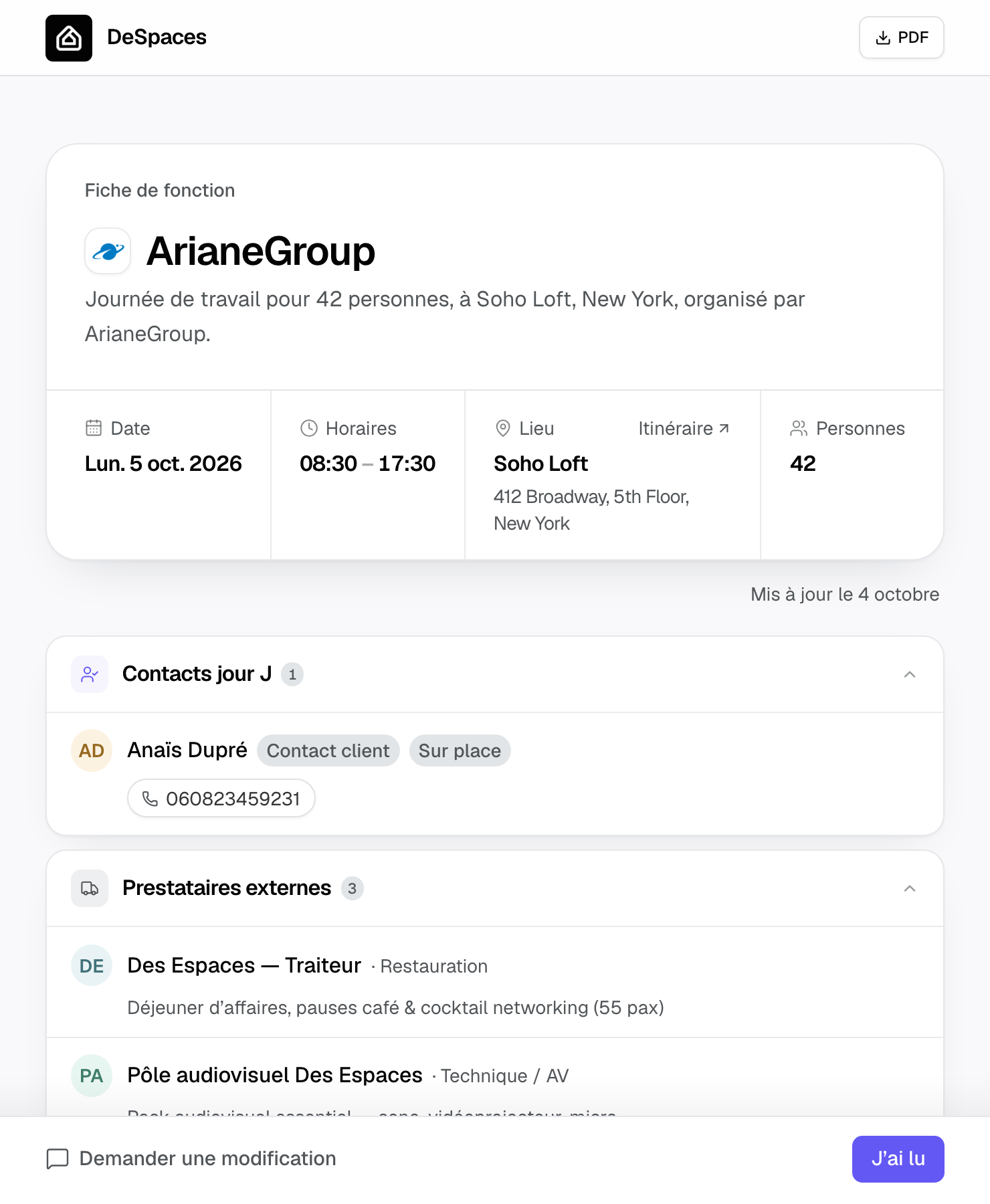
These links also go into your email templates and automations with the {{beo_client_link}} and {{beo_form_link}} variables. The BEO's "Team" link ({{beo_team_link}}) shows the full BEO: do not send it to the client.
How it works
Each link is a unique address; the address acts as the access key. The proposal link belongs to the event: several of the client's contacts can use it. The BEO client link belongs to one person, and a personal link can be deactivated from "Share". The form has one link per event, which closes on the date set for the venue.
Example: a corporate seminar
The venue emails the proposal. The organizer opens it on her phone, ticks the dinner option, signs with the code she receives, then pays the deposit from the same page. Three weeks before, she gets the client form and enters the group's arrival time. The day before, she approves the BEO from her link. She never created an account.
Troubleshooting
The client says the link does not open
Cause: the address was cut when copied or sent. Solution: send the full link again, ideally with "Send" from the proposal.
The client does not see the expected proposal
Cause: the link opens another proposal of the event, or the expected one was superseded by an amendment. Solution: ask them to pick the right one under "Available proposals", or copy the link from the right proposal.
The client did not receive the signature code
Cause: the email landed in spam or quarantine. Solution: ask them to check those folders, then restart the signature from the page.
A link fell into the wrong hands
Cause: the link was forwarded by mistake. Solution: for a personal BEO link, deactivate it in "Share". For the proposal link, contact Joinways support.
Frequently asked questions
Does the client need an account?
No. Each link is enough, with no sign-up or password.
Can the client change the proposal?
No. They can only tick optional lines before signing. Any other change goes through you, with a new proposal or an amendment.
Does the proposal link show the BEO?
No. The BEO has its own link, which you send from "Share" when it is ready.
Can the client sign from their phone?
Yes. The page, signature and payment work on mobile, with no app.
See also
Provalo sulle tue prossime richieste per 30 giorni, senza carta.