Prepare a BEO
Fill the BEO from the proposal, organize the schedule by room and share it with the team and the client, always up to date.
Aggiornato il
The BEO (Banquet Event Order) is the document every team reads on the day: who arrives when, in which room, with which layout, for how many guests, with which menu. The proposal says what was sold; the BEO says how to deliver it.
In Joinways, the BEO is a tab of the event. It saves itself, fills from the proposal line by line or with AI, and is shared by link: a full link for the team, a filtered link for the client. Links always show the latest version, and you see who read or approved it.
What you'll learn
- Fill the BEO from the proposal, with or without AI.
- Build the schedule: times, rooms, layouts and quantities.
- Fill in the sections: contacts, staff, vendors, catering, dietary requirements, technical.
- Share the BEO with the team and the client, and track who read or approved it.
- Go back to an earlier version in the history.
Prerequisites
- An event, whatever its status. Teams usually prepare the BEO once the event is confirmed.
- Any role other than "Read-only" to edit the BEO. The "Operations" role can prepare it fully.
- Ideally, an accepted or signed proposal: its lines fill the schedule and the sections.
- For sharing and per-venue settings (visible sections, instructions, default program), see Set up a venue's BEO.
1. Open the BEO
Open the event, then the "BEO" tab. At the top, a card sums up the event: title, type, context sentence, date, hours, venue and headcount. If the event has no headcount, the BEO uses the largest group among its room bookings.
The action bar holds "Enrich", "History", "PDF" and "Share". On the left, a status shows where saving stands: "Unsaved changes", "Saving…", then "Saved". There is no Save button: the BEO saves itself a few seconds after your last change.
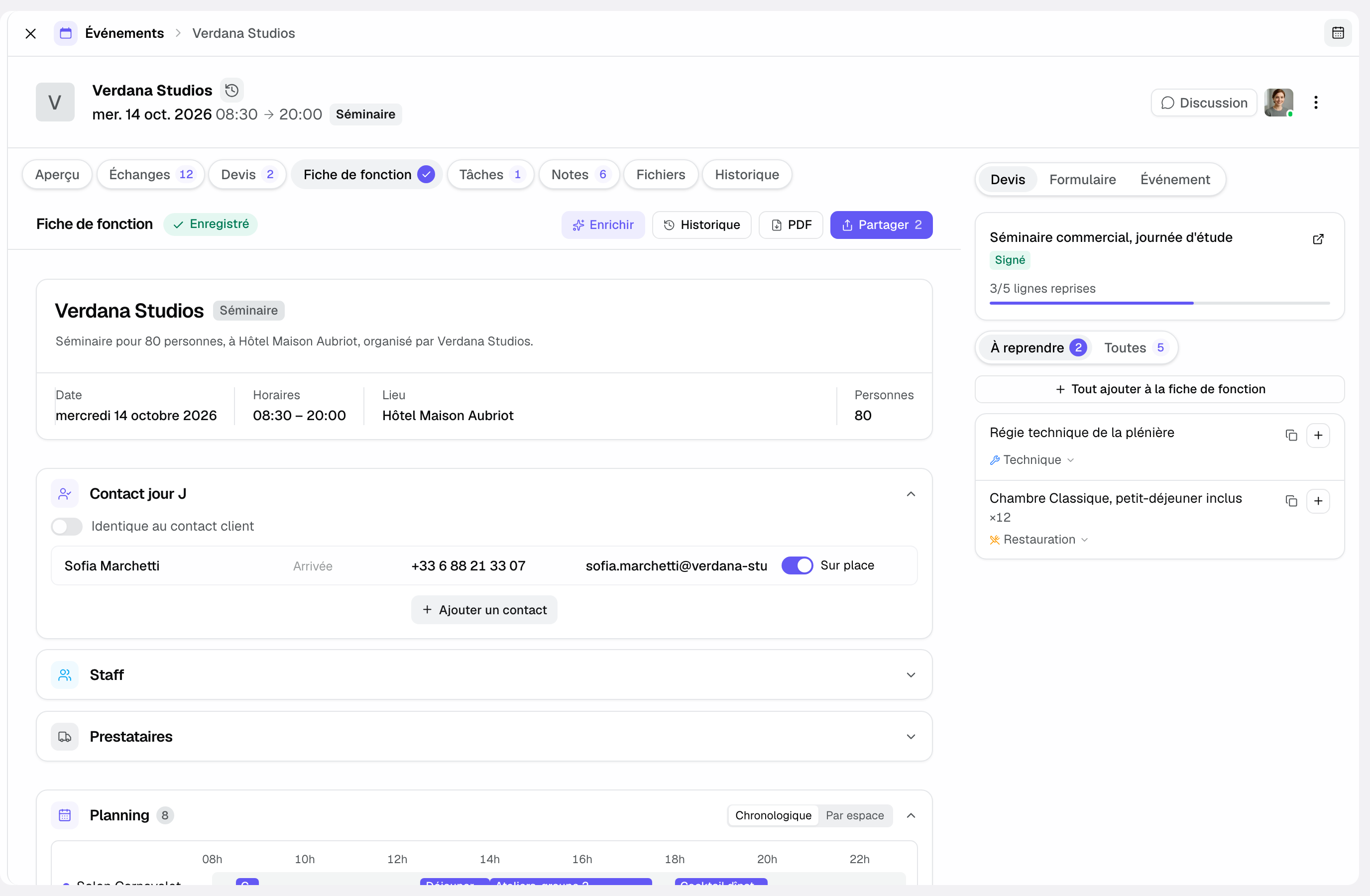
The tab shows a check mark as soon as the BEO has content. In the events list, the BEO column shows "Filled", or "N to handle" in orange when something waits for the team: a client form answer to carry over, a vendor proposal, a change request.
2. Carry over the proposal
The right column has three views: "Proposal", "Form" (if the venue has a client form) and "Event". The "Proposal" view shows the accepted or signed proposal, day by day and line by line, without prices. No AI is involved: each line is taken as written on the proposal.
- "To carry over" lists the lines not yet in the BEO; "All" shows the whole proposal. A bar shows how many lines are carried over.
- Each line shows its target section ("Schedule", "Catering", "Staff", "Technical" or "Activities"). You can pick another section before adding it.
- The + button adds the line. "Add all to the BEO" carries everything at once. A line tied to a room booking becomes a schedule item with its room and times; a staffing line creates a "Pending" need in "Staff".
- Each carry-over offers "Undo" for a few seconds.
Joinways keeps track of what was carried over. If the line changes later (amendment, new quantity), it shows as changed with the value currently in the BEO; updating it replaces the carried text in place. Anything the team edited by hand is never overwritten: the new version is added next to it, with a warning.
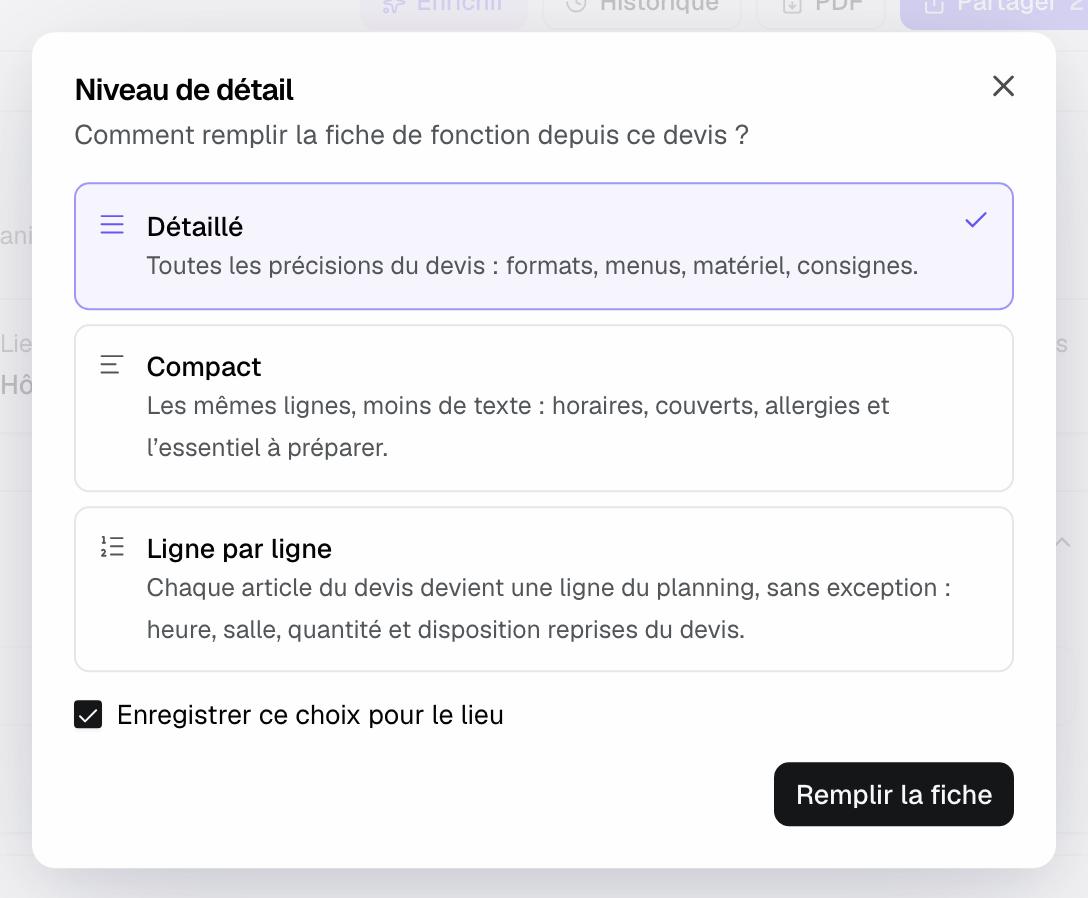
To let AI write the schedule and notes from the proposal, a PDF or a past BEO, click "Enrich". On the first import from a proposal, Joinways asks for the detail level: "Detailed", "Compact" or "Line by line" (each proposal item becomes a schedule line). Tick "Save this choice for the venue" so the question stops. Details in Prepare a BEO with AI.
3. Build the schedule
The "Schedule" is the run of the day, one item per line. If the venue has a default program, its lines show while the event's schedule is empty; they are copied into the BEO as soon as you change one.
- Click "Add schedule item", then enter the start time, end time and label. An item with no end time stops when the next one starts.
- Pick the category (welcome, food, session, break, technical, entertainment) with the icon left of the label.
- Link the item to a room: it then follows the event's room booking and its times.
- Pick its "Layout" (theatre, classroom, banquet, cabaret, cocktail…). When the room has a capacity for that layout, the number of seats shows; the chip turns orange if the group exceeds it.
- Enter a quantity (×N) when the item counts covers or guests, and add a note under the line (menu, equipment, instruction).
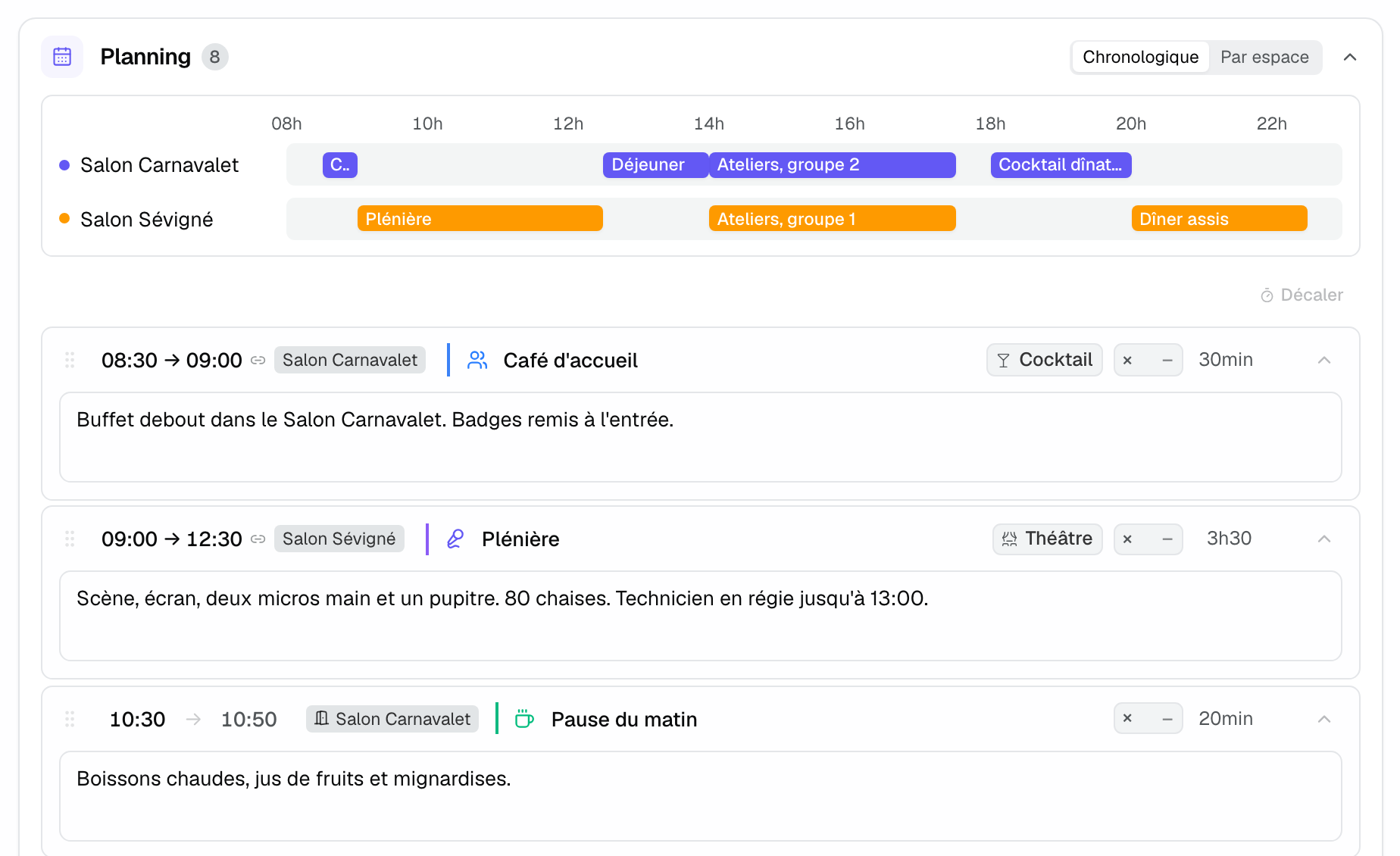
Drag an item by the handle on its left to move it. "Shift" moves every time at once. "Chronological" and "By room" change how the schedule reads. When an item runs into the next one in the same room, Joinways flags it ("Runs 15 min into …") and offers "End at" or "Keep".
4. Fill in the sections
Below the schedule, the sections describe the event from the operations side. Their order and names follow the venue's settings. An empty section waits behind "Add a section" until you fill it.
- Day-of contact: "Same as client contact" by default. Add the people to reach on site, with their arrival time, phone and the "On site" switch.
- Staff: the team on duty, with role and hours. See Assign staff to an event.
- Vendors: caterer, AV, photographer, each with a personal link. See Work with vendors.
- Room Setup: the overall room configuration and furniture.
- Catering: menus, drinks, service times.
- Dietary requirements: allergies and diets, with the number of guests. This section is in use whenever "Catering" is.
- Activities and Technical: entertainment, equipment, technical needs. The "Included at the venue" line recalls the equipment provided by default, which AI imports do not copy.
- Remarks: the internal note. It is never shown to the client or vendors.
Section notes accept light formatting. Click into a note: the "Bold", "Italic", "Highlight" and "List" buttons appear in its corner. Formatting carries over to the shared page and the PDF.
On a multi-day event, a section's "Different per day" switch (contacts, staff, schedule, room setup, catering, dietary requirements, activities, technical; not remarks) gives one version per day, or "All days".
Tip: if the venue turns on the "Prices" setting, each line tied to the proposal shows its net price excl. tax, discount applied, on the team's BEO. The client and vendors never see it.
5. Share the BEO
Click "Share". The "Share the BEO" window gives two links, each with open, "PDF" and "Copy link".
- Team: the full BEO, staff, hours and internal remark included. Do not send it to the client. When several rooms are booked, "By room" downloads one PDF per room.
- Client: what the venue settings show the client. It is the personal link of the event's main contact, created the first time the window opens. Below the link, its status: "Not opened yet", opened, read, approved.
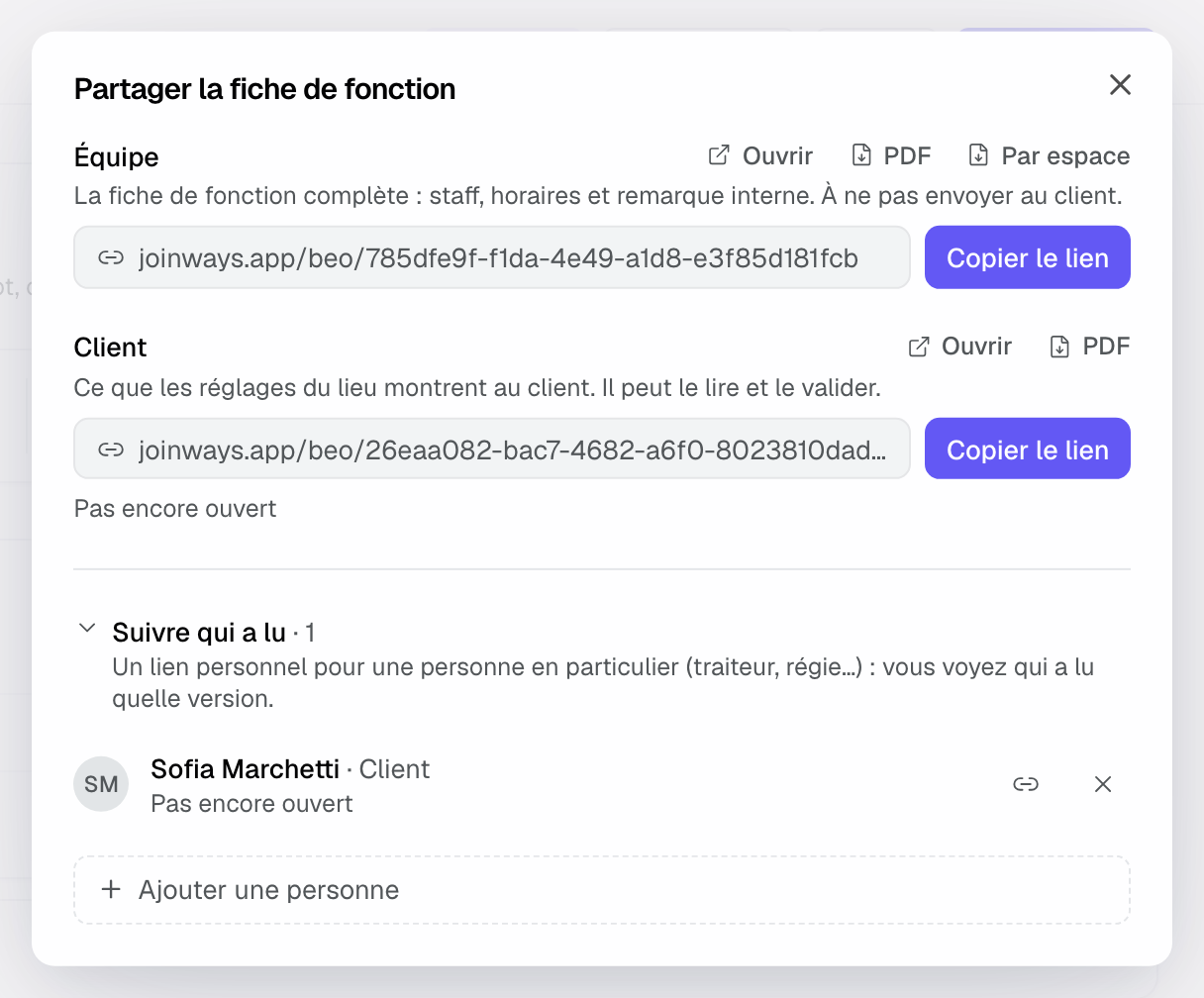
"Track who read it" adds a personal link for one person (AV lead, caterer, another client contact). Each row shows what the person did and whether the BEO changed since: "Updated since they read it on …", "Changed since their approval on …". The cross icon deactivates a link, for good.
Opening the client link shows the page as a preview: nothing is recorded in the client's name. The "PDF" button in the action bar downloads the team BEO; it waits until pending changes are saved. In your email templates and automations, the {{beo_team_link}} and {{beo_client_link}} variables insert these two links. See Email templates.
6. What the recipient sees
The link opens a page with no account or password, under the venue's name and logo. The cover shows the title, the client company's logo when Joinways finds it on its website, then the date, hours, venue with a "Directions" link, headcount and booked rooms. Then come the venue instructions, the schedule as a timeline and the sections, in the venue's order. The PDF uses the same layout.
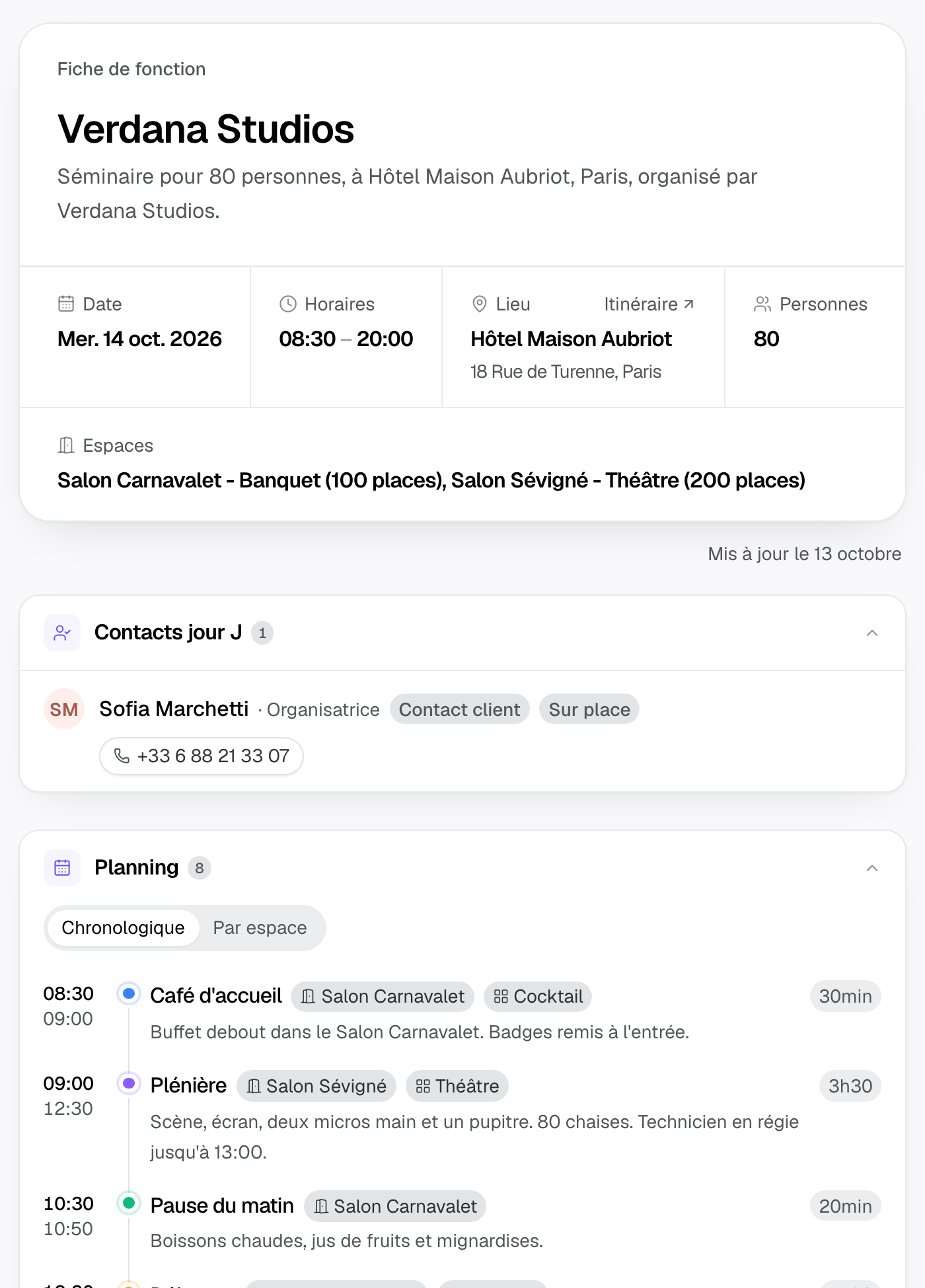
On a personal link, a bar at the bottom offers "I’ve read it" (the client sees "Approve the BEO") and "Ask for a change", which sends a message to the venue. When the BEO changed since their last visit, the recipient sees the number of changes. You are notified of an approval or a request.
7. Versions and history
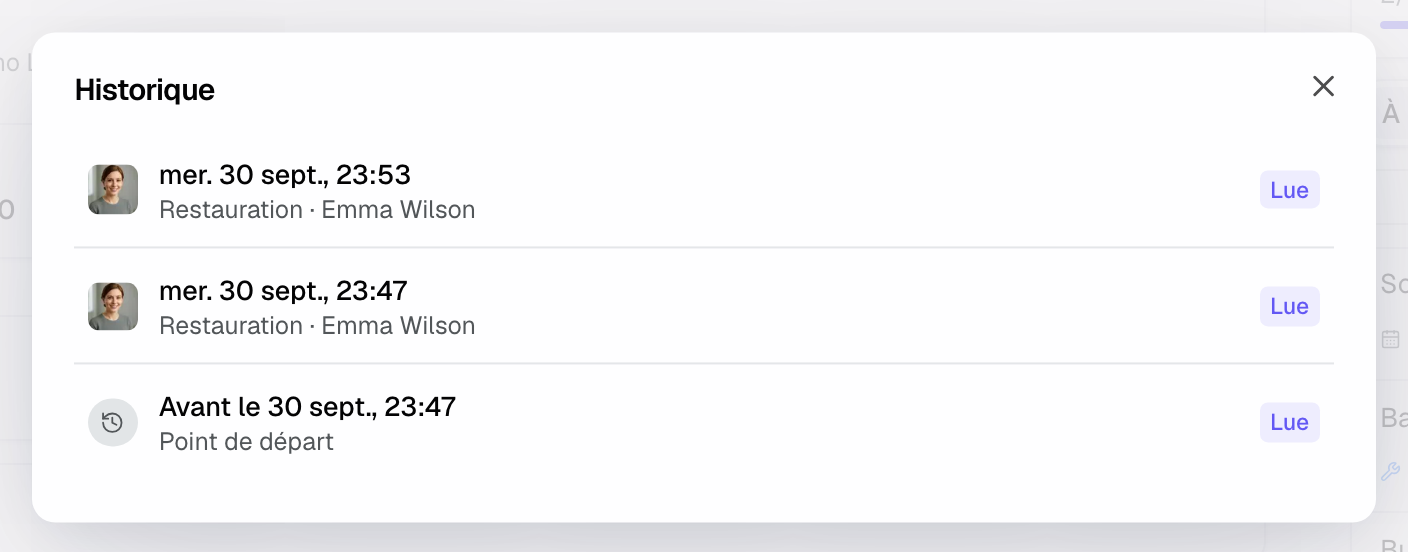
The BEO is a living document: you do not freeze it, you update it. Links always show the latest state. A numbered version is kept automatically when a recipient opens their link after a change: you know which version each person read, and what a client approved stays as it was.
"History" lists work sessions, dated and signed, and tags "Read" the versions your recipients opened. Click an entry to see what changed, section by section, then "Go back to this state" if needed. Nothing is deleted.
If someone saved the BEO while you were editing it, Joinways refuses to overwrite their work and shows "This BEO was changed in the meantime": pick "Reload latest version" or "Save anyway".
Example: an 80-guest seminar in a hotel
The signed proposal includes the plenary, two workshops, lunch and a cocktail dinner. From the "Proposal" panel, the coordinator adds the lines: each service tied to a room booking becomes a schedule item with its room. She sets "Theatre" on the plenary in the Salon Sévigné, "Banquet" on lunch, and notes the three vegetarian meals in "Dietary requirements".
She sends the "Client" link to the organizer, who approves the BEO the day before, and the "Team" link to the maître d' and the AV team. That morning the cover count changes: she edits the quantity, and the links show the new version without resending anything.
Troubleshooting
The "PDF" button is greyed out
Cause: some changes are not saved yet. Solution: wait for the status to show "Saved". If it stays on "Not saved: try again", click "Retry".
The "Client" link stays on "Creating the link…" or asks for a contact
Cause: the event has no contact or company. Solution: add a contact to the event, then reopen "Share".
A proposal line is missing from "To carry over"
Cause: it is already in the BEO, or the panel shows another proposal. Solution: switch to "All". The panel shows the accepted or signed proposal; a proposal that was only sent does not appear.
The client cannot see a section
Cause: the section is hidden from the client in the venue settings, or it is "Remarks", which is always internal. Solution: check "Settings" > "Venues" > your venue > "BEO" > "Sections".
Frequently asked questions
Do I still need to freeze the BEO before sending it?
No. Freezing no longer exists. Links always show the latest version, and a numbered version is kept each time a recipient opens their link after a change.
Does the BEO update itself after an amendment?
The header follows the event. Lines carried from the proposal show as changed in the "Proposal" panel: update them to carry the change over.
Does the client see the staff and prices?
They see the staff without hours or notes, and without phone numbers if the venue chose so. They never see prices, the internal remark or vendors' contact details, unless the venue shows the latter.
Can two people edit the BEO at the same time?
Yes, but a save cannot overwrite a teammate's without your consent: Joinways offers to reload the latest version or save anyway. The history keeps both states.
See also
Provalo sulle tue prossime richieste per 30 giorni, senza carta.