Manage people (contacts)
Centralize your contacts, link them to their events and companies, and keep the full history in one place.
Updated
Behind every event there's a person: the bride, the HR lead, the project manager at an agency. Joinways contact records centralize these people and their full history for blind-spot-free follow-up, no matter which team member picks up the file.
A contact is the basic unit of your client relationship: it's the person you exchange with, send quotes to and call to confirm an event. Kept up to date, their record spares you from digging through emails and saves precious time at every interaction.
Prerequisites
Before managing your contacts, check the following:
- Have an active Joinways account with access to the People section.
- Have at least one event or incoming inquiry to link the contact to a file.
- Ideally, know the contact's company to activate the B2B link.
What you'll learn
- Create and complete a contact record, manually or automatically.
- Link a contact to their events and a company.
- Find the relationship history, and know where to read emails and quotes.
- Avoid and merge duplicates to keep a clean database.
Create a contact
Manual creation fits when you enter a prospect met at a trade show or referred by a partner. Here's what happens at each step:
- Open the « People » section then click « Add a person »: an empty form appears.
- Enter the name, email and phone: these details become the entry points for all communication.
- If a contact already exists with the same email or phone, Joinways reuses that record instead of creating a second one (« Existing contact reused »). The company is linked afterwards from the record's « Company » block.
- Save: the contact immediately appears in the list and becomes selectable on an event.
Tip: most contacts are created without typing, when you convert an inquiry or connect your own Gmail or Outlook. The « Automatic record creation » section below explains how.
Link a contact to an event and a company
An isolated contact has little value; it's the linking that builds the 360° view. By linking, you weave the person ↔ organization ↔ file connection.
- From the record, « Events » tab, « Add event » creates a new event already linked to this contact. To link an existing event, open the event and choose this contact as its point of contact.
- In the record's « Company » block, pick the company or create it. If the person already has events, Joinways offers to update them with the new company.
- Check that all three entities point to one another: the contact now appears in the company record and the event.
Find the exchange history
All the memory of the relationship is consulted from the record. Before a call, a glance is enough to know where you stand.
- Open the record: the « Overview » tab sums up recent events and open tasks.
- The « Activities » tab traces the record's life: creation, edits, notes, tasks, events created, won or lost, signed quotes.
- Emails and quotes aren't on the record: open the relevant event from the « Events » tab, then its « Conversations » and « Proposals » tabs.
Avoid and merge duplicates
A healthy database relies on a single record per person. Duplicates scatter the history and distort the 360° view.
- Spot two records bearing the same name or the same email address.
- Compare their events and history to confirm it really is the same person.
- Open one of the records and choose « Merge with another contact » in its actions: select the duplicate, then the « Record to keep ». Events, notes and history are transferred; the other record is deleted, and this can't be undone.
What a contact record contains
A record gathers the following information; each serves a precise purpose in follow-up:
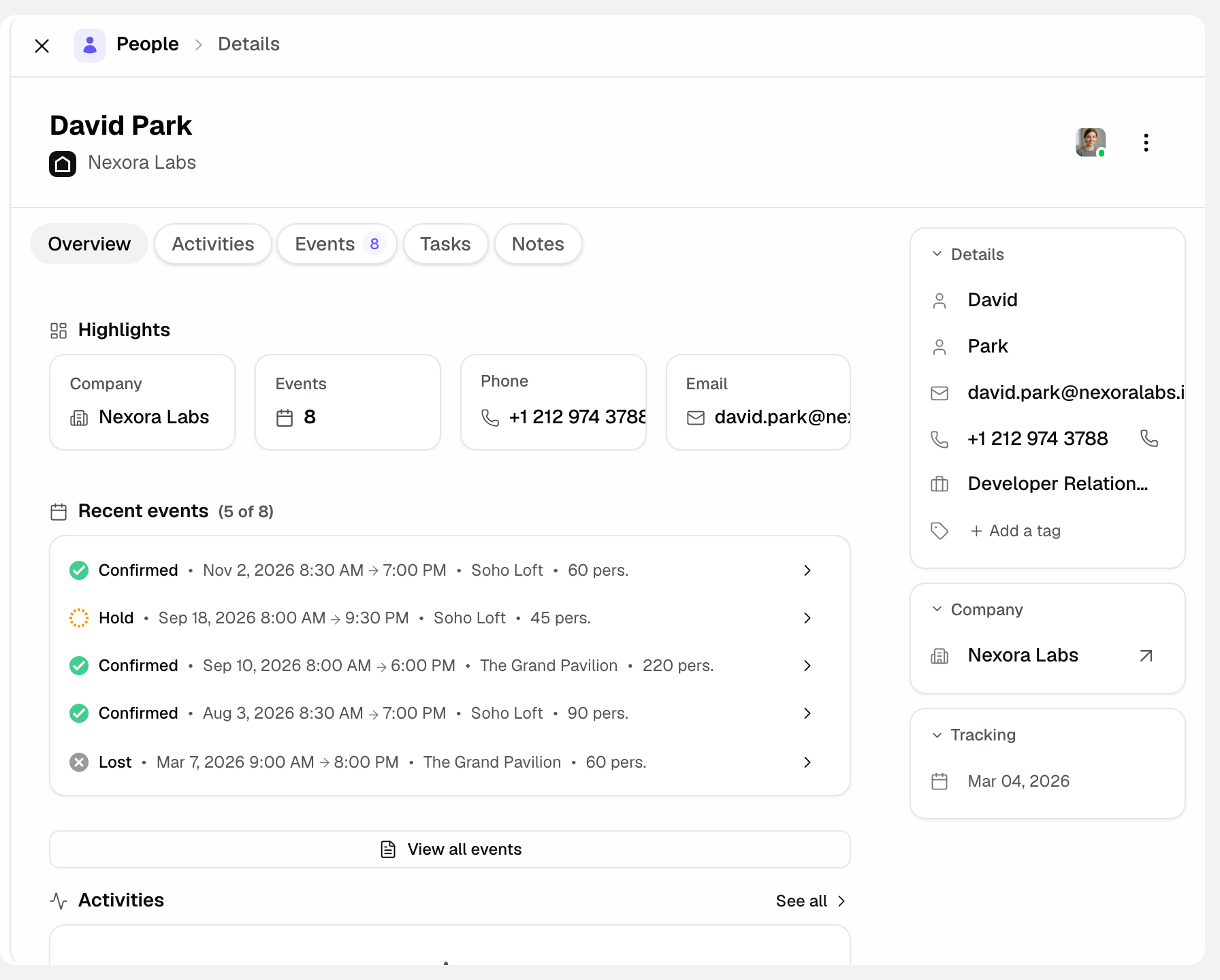
- Details: the person's email and phone, used for communication.
- Job: the person's role (event manager, HR, groom…) to adapt the tone of your messages.
- Linked events: all the files this contact is attached to, to measure the history of collaboration.
- Company: the optional B2B link, connecting the person to their organization.
- Tabs: « Overview », « Events », « Activities », « Tasks » and « Notes ». Emails and quotes are read inside each event.
- Notes: the team's internal remarks, visible on the record to share context.
Automatic record creation
Most records are born from a converted inquiry or from your mailbox. Understanding this mechanism saves you from typing what Joinways already does for you.
- You convert an inquiry: the « Create event » form picks up the client's name, email and phone.
- If a record already exists with the same email or phone, it is reused; otherwise a new record is created and linked to the event.
- When you connect your personal Gmail or Outlook, Joinways scans your sent emails from the last 12 months and creates the matching people and companies.
How it works
Joinways treats the contact as a central node: the person exists once, then links to several events and a company. When you convert an inquiry, the client is matched to an existing record by email or phone, or a new record is created.
Thanks to this model, every note taken, every event created and every quote signed automatically enriches the contact's history (« Activities » tab), with no re-entry.
Edge cases
A few situations deserve particular attention:
- The same email for two people: Joinways matches contacts by email or phone, so two people sharing an address end up on a single record. Give each one their own details to tell them apart.
- A contact without a company: this is valid for individuals (weddings); the B2B link stays optional.
- A contact who changes company: update the link to keep the history consistent.
Good to know: a well-linked contact prevents duplicates and gives a 360° view before every call.
Best practices
- Merge duplicates as soon as you spot them so the history isn't scattered.
- Fill in the job to personalize your messages and prioritize the right people.
- Always link contact ↔ company ↔ event for full traceability.
- Enter internal notes on the record rather than in separate files.
Troubleshooting
Problem: a contact appears twice in the list.
Cause: an email received with a slightly different address generated a second record.
Solution: open one of the two records and use « Merge with another contact » to reunite the history.
Problem: a contact's history seems incomplete.
Cause: the exchanges happened under another address or another unlinked contact.
Solution: check the company link and attach the missing events.
Problem: unable to link a contact to an event.
Cause: the event isn't created yet or doesn't appear in the search.
Solution: open the event and choose this contact as the point of contact. From the record, « Add event » creates a new event already linked to the contact.
Real-world example
An event manager from a company comes back every year. Her record gathers the 3 past seminars: the team prepares a loyalty offer at a glance, without reopening old emails.
Another example
A couple requests a quote for their wedding via Inquiries. By clicking « Convert », you create the event, and Joinways creates the contact's record at the same time. The emails exchanged afterwards end up in the event's « Conversations » tab, reachable from the record's « Events » tab.
FAQ
Difference between contact and company?
The contact is a person; the company groups several contacts and events of the same organization.
Do I have to create my contacts manually?
No, most are created automatically when inquiries are converted or when you connect your personal mailbox; manual creation is mainly for prospects met outside email.
Can a contact be linked to several events?
Yes, that's the whole point: the record gathers all the person's files to track the history of collaboration.
Must a contact always have a company?
No, the B2B link is optional: it stays empty for individuals such as wedding couples.
How do I find a contact's emails?
Emails are filed by event: open the record's « Events » tab, then the event's « Conversations » tab.
What if two records concern the same person?
Merge them as soon as you spot them to reunite all the history on a single record.
Is the contact's job useful for anything?
Yes, it helps you personalize your messages and identify the right person within the organization.
Can I link a contact to a company afterwards?
Yes, from the record's « Company » block: select the company to attach it, or change it if the contact has changed employer. Joinways then offers to update their existing events.
See also
Bring every event inquiry into one queue.