Team discussion on an event
Coordinate in real time on an event: messages, mentions, automatic following and an email recap when the discussion stays unread.
Aggiornato il
Every event has its own team discussion: a real-time thread of short messages to coordinate without leaving the event. "The client is now 120 guests, do we keep the glass room?" gets asked and settled right there, next to the quote and the BEO, instead of in a separate chat app.
You don't have to mention teammates for them to hear about it: people who follow the discussion get a notification in Joinways, then an email recap if they haven't read it after 10 minutes. Anything that needs to last (client preferences, instructions) can be pinned as a note.
What you'll learn
- Open an event's discussion and message the team.
- Mention a teammate and react to a message.
- Understand who follows the discussion and who gets notified.
- Set up notifications and the email recap.
Prerequisites
Every workspace member can see and use each event's discussion, whatever their role. It is internal: the client never sees it, including through the event's public access.
1. Open the discussion
- Open the event.
- Click "Discussion" in the header, next to the avatars of the people viewing the event. A counter shows the messages you haven't read.
- The discussion replaces the right-hand column, whichever tab is open: you keep the quote or the BEO in view while you reply.
- To go back to the event details, click "Discussion" again or the panel's close button.
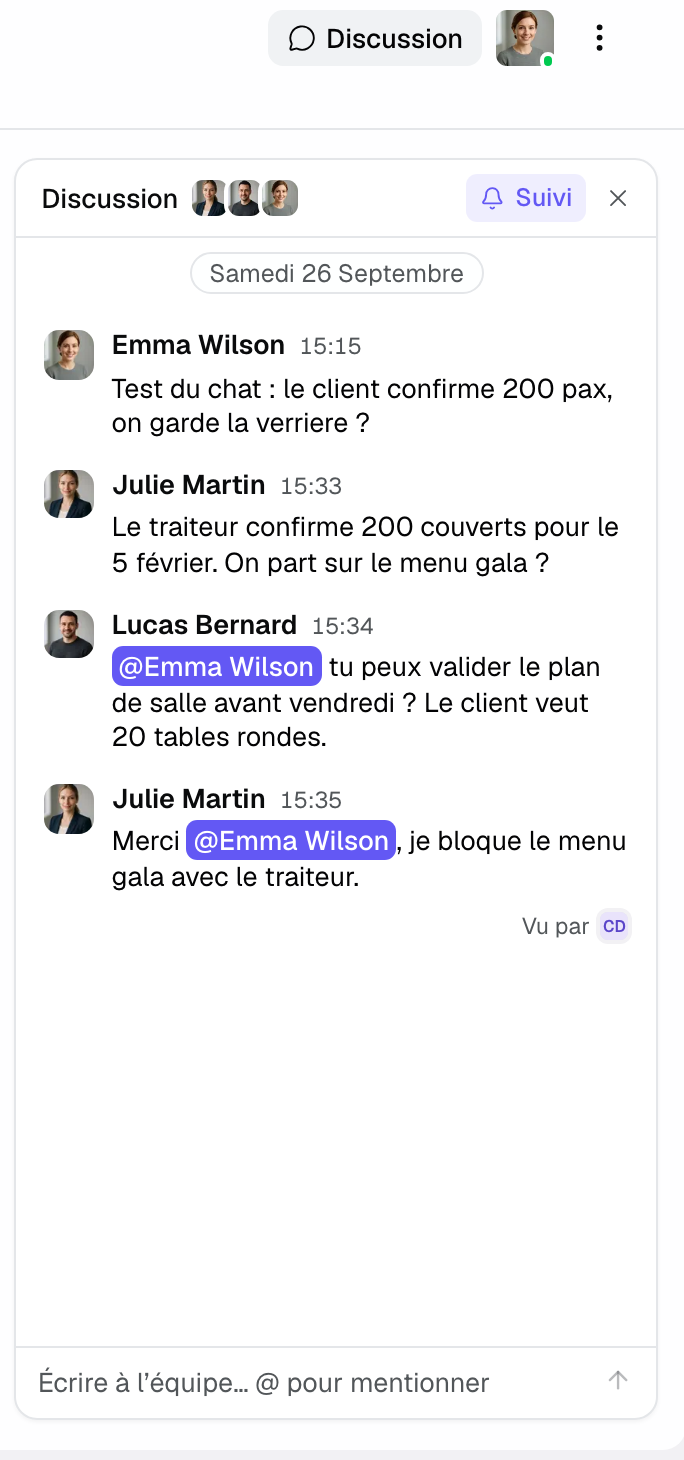
2. Write and mention a teammate
- Type your message in the "Message the team… @ to mention" field.
- Type @ followed by a teammate's name to mention them.
- Press Enter to send. Shift + Enter adds a new line.
Your message shows up right away. If it couldn't be sent (lost connection), it is marked "Not sent" with "Retry".
A mentioned teammate gets a notification in Joinways and an email that quotes your message, with a link that opens the event on that message. They then follow the discussion: they'll hear about the next messages without being mentioned again.
3. Read, react, pin
Messages are grouped by author and by day. A "New messages" marker shows where you left off, a typing indicator appears when a teammate is replying, and "Seen by", under the last message, shows who has read it.
Hover a message to see its actions:
- React: 👍 or ✅ in one click, or another reaction with "Add reaction". Handy to say "seen" or "done" without adding a message.
- "Pin as note": the message becomes an event note, with its author and date.
- "Copy text".
- "Edit" or "Delete" your own messages. An edited message shows "(edited)". After deleting, you have a few seconds to undo.
Tip: in an empty field, the ↑ arrow opens your last message for editing.
4. Follow a discussion
The pill at the top of the discussion tells you whether you follow it: "Following" when you're notified of every new message, "Follow" otherwise. You automatically follow the discussion of an event:
- you own;
- where you've written;
- where someone mentioned you.
Click "Follow" to be notified without having written, or "Following" to stop. Mentions always reach you, whether you follow the discussion or not.
5. What you receive
- Mention: a notification in Joinways and an email that includes the message text. The link opens the event with the discussion, on that message.
- New messages in a discussion you follow: a single notification per event, updated with each message (for example "Claire and 2 others wrote in the discussion").
- Email recap: if that notification is still unread 10 minutes after the last message, Joinways emails you the latest messages with a "Reply in the discussion" button. One email per batch of messages: the next one only comes after you've read the discussion.
- While the discussion is open on screen, its notifications are marked read automatically and no email is sent.
The recap goes out within minutes of those 10 quiet minutes: a lively conversation gives one email, not one per message. After 6 hours unread, the notification stays in Joinways without an email.
6. Set up notifications
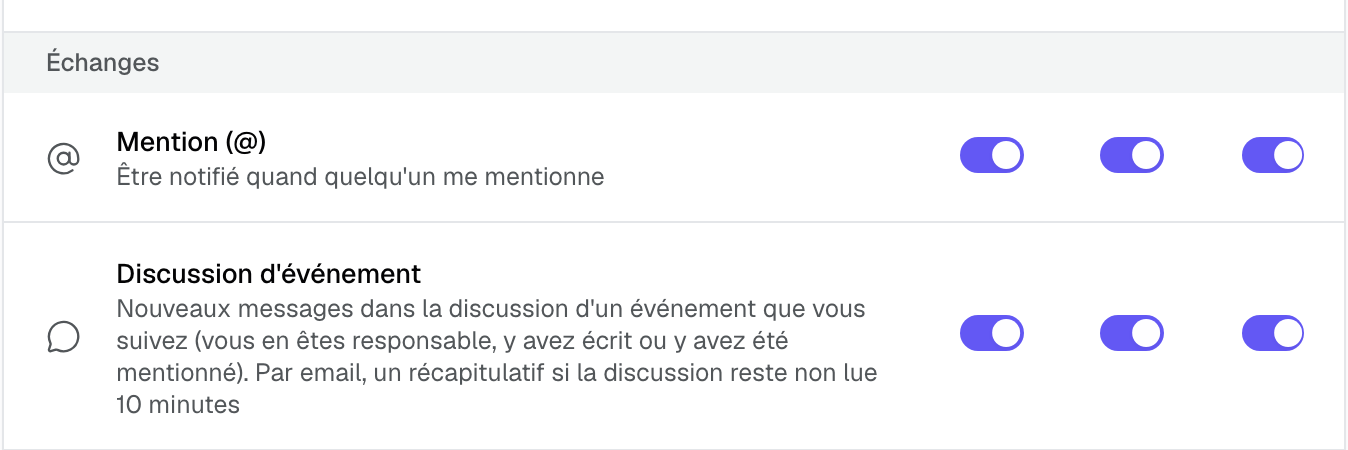
Go to "Settings" > "Notifications", "Conversations" group. Two rows apply to the discussion, each with its Email, App and Push channels:
- "Mention (@)": when someone mentions you, in a discussion or a note.
- "Event discussion": new messages in discussions you follow. Turn off the Email column to stop the recap.
Example: a last-minute change
For a 200-guest gala, the sales manager writes: "The caterer confirms 200 covers, shall we go with the gala menu?". The event owner follows the discussion, so he gets the notification. Away from his desk, he receives the email recap ten minutes later and replies from the link, and the floor manager, mentioned, approves the table plan. The decision is pinned as a note for the BEO.
Troubleshooting
A teammate didn't get anything
Cause: they don't follow the discussion (not the owner, not an author, never mentioned), or they turned off "Event discussion" in their settings. Solution: mention them with @. They'll follow the discussion from then on.
I don't get the email recap
Cause: you read the discussion within 10 minutes, the Email column of "Event discussion" is off, or an email already went out for this batch and you haven't read the discussion since. Solution: check "Settings" > "Notifications"; open the discussion to start a new cycle.
I can't write anymore
Cause: the event is archived: "Archived event: the discussion is read-only.". Solution: unarchive the event to resume the discussion.
Frequently asked questions
Can the client see the discussion?
No. It is reserved for your workspace members and never appears on the event's public page.
How is it different from notes?
Notes keep lasting information; the discussion is for day-to-day coordination. Pin a message to turn it into a note.
Do I have to mention someone for them to be notified?
Not if they already follow the discussion. The event owner, the authors and anyone mentioned before are notified of every new message.
How do I stop notifications from one discussion?
Click "Following" at the top of the discussion. For all discussions, turn off "Event discussion" in "Settings" > "Notifications". Mentions still come through.
What happens to messages from a teammate who left?
They stay visible, under "Former member".
See also
Provalo sulle tue prossime richieste per 30 giorni, senza carta.