Connect Slack
Get a Slack card when an event moves to hold, confirmed, lost or cancelled, and post your own messages from the event.
Aggiornato il
A confirmed event is news the whole team should see go by, not just the person who clicked. Kitchen, operations and front desk often hear about it too late.
The Slack integration posts a card to the channel of your choice on every event status change, with the key details and a link to the event. You can also post a message there from the event.
What you'll learn
- Connect Slack to your workspace.
- Pick the channel and the statuses that notify.
- Read a notification, and post a message from an event.
Prerequisites
- An owner or admin role in Joinways.
- Permission to install an app in your Slack workspace.
1. Connect Slack
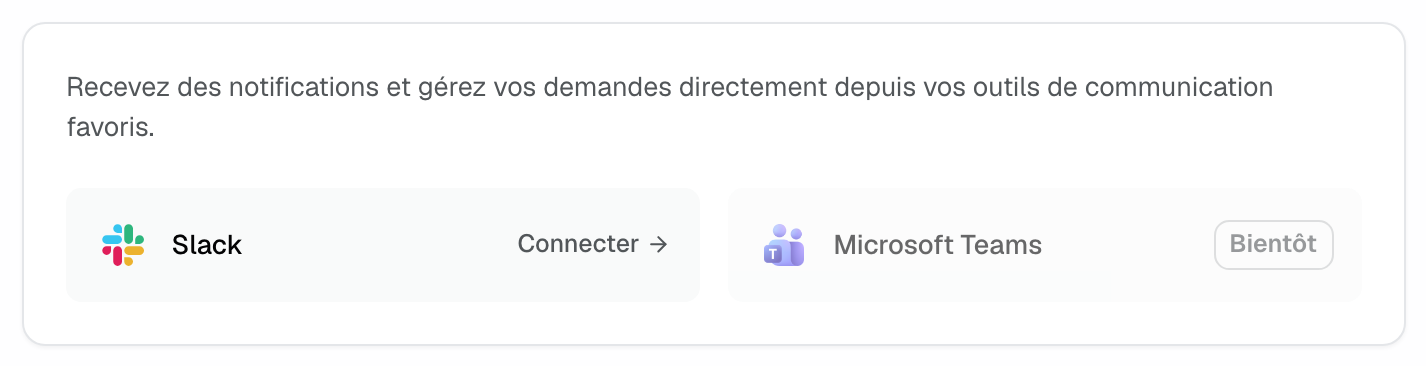
- Go to "Settings" > "Integrations", "Communication" tab.
- Click the "Slack" card.
- Authorize Joinways in Slack. Back in Joinways, the message "Slack connected" appears and the "Slack Settings" window opens.
2. Pick the channel and the statuses
- "Channel": the channel that receives notifications, one per workspace. For a private channel, first invite the Joinways app to it in Slack.
- "Notify when status changes to": Hold, Confirmed, Lost, Cancelled. By default, only Confirmed is on.
- "Test" sends a verification message to the saved channel.
Click "Save" to apply your settings.
3. What a notification contains
Each card shows the status with its emoji, the date and time, the venue, the guest count, the amount, the owner, the company and the contact, plus a button that opens the event in Joinways.
A quote amendment signed on an already confirmed event also sends an "Amendment confirmed" card, if the Confirmed status is on. An event's latest card updates when you fill in its details (contact, amount, guests), with no new message in the channel.
4. Post a message from an event
Open the event and find the Slack row in the right-hand column. Type your note in the "Write in …" field, then click "Send": Joinways posts a card to the channel with the event title as a link, your note and your name.
Messages posted for this event are listed on the same row. "Delete this message in Slack" removes one sent by mistake.
Troubleshooting
"Joinways is not a member of this channel"
Cause: the channel is private and the app was not invited to it. Solution: invite the Joinways app to the channel in Slack, then try again.
"Save the chosen channel first, then send the test."
Cause: "Test" sends to the saved channel, not the selected one. Solution: click "Save", then "Test".
"This Slack channel no longer exists or is archived."
Cause: the channel was deleted or archived in Slack. Solution: pick another one in "Slack Settings".
"Slack revoked Joinways' access."
Cause: the app was uninstalled or its access revoked on Slack's side. Solution: disconnect Slack, then connect it again.
Frequently asked questions
Can I notify several channels?
No, one channel per workspace. Pick a broad channel, such as #sales, if several teams need to follow.
Can I filter by venue?
No, the filter is by status. All venues of the workspace notify into the same channel.
Do new inquiries trigger a notification?
No. Slack covers event status changes and signed amendments, not incoming inquiries.
How do I disconnect Slack?
In "Slack Settings", click "Disconnect Slack". Notifications stop right away.
See also
Provalo sulle tue prossime richieste per 30 giorni, senza carta.