Manage amendments to a signed quote
Change a signed quote without overwriting it: the amendment prices the difference, is signed online, updates the event's hours and realigns billing.
Updated
A client signs, then adds twenty guests, changes the menu or moves the cocktail by an hour. Reopening the signed quote would erase the record of what was accepted. Starting a new quote would lose the link between the initial commitment and the final amount.
An amendment is a complete new version of the quote, numbered after it (-A1, -A2…). It takes the lines in force, flags what changes and shows the difference excluding tax. Once accepted or signed, it replaces the original quote as the contract, applies its hours to the event and becomes the basis for billing. The original quote stays available.
What you'll learn
- Create an amendment from a signed or accepted quote.
- Change the amendment's lines, spaces and hours.
- Get it signed by the client.
- Understand what changes on the event and on billing, credit notes included.
Prerequisites
- A signed, accepted or partly invoiced quote. A fully invoiced quote first needs a credit note, or its invoice voided.
- A role that can edit quotes.
- No other amendment in progress on this quote: one at a time.
1. Create the amendment
- Open the signed quote. Its items are locked: "Items are locked: the proposal is signed."
- Click "Edit through amendment #1", next to this message, or "Amendment" in the versions bar.
- The amendment opens as a draft, prefilled with the lines in force.
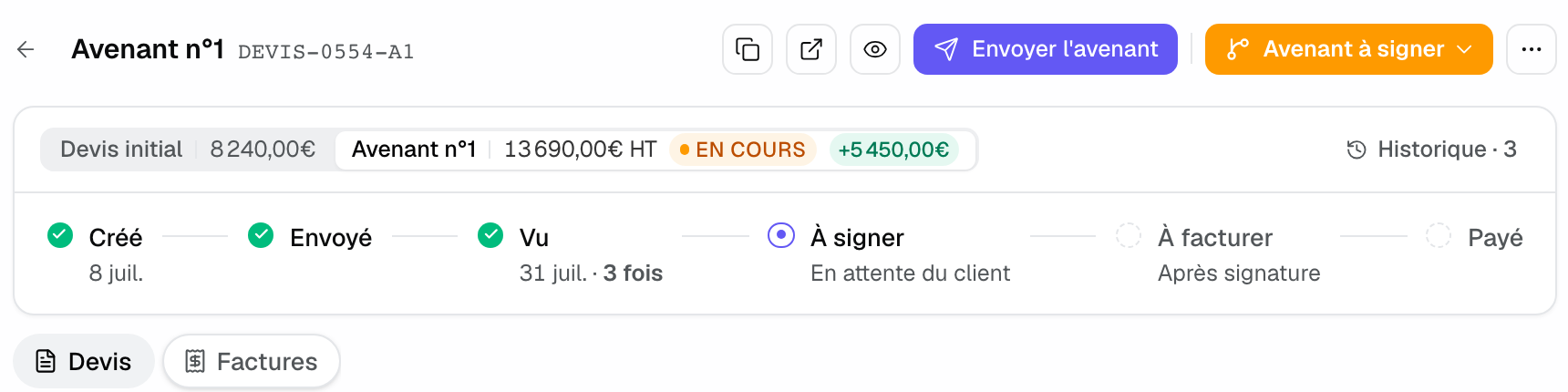
The versions bar shows "Original proposal" and its amount, "Amendment #1" and its own, the "in progress" tag and the difference, for example +€5,450. To return to an amendment you started, click "Resume amendment #1".
2. Change lines, spaces and hours
You edit an amendment like a quote: add, remove or adjust lines, from the catalog or as free lines. Added lines carry the "New" badge, changed lines "Modified". The difference excluding tax with the original quote is recalculated on every change.
Spaces and hours follow the amendment. Open "Space and hours" on an amendment line to change a room or a slot. The line, the PDF and the client page show the proposed schedule. Nothing moves on the event's schedule until the amendment is accepted or signed.
3. Get it signed
- Review the difference shown: this is the figure the client will approve.
- Click "Send amendment". The client opens the public link, reads the changes and the difference, then signs with the code received by email, as for the quote (see Get a quote signed online).
- If the amendment was signed on paper, choose "Record a manual signature" and attach the document.
While an amendment is a draft, the client's link shows the version in force. Its link menu lets you mark it as sent or show it without sending it, as for a quote. On an event from a platform that requires its own quote, a "to submit on" chip replaces "Send amendment".
4. What happens on approval
- The amendment becomes the contract. The original quote shows "Superseded by an amendment" and its items stay locked.
- Its hours apply to the event, once: a changed slot is rewritten, a new one is created, a removed line frees its room. The event's hours widen if needed and synced calendars follow.
- In the event's overview tab, the quote and its amendments are grouped: the latest amendment first, the "Original proposal" indented, its amount struck through.
Statuses and version numbers
- Draft: amendment being edited. It can be changed or deleted freely.
- "Amendment pending": sent, awaiting the client's decision.
- "Amendment to sign": accepted by the client, not yet signed.
- "Amendment signed": it replaces the original quote as the contract.
- Suffix -A1, -A2…: added to the original quote number for each successive amendment.
5. Invoice after an amendment
Billing always happens from the original quote. While an amendment is in progress, it is blocked. Once the amendment is signed, the "Billing" block shows "Aligned with amendment #1": new invoices use its lines and total.
- The total goes up: the deposit already issued stays anchored to the original quote. "Create balance" computes the rest on the new total, minus what was already invoiced.
- The total drops below the invoiced amount: the "Credit note to issue" row appears. "Issue a credit note" issues a partial credit note for the difference, on the invoice's channel, with a printed reason if you wish (see Invoice a signed quote).
- The currency or tax regime changes: the balance is refused. Void the existing invoices, then invoice the full amount again.
Example: a wedding going from 80 to 110 guests
Three weeks before the wedding, the couple adds 30 guests and moves the cocktail by an hour. The planner creates amendment #1: +30 covers, one more waiter, and the cocktail slot moved in "Space and hours". The +€1,950 difference shows. The couple signs the same evening. The cocktail slot updates on the schedule, and the balance includes the new total.
Troubleshooting
The "Amendment" button does not appear
Cause: the quote is neither signed nor accepted, it is fully invoiced, you are on an amendment, or an amendment is already in progress. Solution: open the original quote. Resume the amendment in progress with "Resume amendment #1", or delete it.
The amendment's hours are not on the schedule
Cause: the amendment is not accepted or signed yet. Solution: this is by design, its hours apply to the event on approval.
The difference shown looks wrong
Cause: the difference is measured excluding tax and against the original quote, not the previous amendment. Solution: compare it with the original quote's total excl. tax.
Frequently asked questions
Can I delete an amendment?
Yes, as long as it is not signed. After signature, create a new amendment to correct it.
Is the original quote lost?
No. It stays available with its signature and shows "Superseded by an amendment".
Can I chain several amendments?
Yes, one after the other. Each starts from the lines of the latest signed amendment, and its difference is always measured against the original quote.
Can an amendment lower the total?
Yes. If the new total drops below the amount already invoiced, Joinways offers to issue a credit note for the difference.
See also
Try it on your next inquiries for 30 days, no credit card.