Generate and sign a rental contract
Keep the proposal short: a two-page contract, generated from the accepted proposal, carries the conditions and is signed online.
Updated
Many venues prefer a short proposal that reads in a minute, with the conditions kept elsewhere. The rental contract does exactly that: a two-page document generated from the accepted proposal, which carries the parties, the event, the price, the payment schedule and your conditions, and is signed online.
The contract is added to the proposal, it does not replace it. The proposal remains the commercial document: it carries the revenue and can still be signed on its own.
What you will learn
- Turn on the separate contract for a venue.
- Generate the contract from an accepted or signed proposal.
- Get it signed and follow its status.
- Link the contract signature to your event stages.
Before you start
- A workspace on the Pro plan or in its trial: the contract is part of the proposals module.
- A billing profile and contractual conditions filled in on the venue. The contract uses them as they are.
- A proposal in the accepted or signed status, built in Joinways. A proposal sent through a booking platform does not generate a contract.
1. Turn on the separate contract for a venue
The option is set venue by venue and is off by default. As long as you leave it alone, nothing changes: the conditions stay in the proposal.
- Open "Settings" > "Venues", then the venue.
- Click "Proposals & invoicing".
- In the "Contract" section, under "Where do the contractual and financial conditions go?", pick "In a separate contract". The choice is saved immediately.
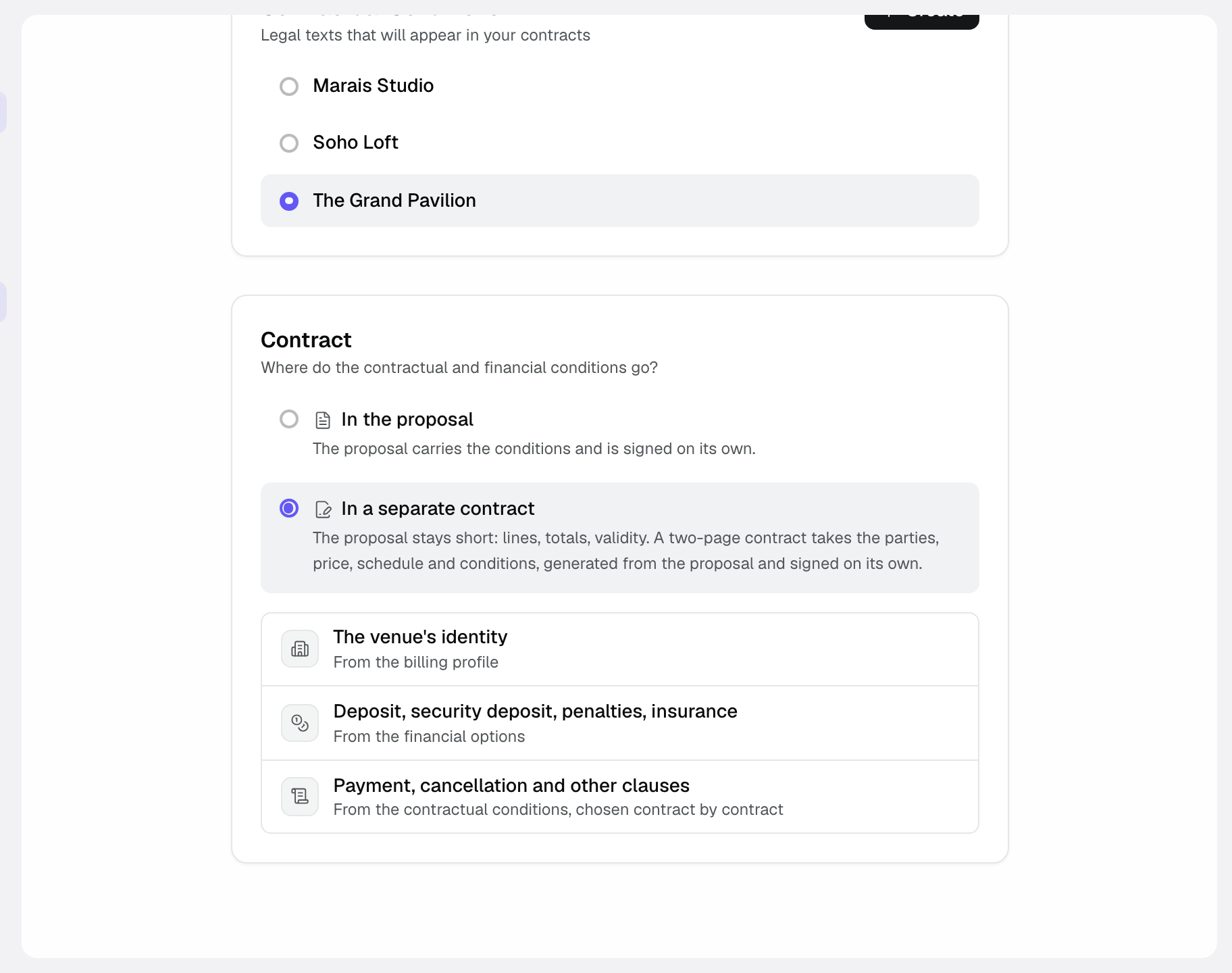
The contract draws on three venue sources: the venue's identity from the billing profile; the deposit, security deposit, penalties and insurance from the financial options; the payment, cancellation and other clauses from the contractual conditions.
What changes on the proposal
In this mode, the proposal PDF and its public page no longer print the conditions or the financial options. The proposal keeps its lines, totals and validity date. The conditions now appear only in the contract.
2. Generate the contract
As soon as the proposal is accepted or signed, a "Contract" block appears under its lines, on the proposal page.
- Click "Generate the contract". A panel opens.
- Pick the "Contract language": French, English or Spanish.
- Review the "Purpose of the contract". The default text is editable and accepts variables such as {{event_title}}, {{spaces}}, {{guest_count}} or {{company_name}}.
- Under "Sections", tick or untick the clauses. They come from the venue's contractual profile: unticking here does not change the profile.
- Click "Generate". The contract is created as a "Draft", with its number.
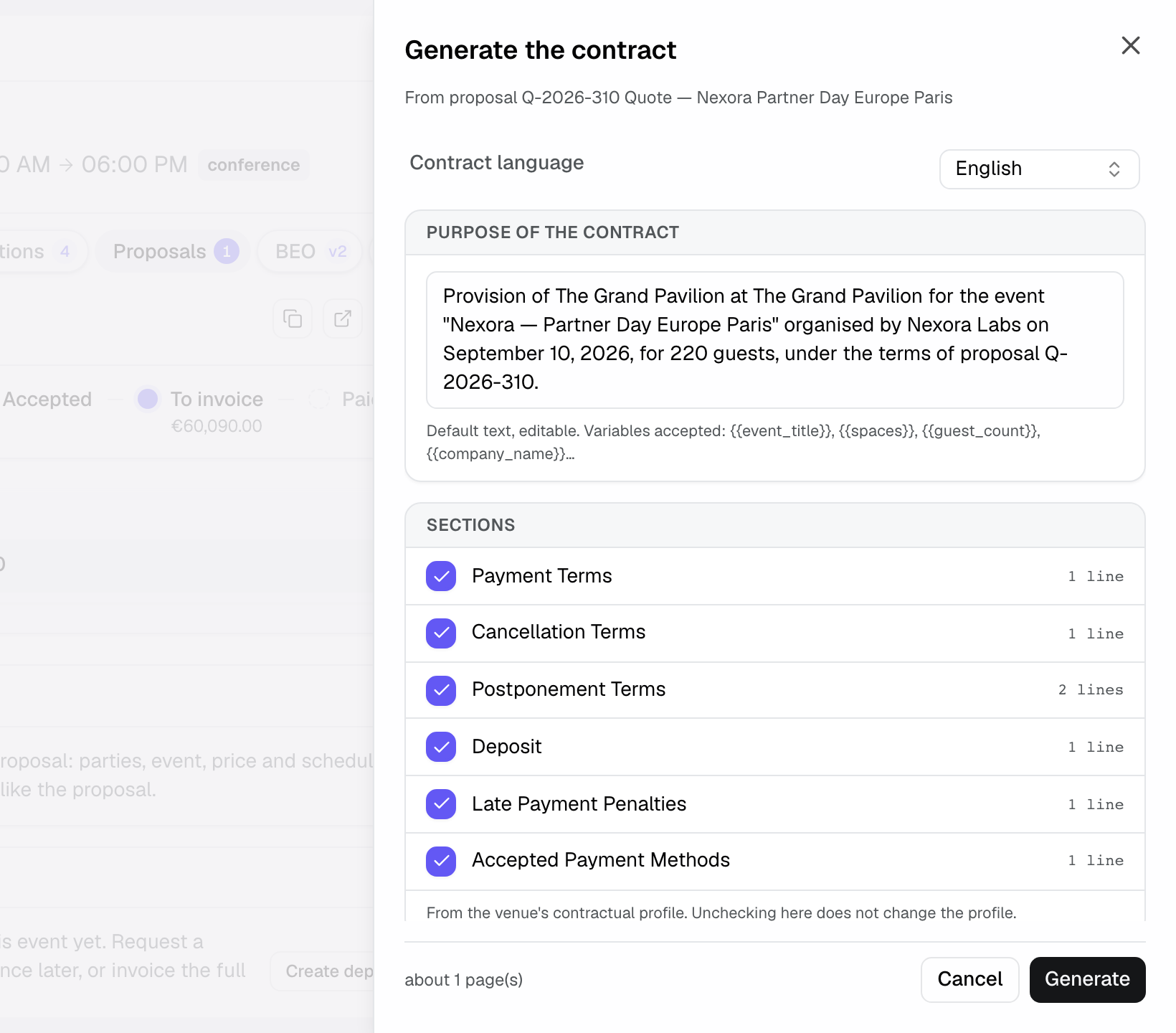
The panel also shows the resolved variables and an estimated page count. The contract is a snapshot: if you later edit the venue's profile, a contract already generated does not change.
3. Get it signed
- On the contract card, click "Preview PDF" to review it.
- Click "Send for signature". The contract moves to "Sent" and its signing link is copied to your clipboard.
- Paste the link into your email to the client. Joinways does not send an email for you at this step. To find it again later, use "Copy signing link".
On the client side, the contract page shows the amount, the payment schedule and the conditions. The client clicks "Sign the contract", enters the name and email of the person signing, then types the verification code sent to that address.
Once signed, the contract moves to "Signed" and "Signed PDF" downloads the signed version. The PDF is also stored in the event's files.
Contract statuses
- Draft: generated, not sent yet. You can regenerate or delete it.
- Sent: the signing link is live, the client has not signed yet.
- Signed: the contract is locked. It can no longer be cancelled or regenerated.
- Replaced: a new version was generated with "Regenerate".
- Cancelled: you used "Cancel contract". The signing link no longer works.
Contract and event stages
Two signals are available for your event stages: "Contract sent" and "Contract signed". Link them to a stage, and the event moves there on its own at the first send, then at signature.
Special cases
- The "Generate the contract" button does not appear: the proposal is not accepted or signed yet, the venue is still set to "In the proposal", or the proposal came from a platform.
- Trial: a contract signature counts toward the trial's limit of three signatures, like a proposal signature.
- One live contract per proposal: to fix an unsigned contract, use "Regenerate". The previous version moves to "Replaced".
Troubleshooting
A message asks me to choose "In a separate contract"
Cause: the option was switched off on the venue in the meantime. Fix: reopen the venue's "Proposals & invoicing" and pick "In a separate contract" again.
The client says the link no longer works
Cause: the contract was cancelled or replaced. Fix: open the proposal's live contract and copy its link with "Copy signing link".
Frequently asked questions
Does the client have to sign both the proposal and the contract?
No, it is your choice. The contract can be generated as soon as the proposal is accepted, without a signature on the proposal.
Does the contract change my revenue?
No. Revenue stays carried by the proposal. Invoicing always starts from the proposal.
Can I edit a signed contract?
No. A signed contract is locked. If the terms change, use an amendment to the proposal.
See also
Bring every event inquiry into one queue.