Send your invoices to Pennylane
Every invoice and credit note finalized in Joinways goes to your Pennylane books automatically, with its PDF.
Updated
Pennylane is not an invoicing channel: it is your accounting. Once connected, every invoice and credit note finalized in Joinways goes to Pennylane automatically, with its PDF. Your accountant has nothing left to re-type.
What you will learn
- Connect Pennylane by authorizing Joinways in Pennylane.
- Use an API token instead, if needed.
- Know which invoices are sent and follow the exports.
Which invoices are sent
- Invoices issued by Joinways, in the venue's series.
- Stripe invoices and their credit notes.
Invoices issued on Qonto or in QuickBooks stay in those tools and are not sent to Pennylane.
Joinways creates the customer in Pennylane if it does not exist yet, then imports the invoice and its PDF. For a company client whose SIREN is known, the invoice is imported as an e-invoice.
Before you start
- Be an owner of the Joinways workspace. An admin cannot connect Pennylane.
- Have access, in Pennylane, to the company you want to connect. For the API token route, you also need access to its developer settings.
1. Connect Pennylane
- In Joinways, open "Settings" > "Integrations", "Invoicing" tab, then click the "Pennylane" card.
- Click "Continue to Pennylane".
- In Pennylane, choose the company and approve access to customers, customer invoices and attachments. You then return to Joinways with Pennylane connected. There is nothing to copy.
2. Or use an API token
- In the "Connect Pennylane" window, click "Use an API token instead".
- In Pennylane, open Settings, Connectivity, Developers, then create an API token with these scopes, read and write: customer invoices, customers, file attachments. Pennylane shows it only once.
- Paste the token into "Pennylane API token", then click "Connect". Joinways checks the token and its scopes before saving it.
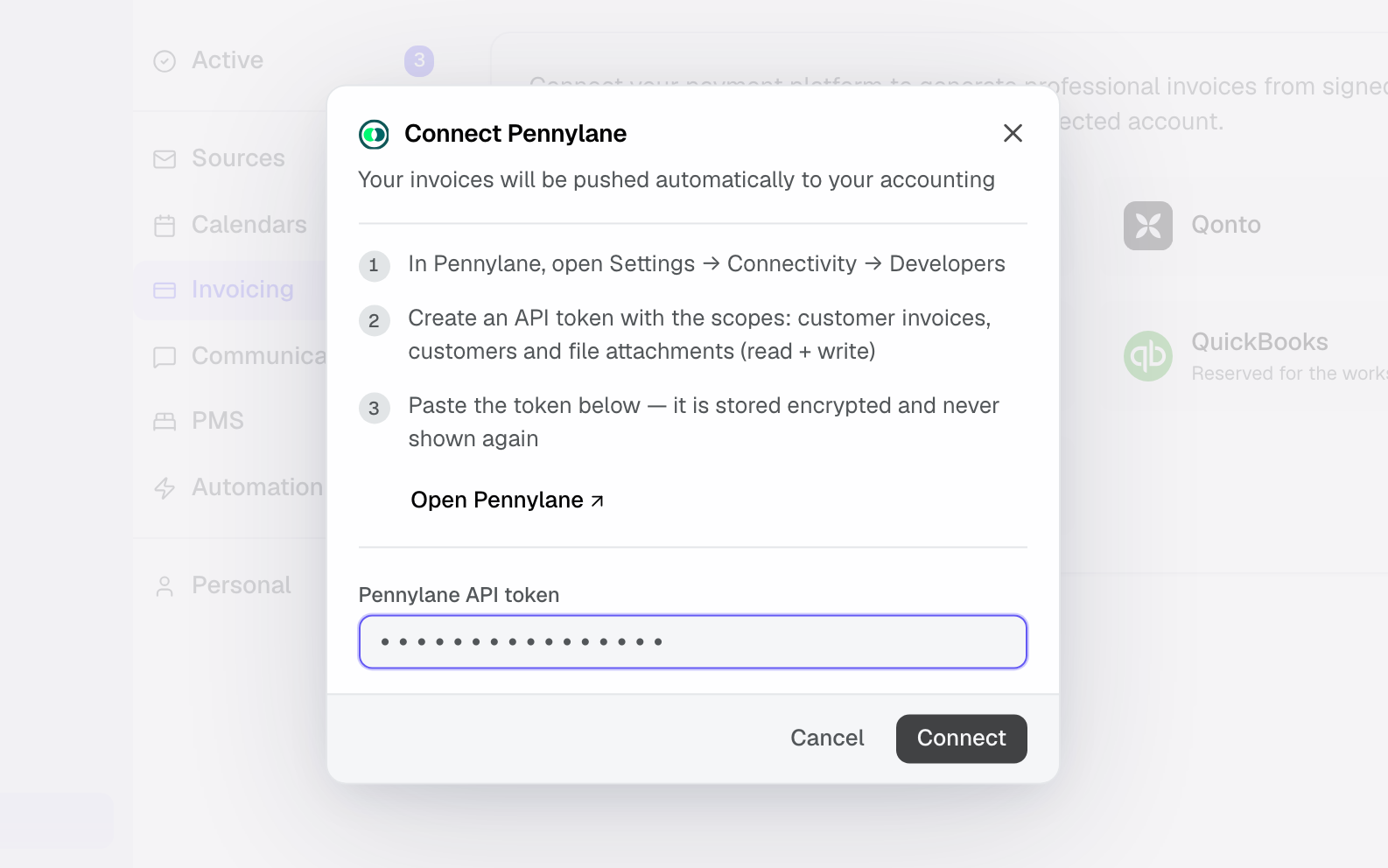
The token is stored encrypted and never shown again.
Follow the exports
Click the card's gear to open "Pennylane Settings".
- "Automatic sync": on by default, it pushes every finalized invoice and credit note. Turned off, nothing is sent.
- The "Synced", "Pending" and "Errors" counters show the state of the exports.
A failed export never blocks the invoice in Joinways: it is issued as usual.
Troubleshooting
"You declined the access on Pennylane"
Cause: the authorization was declined in Pennylane, so nothing was connected. Fix: start again from the "Pennylane" card and accept the access.
"Some permissions were not granted"
Cause: access to customers, customer invoices or attachments was not accepted. Fix: try again and accept every permission.
"Authorization expired or revoked. Reconnect Pennylane."
Cause: the access given to Joinways was removed in Pennylane or is no longer valid. The "Pennylane" card shows this message and nothing more is sent. Fix: click the card and reconnect Pennylane.
"Only a workspace owner can connect Pennylane."
Cause: you are an admin or a member of the workspace. Fix: ask an owner to connect Pennylane.
"Invalid token"
Cause: the token is incomplete or was revoked. Fix: copy it in full, or create a new one in Pennylane.
"Token is missing required permissions"
Cause: one of the three scopes was not ticked. Fix: create a new token with customer invoices, customers and file attachments, read and write.
The "Errors" counter goes up
Cause: Pennylane refused an invoice. Fix: check the client and invoice details in Joinways, then in Pennylane.
Frequently asked questions
Are invoices issued before the connection sent?
No. Only invoices finalized after the connection are sent.
How do I disconnect Pennylane?
In "Pennylane Settings", click "Disconnect". Joinways also removes the authorization given in Pennylane. Invoices already sent stay in Pennylane.
See also
Bring every event inquiry into one queue.