Prepare a BEO with AI
Let AI fill the BEO from a proposal, a PDF or a past BEO, at the detail level set for the venue.
Updated
Copying a proposal into a BEO takes time: you turn invoiced lines into a timed schedule, split services between catering, technical and activities, and track down diets. Joinways AI does this first draft for you, from the proposal, a PDF or a past BEO of the same venue.
You stay in control: AI fills the BEO's state, and you review and adjust it before autosave publishes it to the links. To carry a proposal over line by line without AI, use the BEO's "Proposal" panel instead, described in Prepare a BEO.
What you'll learn
- Fill a BEO from a proposal with "Enrich".
- Pick the AI's detail level.
- Reuse a similar BEO from a past event.
- Know what AI carries over, what it leaves out and what to check.
Prerequisites
- An event and its BEO, with any role other than "Read-only".
- A source: a proposal of the event (signed or accepted, ideally), a PDF (outside proposal, client's schedule), or a past BEO of the same venue.
- Optional: the venue's "AI import" settings (included equipment, detail level). See Set up a venue's BEO.
1. Open "Enrich"
Open the event, "BEO" tab, then click "Enrich" in the action bar. On an empty BEO, the schedule's "Generate with AI" button starts straight from the event's won proposal.
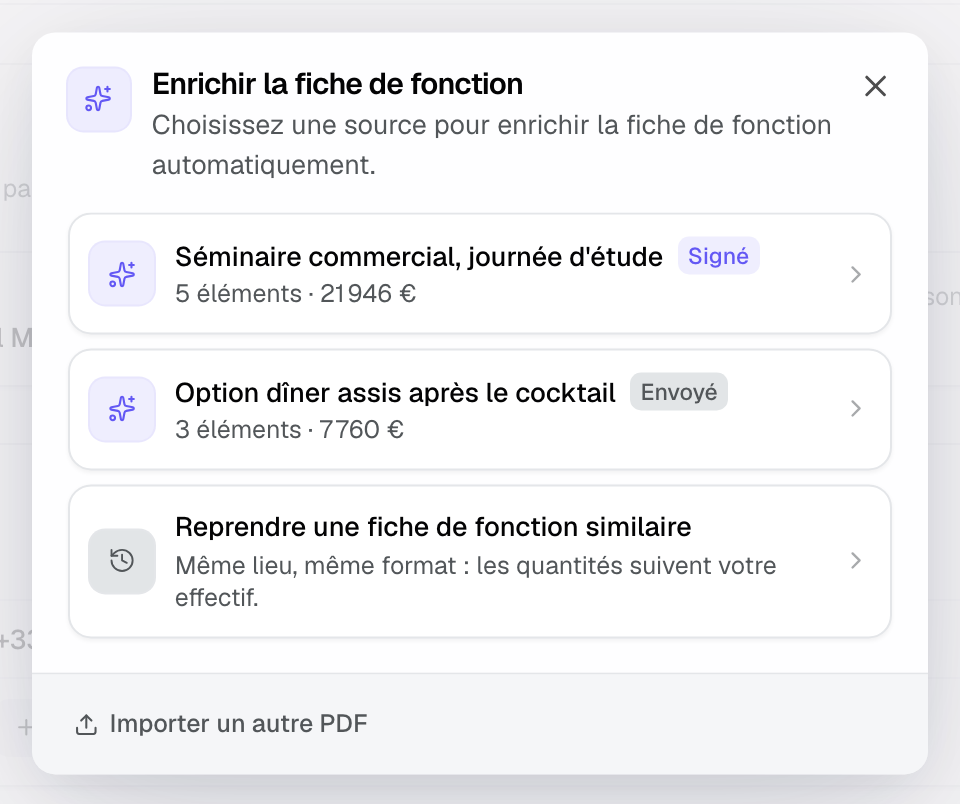
The "Enrich the BEO" window offers:
- the event's proposals, with their status, number of items and amount. Declined, cancelled or superseded proposals are not listed;
- documents spotted in the event's emails and files, such as a platform proposal PDF. Terms and conditions and a PDF already turned into a proposal are not offered;
- "Reuse a similar BEO";
- "Import another PDF", for an outside proposal or the client's schedule.
2. Fill from a proposal
- Pick the proposal. Until the venue sets a detail level, Joinways asks which to use: "Detailed", "Compact" or "Line by line". Tick "Save this choice for the venue" so the question stops, then click "Fill the sheet".
- If the BEO already has a schedule or notes, pick "Merge (add new items)" or "Replace all". If the BEO only shows the venue's default program, each proposal line takes the place of the line it stands for.
- Review the result. A message sums up what was added or left out, such as staffing needs or declined options.
- Detailed: every detail of the proposal (formats, menus, equipment, instructions).
- Compact: the same lines with less text (times, covers, allergies, the essentials to prepare).
- Line by line: each proposal item becomes a schedule line, without exception, with the time, room, quantity and layout taken from the proposal. AI only fills the other sections. This level applies to a proposal; a PDF stays detailed.
3. Reuse a similar BEO
"Reuse a similar BEO" lists the venue's past BEOs, closest first, with the reason for the match: same client, same type, similar headcount, same length. Empty BEOs are left out.
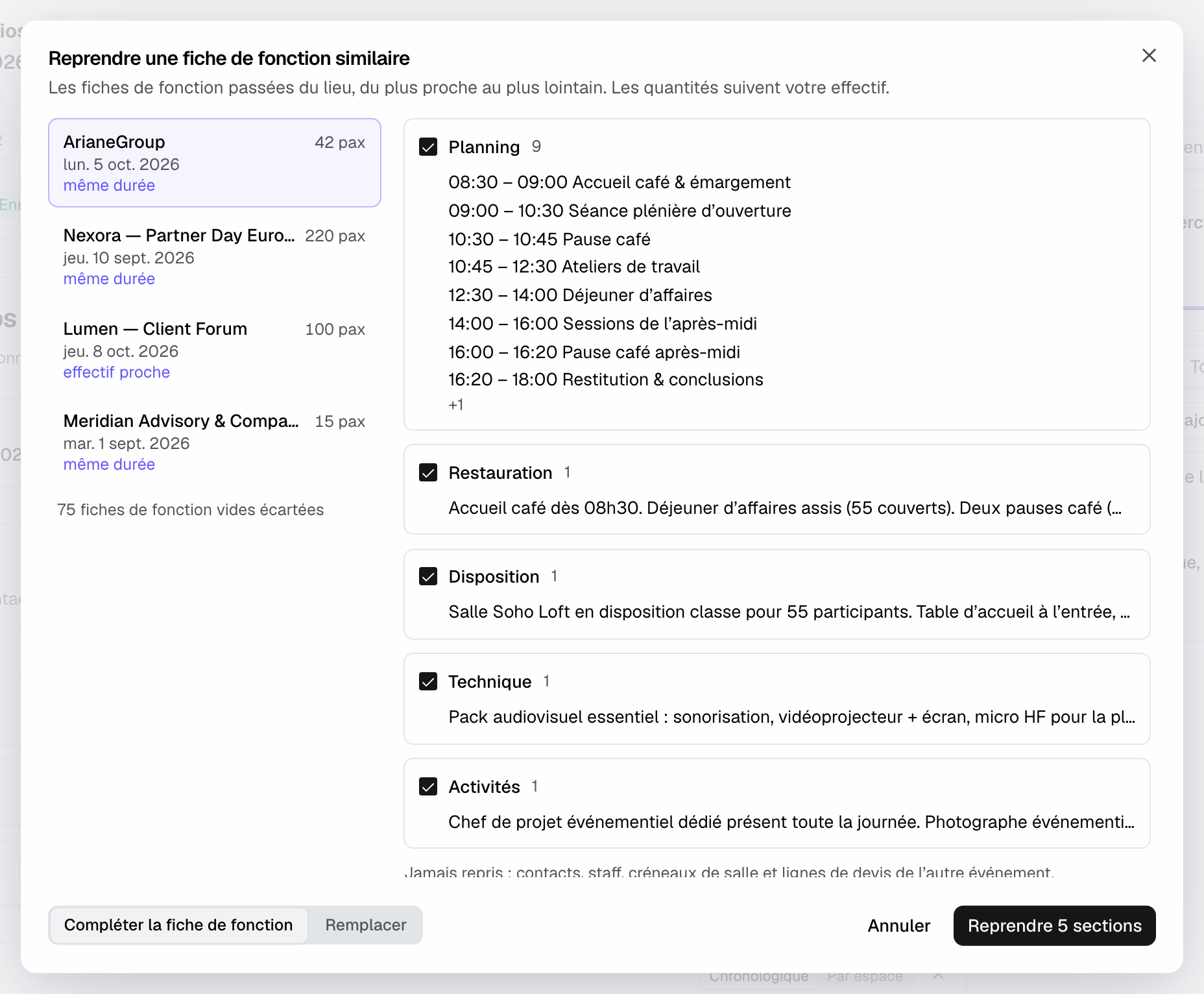
- Pick a BEO in the list on the left.
- Tick the sections to reuse (schedule, catering, setup, technical, activities).
- Choose "Complete the BEO" or "Replace", then click "Reuse N sections".
Quantities are set to your event's headcount, and the old event's "ok" marks and people's names are removed. Contacts, staff, room bookings and proposal lines of the other event are never copied.
4. Other starting points
- "Import another PDF": AI reads a proposal signed outside Joinways, a client's schedule or another BEO, and extracts the schedule and notes.
- "Paste a schedule" (empty schedule): paste text from an email or document; "Convert" turns it into timed lines.
- "Quick templates" (empty schedule): "Arrivals & Departure", "Morning session", "Simple day", "Full day" or "Evening event" lay down a day outline.
What AI carries over and what it leaves out
- Service names: the proposal line's title is kept as written, without quantity or price.
- Options: on a signed, invoiced or paid proposal, or once the client has chosen, declined options are left out. On a proposal that is only accepted, they stay, marked to be confirmed.
- Staffing: each staffing line sold creates a "Pending" need in "Staff", up to 100 lines.
- Prices: never copied into the BEO.
- Included at the venue: equipment the venue provides by default is removed from notes and schedule.
- Dietary requirements: the import adds missing diets and never deletes any, even with "Replace all". Check the duplicates it flags.
- Activities: each activity sold gets its line in "Activities".
- Multiple days: each day gets its lines, and catering can be detailed day by day.
- Vendors: those AI spots appear under "Read in the quote", to add or ignore. A catalog item tied to a vendor adds them with its cost price.
After an amendment, lines carried from the proposal show as changed in the "Proposal" panel: updating them carries the change over without overwriting what the team edited.
Important: AI suggests times based on the source. Treat them as suggestions to check, especially setup times and end of service.
Example: a seminar imported from a platform proposal
An inquiry arrives through a platform with a PDF proposal. In "Enrich", the coordinator picks the document spotted in the emails. AI fills the schedule, places both breaks and lunch, adds three "Pending" needs in "Staff" and removes the projector, which is included at the venue. She fixes the end time, assigns staff and shares the BEO.
Troubleshooting
The "Generate with AI" button is greyed out
Cause: the event has no proposal. Solution: use "Enrich" and import a PDF, or fill the schedule by hand.
The import gives nothing usable
Cause: the PDF is a scanned image that is hard to read. Solution: use the Joinways proposal or a text-based PDF.
A proposal does not appear in "Enrich"
Cause: it is declined, cancelled or superseded by an amendment. Solution: this is intended; use the latest version of the proposal.
The detail level question comes back on every import
Cause: the choice was not saved for the venue. Solution: tick "Save this choice for the venue", or set the level in the venue settings' "AI import" tab.
Frequently asked questions
Does AI send the BEO to the teams?
No. It fills the BEO; shared links show the result once saved. Nothing is emailed without you.
Can I carry over a proposal without AI?
Yes, with the BEO's "Proposal" panel: each line is taken as is, without rewording.
Do prices show in the BEO?
No, the import removes them. Only the venue's "Prices" setting shows line prices, and only to the team.
What does a similar BEO carry over?
The sections you tick, with quantities set to your headcount. Never contacts, staff, room bookings or proposal lines.
See also
Try it on your next inquiries for 30 days, no credit card.