Connect Qonto to invoice from your bank
Issue deposits and balances on your Qonto account from the proposal, track payment and send your vendors' invoices there.
Aggiornato il
With Qonto connected, your deposit and balance invoices are issued on your Qonto account, straight from the proposal. The invoice is created at Qonto in your numbering, in Factur-X format. The client receives it with the IBAN of the collecting account and can also pay by card on the Qonto page. The proposal turns to paid as soon as Qonto sees the payment.
Qonto also receives your vendors' invoices, uploaded from their vendor link.
What you'll learn
- Connect your Qonto organization.
- Pick the collecting account, venue by venue.
- Invoice a proposal through Qonto, and issue a credit note.
- Send your vendors' invoices to Qonto.
- Know the limits specific to Qonto.
Prerequisites
- Be an owner or admin of the Joinways workspace.
- A Qonto account with owner or admin rights on the organization, needed to read the accounts' IBANs.
- A workspace on the Pro plan or in its trial: invoicing starts from a proposal.
1. Connect Qonto
- Open "Settings" > "Integrations", "Invoicing" tab.
- Click the "Qonto" card. The "Connect Qonto" window sums up the three steps.
- Click "Continue to Qonto", sign in and pick the organization to connect.
- Accept every permission requested: reading your accounts and managing your invoices, nothing else.
- You come back to Joinways automatically and "Qonto connected" shows.
Connection tokens are stored encrypted and never shown. Joinways reads neither your balances nor your transactions.
2. Set up the accounts
Click the card's gear to open "Qonto settings".
- "Bank accounts" lists the accounts read from Qonto. "Refresh" reads them again after a change at Qonto.
- "Account that collects by default" is used for every venue without its own account.
- "Account per venue" gives a venue a different account, for example one account per property.
- "Default invoicing channel" sets what is preselected in the invoice window when Stripe is also connected: Qonto, Stripe, or "Ask every time".
3. Invoice a proposal through Qonto
- On an accepted or signed proposal, click "Invoice".
- Under "Issue via", choose Qonto. "Collecting account" shows the IBAN printed on the invoice.
- Issue the deposit, then the balance when the time comes. The balance is issued on Qonto, like the deposit.
Each issued invoice carries a "View on Qonto" link. Payment is tracked on its own: no need to mark the invoice paid by hand.
If a signed amendment brings the total below what was already invoiced, the proposal flags the overbilling: click "Issue a credit note". The credit note is issued at Qonto, on the invoice concerned.
Tip: a venue whose invoices are issued in another software ("Invoicing software", in the venue's "Proposals & invoicing") no longer issues any invoice in Joinways, whatever channel is connected.
Send your vendors' invoices
Your vendors (caterer, DJ, florist) upload their monthly invoice from their vendor link. You then send it to Qonto without downloading it again. The PDF lands in Qonto's supplier invoices.
- Open an event of that month, "BEO" tab, "Vendors" section.
- On the vendor's row, click the "Invoice received" badge, or open the "…" menu, then "Invoicing for the month".
- On the invoice, click "Send to Qonto". The label turns to "Sent to Qonto".
The paid status is read again each time the month is opened: an invoice settled in Qonto shows "Sent to Qonto, paid there". Each invoice goes to each tool only once.
Important: the first time, Qonto does not allow supplier invoices yet, since they are not requested at connection. Click "Allow in Qonto" and accept in Qonto. You need the right to connect Qonto (owner or admin).
Limits to know
- Qonto refuses lines with a negative amount. Remove the line discount or issue this invoice through Stripe.
- For a company client, Qonto requires the SIREN or SIRET. Fill it in the client details before invoicing.
- Cancelling an invoice cancels it at Qonto: it stays in your series, cancelled.
Troubleshooting
"Authorization expired or revoked, reconnect Qonto"
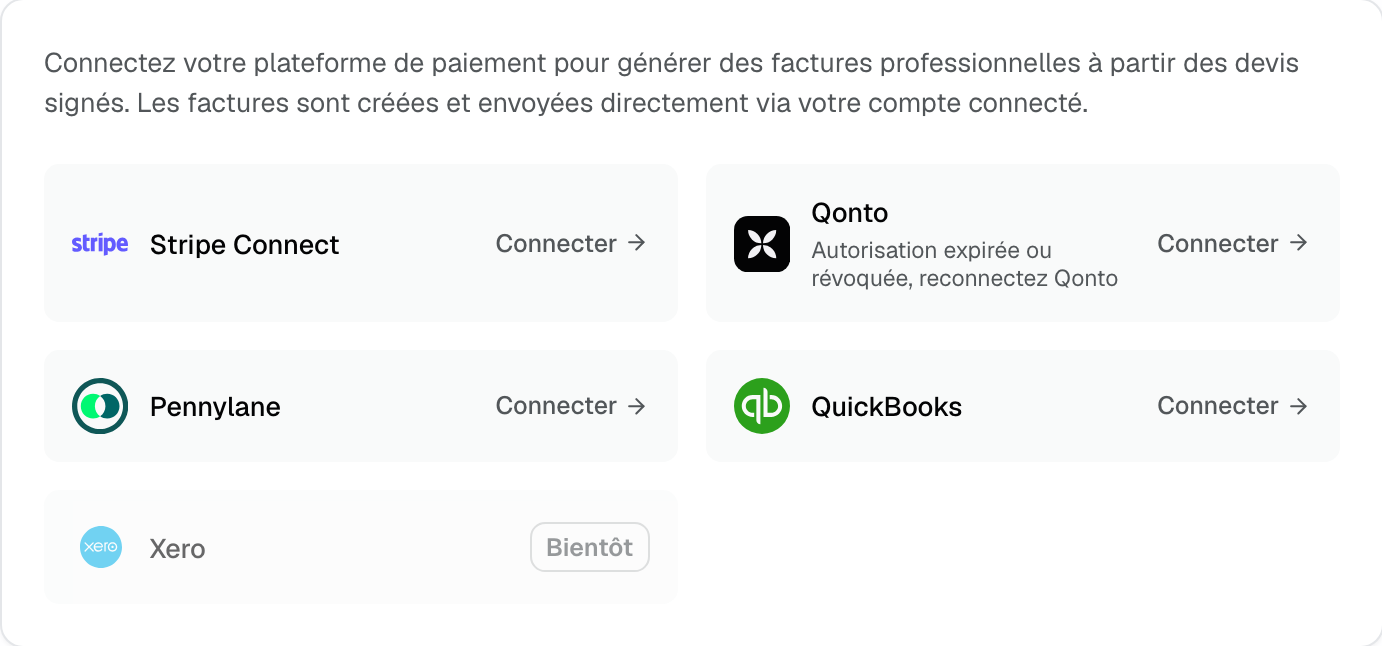
Cause: access was removed at Qonto or could not be renewed. Solution: click the card and reconnect Qonto with the same account.
"Only a workspace owner or admin can connect Qonto."
Cause: your role cannot connect the bank. Solution: ask an owner or admin to make the connection.
"Qonto requires the client company's SIREN or SIRET"
Cause: the client company has no SIRET in Joinways. Solution: fill it in the client details, then try again.
"Qonto rejected the client record"
Cause: the client's record at Qonto is incomplete, often without an address. Joinways sends the proposal's address: check that it is filled in on the proposal. Solution: complete the client's address, then try again.
"The IBAN of the Qonto account could not be read"
Cause: the Qonto account used to connect doesn't have owner or admin rights. Solution: reconnect Qonto with an account that has them.
Real-time updates could not be enabled
Cause: Qonto refused the subscription to payment notifications. Everything else works. Solution: activation is retried at the next reconnection.
Frequently asked questions
Can Joinways make transfers from my account?
No. Joinways reads your accounts and manages your invoices, nothing else. It sees neither your balances nor your transactions.
Can I use a different Qonto account per venue?
Yes, with "Account per venue" in "Qonto settings". Venues without their own account use the default one.
How do I disconnect Qonto?
In "Qonto settings", click "Disconnect". Invoices already issued stay at Qonto.
See also
Provalo sulle tue prossime richieste per 30 giorni, senza carta.