Invoice in the venue's software
Your PMS or accounting software keeps the only numbering: Joinways prepares the lines to type there and records the invoices issued.
Updated
Many hotels invoice everything in their PMS: rooms, restaurant and meetings. A second series of invoices issued elsewhere complicates accounting and audits. The venue wants a single numbering, its software's.
A venue can therefore declare that its invoices are issued in another software. Joinways then issues no invoice for that venue. For each deposit, balance or invoice, it prepares the sheet to type in, with each item's code in your software, then records the invoice issued there: its number, date and payment.
What you'll learn
- Declare a venue's invoicing software.
- Add each item's code in that software.
- Enter an invoice in your software from the sheet Joinways prepares.
- Record the invoice and its payment, and correct a mistake.
Prerequisites
- A role that can edit the venue's "Proposals & invoicing" settings.
- Your invoicing software, whatever it is: a PMS (Opera, Ulyses, Medialog…) or accounting software. No technical connection is needed: entry in the software stays manual, guided by Joinways.
- An accepted or signed quote, to invoice.
1. Declare the invoicing software
- Open "Settings" > "Venues" > the venue > "Proposals & invoicing", identity tab.
- In the "Invoicing software" section, turn on "Invoices are issued in another software".
- Enter the "Software name", for example Opera. It is saved when you leave the field.
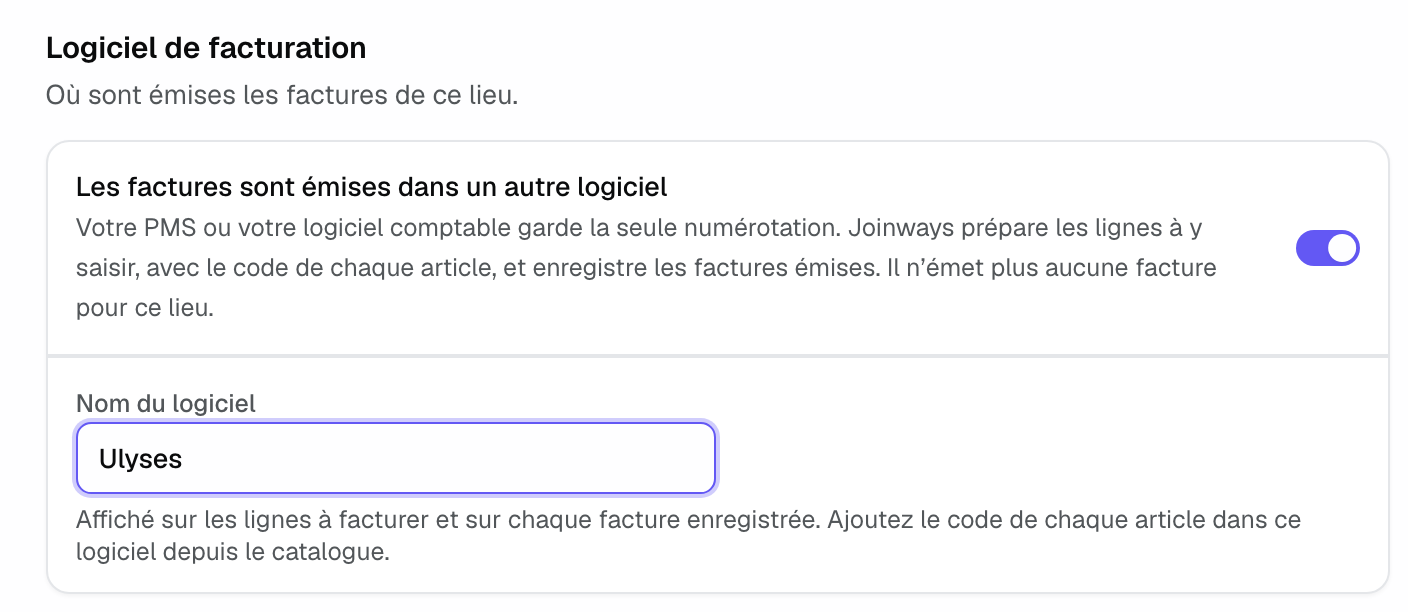
The name shows on the lines to invoice and on each recorded invoice. From then on, Joinways issues no invoice for this venue, on any channel. A quote whose billing has already started on another channel finishes on that channel.
2. Add the item codes
Your software identifies each service by a code. In the venue catalog, open an item: the "Invoicing" section offers a "Code in" field followed by your software's name. This code prints next to the item on the lines to type in. Fill it in once and for all.
3. Enter the invoice in your software
- On the quote, click "Invoice", then the deposit, the balance or the full amount, as for any quote.
- The deposit, balance or invoice window opens: your invoices are issued in your software, type these lines there, then record the number it gives.
- The "To type in" sheet lists the quote lines, day by day: code, "Item", "Qty", "Unit excl.", "Tax" and "Total excl.". A deposit appears as one line per rate, and the balance deducts the deposit already invoiced.
- Copy each line with "Copy line", or the whole table with "Copy all". Quantity × price adds up to the total to the cent.
- Issue the invoice in your software.
If items have no code, a warning says so, with "Open the catalog" to fill them in.
4. Record the invoice and its payment
- Go back to the same window and enter the invoice number from your software and the "Invoice date".
- Click "Record the invoice". A message confirms the invoice is recorded.
The invoice shows in the quote's "Billing" block, with your software's name. It counts in the invoiced amount, the remaining amount and event stages, like an invoice issued by Joinways. When the payment arrives, click "Mark as paid".
5. Correct an invoice
Joinways issues no credit note on this channel: the credit note is issued in your software.
- Invoice recorded by mistake: "Cancel this record" marks it void in Joinways and frees its number. If it was issued, void it in your software too, with a credit note.
- Amendment that lowers the total: issue the credit note in your software, then void here the invoice it corrects and record the new one.
Example: a hotel that invoices in its PMS
A hotel invoices everything in Opera. It declares Opera in its venue settings and adds the Opera code of its rooms and menus in the catalog. A seminar is signed: the manager clicks "Create deposit", copies the lines into Opera, issues the invoice, then enters its number in Joinways. The balance, a month later, deducts the deposit line by line.
Troubleshooting
The number is refused
Cause: this number is already recorded for this venue. Solution: check the number your software gave, each invoice has its own.
The "Code in" field is missing from the catalog
Cause: the venue has no invoicing software declared. Solution: turn on "Invoices are issued in another software" and name the software.
A Joinways invoice is refused for this venue
Cause: the venue invoices in its own software. Solution: record the invoice issued in that software from the same "Invoice" window.
Frequently asked questions
Does Joinways send the invoice to my PMS?
No. Joinways prepares the lines and codes to type in, then records the invoice issued. Entry in the software stays in your hands.
Which software is supported?
Any: you name your software freely. Joinways's PMS integrations (such as Apaleo) handle room availability and rates, not invoicing.
Can I go back to Joinways invoices?
Yes. Turn off the switch in the venue settings. Quotes already invoiced in your software finish their billing there.
See also
Try it on your next inquiries for 30 days, no credit card.