Connect Joinways to Zapier
Link Joinways to 7,000+ apps: your inquiries, events and proposals trigger your Zaps, and your tools create inquiries in Joinways.
Updated
Zapier links Joinways to more than 7,000 apps, with no code. A new inquiry can alert a Slack channel, a new event can fill a Google Sheets row, a Facebook Lead Ads prospect can become a Joinways inquiry.
What you will learn
- Create a Zap from Joinways.
- Know the Joinways triggers and actions.
- Understand the connection and how long it lasts.
Before you start
- A workspace on the Pro plan or in its trial. Authorization is refused on other plans.
- Be an owner or admin to see the "Automation" tab of the integrations.
- A Zapier account.
Create a Zap from Joinways
- Open "Settings" > "Integrations", "Automation" tab.
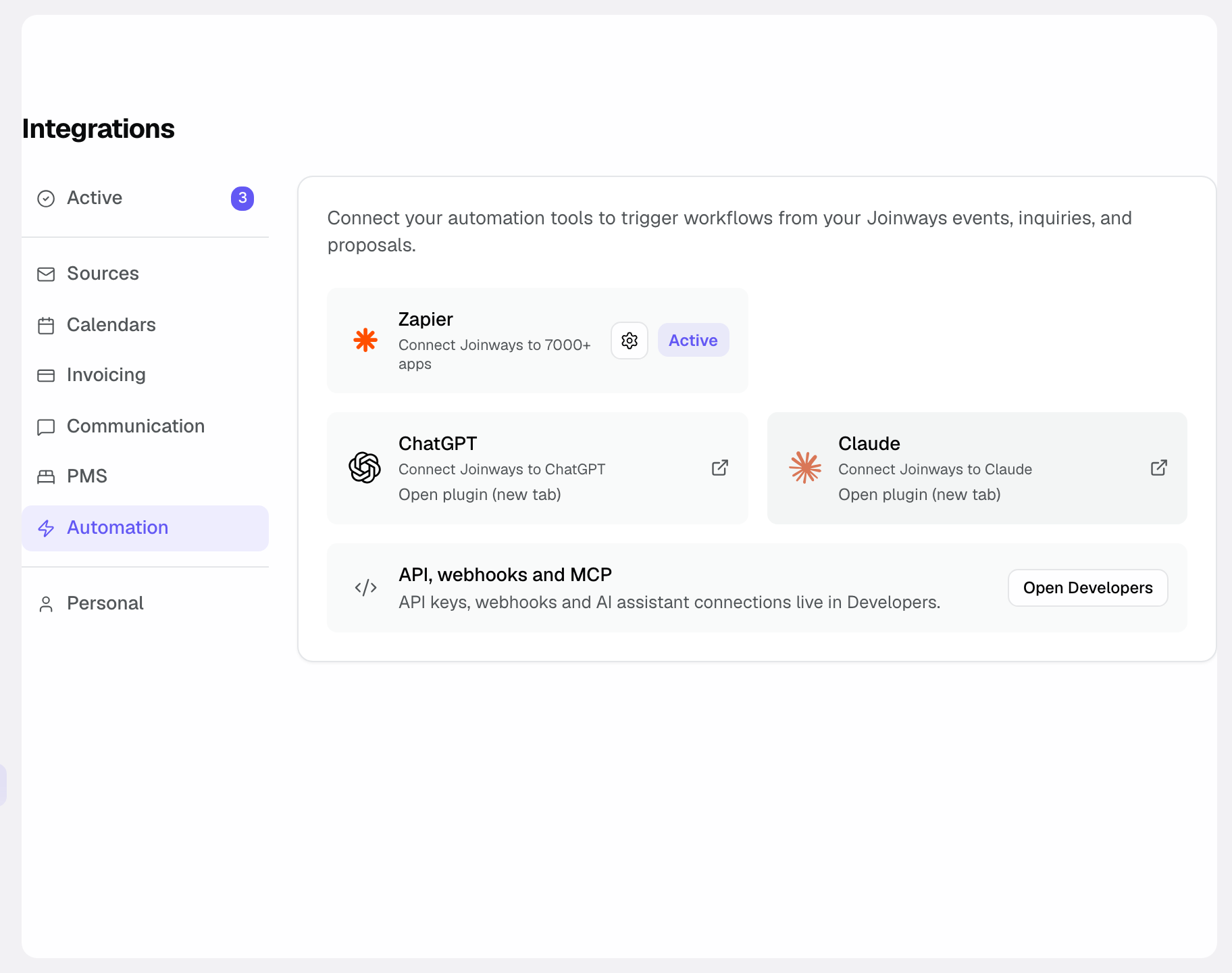
- Click the "Zapier" card. A Zapier window opens inside Joinways.
- Pick a template or build your Zap, then connect your Joinways account when Zapier asks.
- In the Joinways window, pick the "Workspace to connect", review the permissions, then click "Approve and connect".
- Finish and turn on the Zap in Zapier.
You can also start from zapier.com, by searching for the Joinways app: the connection flow is the same.
The "Zapier" card shows "Active" as soon as at least one active Zap uses a Joinways trigger.
Triggers
In Zapier, the names are in English:
- New Lead: a new inquiry arrives in "Inquiries".
- Event Created: an event is created.
- Event Status Changed: an event changes status.
- Quote Status Changed: a proposal changes status, signature included.
Triggers are instant: Joinways notifies Zapier as soon as the change happens.
Actions
- Create Lead: creates an inquiry in "Inquiries".
- Create Event: creates an event.
- Create Contact: creates a person.
- Create Company: creates a company.
- Update Event Status: changes the status of an existing event.
Examples
- New Lead to Slack: every new inquiry is posted in the sales team's channel.
- Event Created to Google Sheets: every event adds a row to your tracking sheet.
- Facebook Lead Ads to Create Lead: a prospect from your ads lands straight in "Inquiries".
The connection and how long it lasts
Zapier accesses the chosen workspace with your rights, through an authorization, with no key to copy. The authorization lasts 30 days. When it expires, Zapier asks you to reconnect your Joinways account.
The subscriptions your Zaps create show up in "Settings" > "Developers", "Webhooks" tab, with the "Zapier" source. Turning a Zap off in Zapier stops the calls.
Troubleshooting
Authorization is refused
Cause: the chosen workspace is not on the Pro plan or in its trial. Fix: upgrade to Pro, or pick another workspace.
The Zap no longer triggers
Cause: the Zap was turned off, or the Joinways connection expired. Fix: check the Zap in Zapier and reconnect your Joinways account if Zapier asks.
The Zapier window does not load
Cause: your browser blocks Zapier's embedded content. Fix: use the "Open on Zapier" link, or start from zapier.com.
See also
Bring every event inquiry into one queue.