REST API: create and manage your keys
Create API keys to connect Joinways to your scripts and tools through the REST API, then rename or revoke them from Developers.
Updated
Your website shows your availability, your accountant wants the signed quotes, a script must create inquiries from a custom form. In each case a tool has to talk to Joinways without going through the screen.
The Joinways REST API does exactly that. Each request carries an API key, created in "Settings" > "Developers". The key acts in your workspace with the role permissions of the member who created it.
What you'll learn
- Create a key and choose its expiration.
- Send a first request to the API.
- Know what the API covers and its rate limits.
- Rotate, rename and revoke a key.
Prerequisites
- The "Owner" or "Admin" role: only they see the "Developers" page.
- The Pro plan or the free trial. On other plans, the "Developers" page offers to upgrade, and API calls are refused.
- A safe place to keep the key: a secrets manager, or the server-side environment variables of your tool.
Tip: to connect an AI assistant (Claude, ChatGPT, Cursor), you don't need a key. Paste the MCP server URL and approve the connection: see Connect Joinways to Claude (MCP).
1. Create a key
- Open "Settings" > "Developers". The "API keys" tab opens by default.
- Click "New key".
- In "Key name", describe the use, for example "Website" or "Accounting".
- In "Expiration", choose "Never expires", "30 days", "90 days" or "1 year".
- Click "Create key".
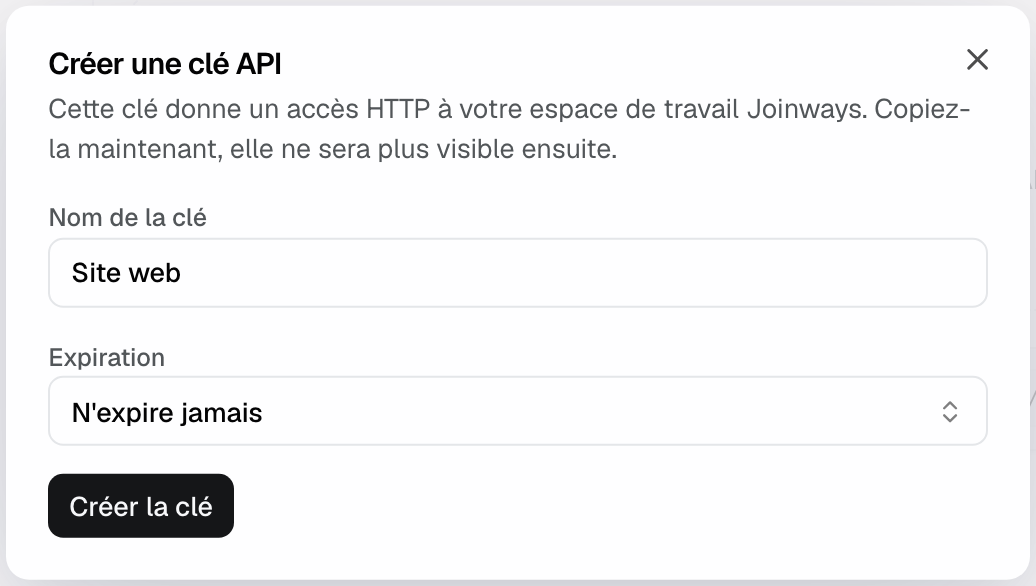
The key shows under "Your API key (copy it now):". Copy it right away: Joinways only keeps its fingerprint and can never show it again.
Important: a lost key cannot be recovered. Revoke it and create a new one.
The "Your API keys" list shows each key's name, prefix (jw_ followed by 8 characters), creation date, last use and expiration. An expired key carries the "Expired" badge. At the bottom of the card, "API base URL" shows the address to call.
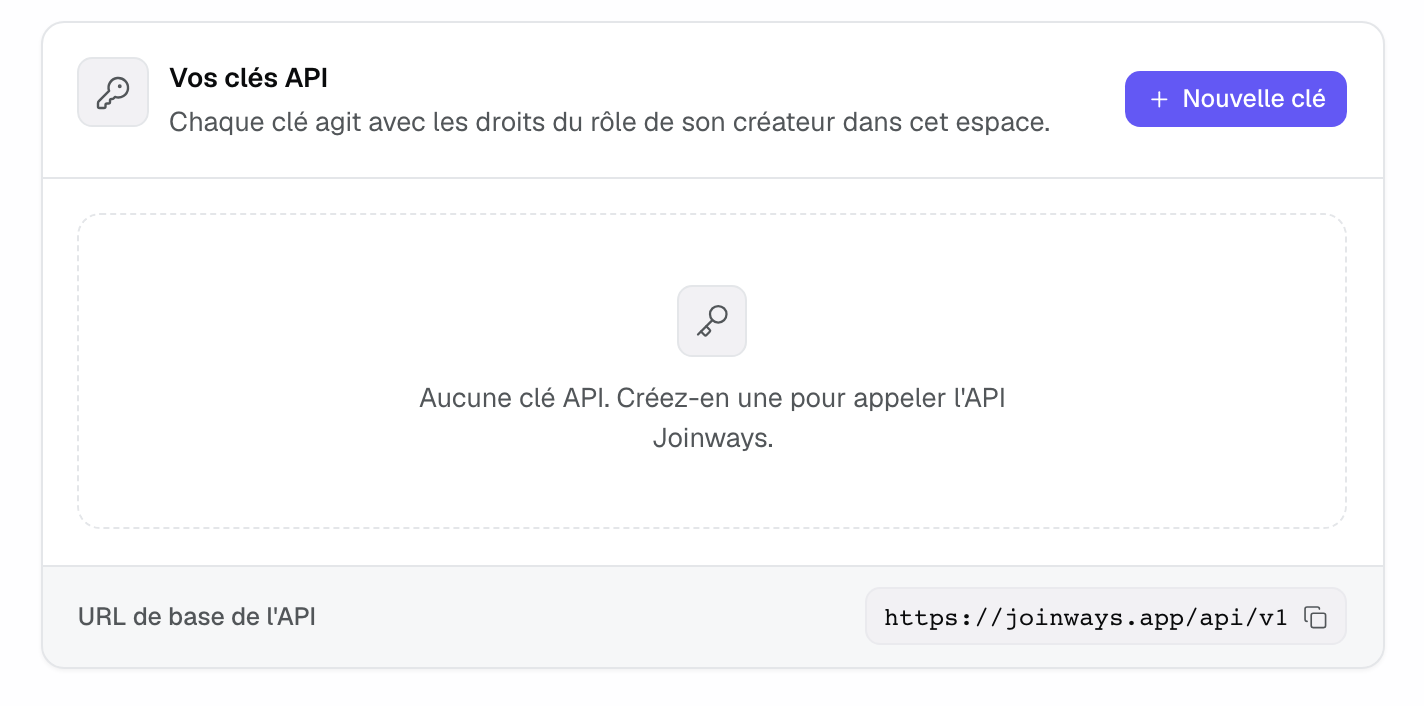
A workspace holds at most 10 active keys. Beyond that, the message "Limit of 10 keys reached. Revoke one to create a new one." appears.
2. Send a first request
Every address starts with https://joinways.app/api/v1. Add the key in the Authorization header, as Bearer jw_…:
curl https://joinways.app/api/v1/events -H "Authorization: Bearer jw_your_key"
The API answers in JSON. Lists are paginated with page and per_page (50 by default, 500 at most). The full reference, with every route, its fields and examples, is at joinways.app/docs/api, also reachable from the "API documentation" link at the top of the "Developers" page. The OpenAPI specification is at joinways.app/openapi.yaml.
3. What the API covers
- Events: list, detail, creation, update, status and stage, archive and restore, days, space slots, staff, contacts, notes, tasks, files, emails, BEO and its PDF, signed quote import.
- Hours per day: a multi-day event can have different hours each day, through the
day_hoursfield. It isnullwhen every day has the same hours. - Inquiries: list, detail, creation, status, requested spaces, conversion to an event, link to an existing event, merge of two inquiries.
- Quotes: list, detail with its lines, creation, duplication, cancellation, PDF, status, lines added, updated or reordered. A quote that came from a platform also returns the lines read from its PDF (
document_lines), read-only. - Catalog and packages: catalog items, and bundled packages created or updated through their composition (
is_package,components). On a quote, a package is added as a single line. - Companies, people and tasks, with company notes and search.
- Venues: spaces, opening hours, closures, public holidays, availability and conflicts over a period.
- Analytics: overview, inquiries, responsiveness, commercial, accounting and event metrics.
- Webhooks, global search, notifications and team members.
Every route applies the app's rules. An archived event is read-only, a signed quote can no longer change, and a role without access to inquiries or quotes gets a 403 error on those routes.
4. What a key can do
A key carries the read and write permissions of its creator's role, as they are today. If an admin is moved back to member, their keys lose the matching permissions at once. If they leave the workspace, their keys stop working.
There is no read-only key. A key created to show availability can, technically, change a quote. Protection is therefore operational: one key per tool, an expiration when possible, and revocation at the slightest doubt.
5. Rate limits and retries
- Pro plan: 600 requests per minute and 100,000 per day for the workspace.
- Free trial: 200 requests per minute and 5,000 per day.
- Per IP address: 300 requests per minute, before authentication.
- Sending emails: 20 per minute for the workspace.
Every response carries the X-RateLimit-Limit, X-RateLimit-Remaining and X-RateLimit-Reset headers. Past a limit, the API answers 429 with a Retry-After header in seconds.
To replay a write without risk of duplicates, after a network cut for example, send an Idempotency-Key header with a unique value. For 24 hours, the same request with the same value returns the first response without running the action again.
6. Rotate, rename or revoke a key
To replace a key without downtime:
- Create a new key.
- Deploy it in your tool and check that it works.
- Revoke the old one.
To revoke a key, click the trash icon next to it. The "Revoke the key “Website”?" window reminds you that integrations using it stop working right away. Confirm with "Revoke the key". The key leaves the list.
The pencil icon renames a key without changing its value. Every creation, rename and revocation is recorded in an audit log.
Example: a wedding estate's availability on its website
A wedding estate wants to show its free dates on its website. It creates a "Website" key with a one-year expiration and keeps it server-side, never in the page's JavaScript. The site calls GET /api/v1/venues/{venueId}/conflicts over the next three months: the answer lists the events that already occupy the venue, taking into account combined spaces, setup and teardown times, closures and closed days. The site greys out those dates. In a year, the team creates a new key before revoking the old one.
Troubleshooting
The API answers 401
Cause: the key is missing, miscopied, expired or revoked, or its creator left the workspace. Solution: check the Authorization: Bearer jw_… header, then the key's state in "Developers". If needed, create a new key from an active account.
The API answers 403
Cause: the workspace no longer has the Pro plan or the trial (plan_not_eligible), or the role of the key's creator does not allow the action. An "Operations" role reads neither inquiries nor quotes, a "Read-only" role writes nothing. Solution: check the plan and the role in "Settings" > "Teammates", or create the key from an owner or admin account.
The API answers 404 on an id that exists
Cause: the record belongs to another workspace, or to a venue the key's creator cannot see. Solution: check the id and the venues assigned to that teammate.
The API answers 409
Cause: the state of the record refuses the action, for example an archived event or a signed quote. The error.details.reason field gives the reason (event_archived, quote_locked…). Solution: read that reason, for example restore the event with POST /api/v1/events/{id}/unarchive before editing it.
The API answers 429
Cause: a rate limit is reached. Solution: wait for the duration given by Retry-After, then space out or batch your calls.
Frequently asked questions
Can I create a read-only key?
No. A key carries its creator's role permissions. To limit the reach of a leak, create one key per tool and revoke it as soon as it is no longer used.
Does the mobile app use this API?
No. The mobile app goes through an internal interface, reserved for the app and undocumented. Only the /api/v1 API is public, stable and described in the reference.
Does a key give access to other workspaces?
No. A key only acts in the workspace where it was created. An id from another workspace answers 404.
What happens to a key when its creator leaves the workspace?
It stops working. Create keys for long-lived integrations from an account that will stay.
See also
Try it on your next inquiries for 30 days, no credit card.